Clients Management

Organizational Structure

This comprehensive management interface allows you to view, organize and manage all your clients in the system.

1️⃣ 🏷️ Page Overview

The Clients module is your centralized system for managing clients and their information. It serves as the foundational level in your organizational hierarchy:

Clients → Branches → Projects

Top Action Bar

Permission-Based Interface

The interface adapts to show only the tools you have permission to use.

  • Add A Client → Create new clients
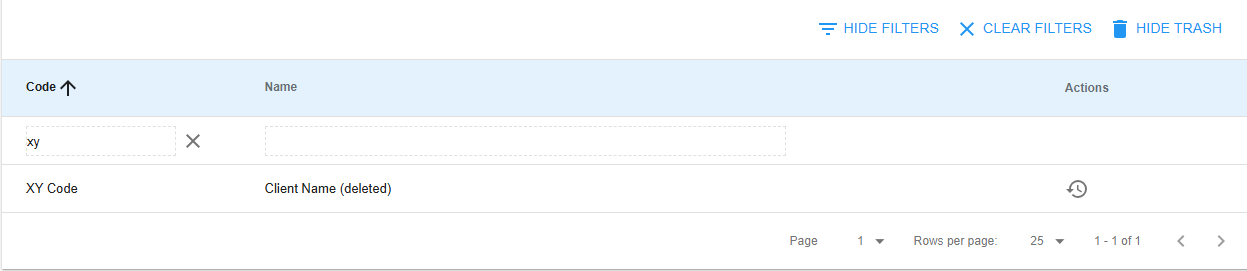
  • Hide Filters → Show/hide search filters
  • Show Trash → View deleted clients

Client Listing & Navigation

  • Client Code: A unique identifier of the client
  • Client Name: The complete name of the client
  • Edit/Delete: Edit or delete a client record

Clicking on any client row, the system automatically navigates you to the Branches page with the client filter applied automatically. This enables you to manage the specific client's associated branches.

Sorting

Smart Organization

Click any column header to sort - the system remembers your preferences!

Sorting Features:

  • Visual indicators → Current sort direction (⬆️ ascending/⬇️ descending)
  • Preference memory → Maintains sort as you navigate and filter
  • Efficient organization → Perfect for large client lists

Advanced Filtering Capabilities

Real-Time Search Power

When filters are enabled, input fields appear below each column header for instant searching.

Filter Types Available

Filter TypeBest ForFeatures
Client Code FilteringKnown abbreviations/referencesPartial matches, instant updates
Client Name FilteringOrganization name searchesFlexible partial matching
Filter States

Active filters are highlighted in blue to easily notice that you are currently filtering your data!

2️⃣ 🔐 Access & Permissions

Permission-Based Action System

Smart Security

The system intelligently shows different action buttons based on your role and the current view mode.

Action Buttons by View Mode

View ModeAvailable ActionsButton IconsFunction
Normal (Default) ViewEdit, Delete✏️ 🗑️Modify or archive active clients
Trash ViewRestoreRecover deleted clients (only available when enabling the Show Trash page)

Context-Sensitive Permissions

Role-Based Interface
Permission System:
├── Role Detection
│ └── Shows only authorized actions
├── Security Layer
│ └── Prevents unauthorized modifications
├── User-Specific Views
│ └── Different options per user role
└── Accident Prevention
└── No buttons = no accidental changes

💡 Smart Design: If you don't see a button, you don't have permission for that action - contact your administrator for additional access.

3️⃣ 🧭 Page Layout & Navigation

Seamless Navigation

  • Click Navigation: Click any client row (except deleted) to navigate directly to their branches
  • Hierarchy Integration: Integrates smoothly with the organizational hierarchy
  • Context Maintenance: Maintains context as you drill down through the system
  • Visual Distinction: Deleted clients are visually distinct and non-clickable

Pagination and Data Management

Flexible Controls

Located at the bottom of the table for easy data navigation.

ControlOptionsPurpose
Items Per Page25, 50, or 100 clientsCustomize view density
Page NavigationPrevious/Next pagesBrowse through client data
Total Count DisplayCurrent position & totalContext awareness
Intelligent DefaultsStarts with 25 itemsOptimal performance

4️⃣ 🧾 Record Management

Adding New Clients

Streamlined Process

Simple, guided workflow for quick client creation.

StepFieldRequirementPurpose
1Click "Add A Client"Button accessOpens creation dialog
2Client CodeRequiredShort, unique identifier
3Client NameRequiredFull organization name
4SaveOne-clickImmediate feedback
Field Guidelines

Client Code: Should be memorable and meaningful to your organization (used for quick reference and system integration) Client Name: Primary display name throughout the entire system

Quality Features:

  • Real-time validation → Clear error messages (see below for more information)
  • Instant feedback → Immediate save confirmation

Editing Existing Clients

Quick Modifications

Efficient workflow for updating client information.

Modification Process:

  1. Click edit icon ✏️ → Next to the client to be edited
  2. Pre-populated form → All current information loaded
  3. Same validation rules → Consistent experience
  4. Instant updates → Changes reflect system-wide immediately

Client Archival and Recovery

Safe Deletion Process

Soft Delete Protection

Clients are archived, not permanently removed - ensuring data safety and recovery options.

  • Soft Delete: Clients are archived, not permanently removed
  • Relationship Preservation: Associated branches and projects remain intact
  • Quick Recovery: Easily restore clients if deleted accidentally
  • Administrative Control: Only authorized users can delete or restore

Trash Management

  • Separate View: Toggle to trash view to see archived clients
  • Visual Distinction: Deleted clients are clearly marked and non-interactive
  • Bulk Operations: Efficient management of multiple archived items
  • Data Integrity: Ensures no accidental data loss

5️⃣ 🚫 Error Messages & System Feedback

Common Error Types

Authentication Errors

  • Log In: You need to log in to perform this action
  • Solution: Log in with appropriate credentials

Permission Errors

  • Access Denied: You don't have the required permissions
  • Solution: Contact your administrator to request proper permissions for adding, editing, deleting or restoring clients

Validation Errors

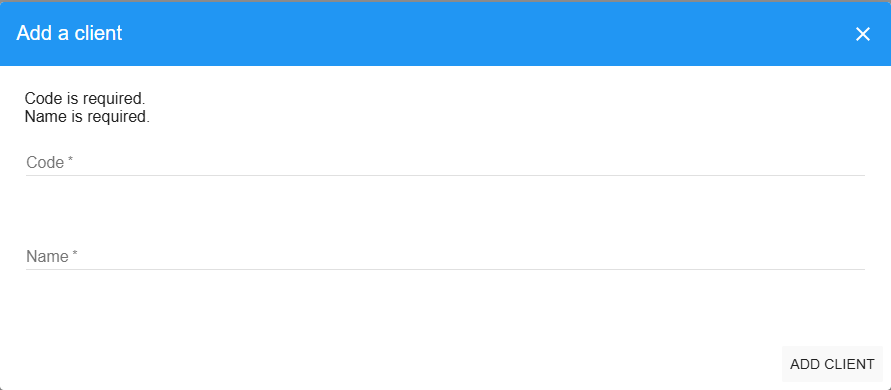
  • Field Required: Displayed when required fields are empty
  • Format Errors: Shown when data doesn't meet expected format
  • Solution: Correct the highlighted fields and resubmit

Network/Server Errors

  • Connection Issues: Toast notifications appear for network problems
  • Server Errors: Full error details displayed in forms
  • Solution: Check connection, refresh page, or contact support

Error Locations

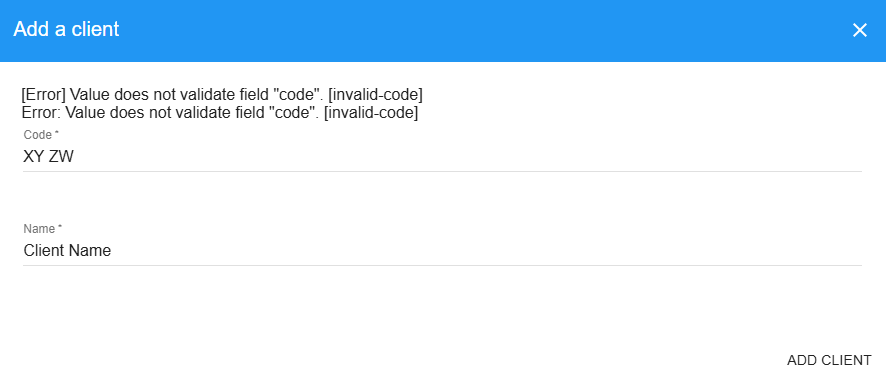
  • Form Errors: Appear above input fields in add/edit modals
  • Toast Notifications: Appear in bottom-right corner for delete/restore operations
  • Subscription Errors: Displayed in main table area if data loading fails

6️⃣ 👤 System Role Hierarchy

System Roles (Global Access)

RoleAccess LevelAccess DescriptionDetails
Super AdminHighest level access - can perform all operationsFull access to clients management including add, edit, delete, restoreAccess to all system features and administrative functions
AdminHigh level system access - inherits most Super Admin permissionsFull access to clients managementCan manage system-wide settings and users
User AdminUser management focused** - can manage users and their rolesFull access to clients managementFocused on user administration tasks
Team AdminTeam-level administration** - manages team-related functionsFull access to clients managementCan manage teams and team members

Project Roles (Project-Specific Access)

RoleAccess LevelAccess DescriptionDetails
Area ManagerProject area oversight - manages specific project areasCan view clients and navigate to branchesLimited administrative capabilities
Team ManagerTeam leadership within projects - manages project teamsCan view clients and navigate to branchesTeam-focused project management
EmployeeStandard project access - basic project participationCan view clients and navigate to branchesStandard operational access
External AuditorAudit-specific access - external auditing capabilitiesLimited view access to clientsSpecialized audit functions

Role Inheritance Logic

  • Higher roles inherit lower role permissions
  • System roles have broader access than project roles
  • Project roles are scoped to specific projects
  • Users can have multiple roles at different scopes (system + project)

Role Assignment Examples

  • A Super Admin can manage all clients across the entire system
  • A Team Admin can manage clients for their assigned teams
  • An Area Manager can view clients but cannot add/edit/delete them
  • An Employee has basic view access to navigate to client branches
Foundational Excellence

The Clients module serves as the foundational layer that makes the entire project management system organized, scalable, and easy to navigate, ensuring that every piece of work can be clearly traced back to the client organization it serves.

🚀 Ready to Manage Your Clients?

Next Steps: Start by creating your primary clients, then add their branches and begin organizing projects within this structured hierarchy!

VERSION 2


📋 Table of Contents

  1. Overview
  2. Page Layout
  3. Features
  4. Client Operations
  5. Filtering & Searching
  6. Permissions
  7. Configuration
  8. Best Practices
  9. Troubleshooting
  10. FAQ

📋 Overview

What is the Clients Page?

The Clients Page is the top-level management interface in the Stripes organizational hierarchy. Clients represent the highest organizational unit, containing branches, projects, and all associated data.

Purpose

  • Client Management: Create, edit, and organize client records
  • Hierarchy Navigation: Entry point to the organizational structure
  • Data Organization: Group branches and projects under client umbrellas
  • Settings Inheritance: Client-level settings cascade to branches and projects

Organizational Hierarchy

Clients (Top Level)
└─ Branches
└─ Projects
└─ Zones
└─ Scans

Key Concepts

Client:

  • Represents a customer, organization, or business unit
  • Contains one or more branches
  • Has unique code and name identifiers
  • Supports client-level configuration settings

Client States:

  • Active: Normal operational state
  • Deleted: Soft-deleted, moved to trash view

Navigation:

  • Click any client row to view its branches
  • Drill down through hierarchy: Clients → Branches → Projects

📊 Page Layout

Toolbar → Clients

Page Structure

┌─────────────────────────────────────────────────────┐
│ Clients Page │
│ │
│ ┌──────────────────────────────────────────────┐ │
│ │ Toolbar │ │
│ │ [+ Add Client] [Filter] [Clear] [Trash] │ │
│ └──────────────────────────────────────────────┘ │
│ │
│ ┌──────────────────────────────────────────────┐ │
│ │ Filter Row (Toggle Visibility) │ │
│ │ Code: [______] [X] Name: [______] [X] │ │
│ └──────────────────────────────────────────────┘ │
│ │
│ ┌──────────────────────────────────────────────┐ │
│ │ Code │ Name │ Actions │ │
│ ├─────────┼─────────────────────┼──────────────┤ │
│ │ CL001 │ Acme Corporation │ [Edit][Del] │ │
│ │ CL002 │ Global Industries │ [Edit][Del] │ │
│ │ CL003 │ Tech Solutions Inc │ [Edit][Del] │ │
│ │ ... │ ... │ ... │ │
│ └──────────────────────────────────────────────┘ │
│ │
│ Pagination: [25 per page] [< 1 2 3 >] │
└─────────────────────────────────────────────────────┘

🎯 Features

1. Client List View

The main list displays all clients with sortable columns.

Columns:

  • Code: Client identifier code (optional, sortable)
  • Name: Client name (required, sortable)
  • Actions: Edit, Remove, or Restore buttons

Table Features:

  • Click any row to navigate to client's branches
  • Sortable columns (click header to sort ascending/descending)
  • Pagination controls (25, 50, or 100 items per page)
  • Loading spinner during data fetch
  • Error messages display if subscription fails

Row Click Behavior:

  • Click on active client → Navigate to Branches page filtered by that client
  • Deleted clients (in trash view) → Row click disabled

2. Toolbar Actions

Add Client Button

  • Location: Top-left of toolbar
  • Label: "+ Add a client"
  • Permission: Requires clients.insert permission
  • Action: Opens dialog to create new client

Filter Toggle Button

  • Icon: Filter list icon
  • Label: "Filter" / "Hide Filter"
  • Action: Shows/hides filter row below headers
  • State: Toggles filter visibility
  • Visual: Filter row highlighted when active filters applied

Clear All Filters Button

  • Icon: Clear icon
  • Label: "Clear all filters"
  • Visibility: Only shown when filters are active
  • Action: Resets all filters and pagination to defaults

Trash View Button

  • Icon: Delete icon
  • Label: "Show deleted items" / "Hide deleted items"
  • Permission: Requires clients.remove permission
  • Disabled: When no deleted clients exist
  • Action: Toggles between active and deleted clients view

3. Filter Row

When filter view is enabled, a filter row appears below column headers.

Filter Fields:

Code Filter:

  • Type: Text input
  • Behavior: Filters clients by code (partial match, case-insensitive)
  • Update Trigger: On change or blur
  • Reset Button: X button to clear individual filter

Name Filter:

  • Type: Text input
  • Behavior: Filters clients by name (partial match, case-insensitive)
  • Update Trigger: On change or blur
  • Reset Button: X button to clear individual filter

Filter Behavior:

  • Filters apply immediately on change
  • Multiple filters combine with AND logic
  • Results update in real-time
  • Pagination resets to page 1 when filters change
  • Filter state persisted to URL and session storage

4. Pagination

Bottom pagination bar controls page size and navigation.

Options:

  • Rows per page: 25, 50, or 100 items
  • Page selector: Dropdown to jump to specific page
  • Previous/Next: Arrow buttons to navigate
  • Total count: Shows total matching clients

Behavior:

  • State persisted to URL and session storage
  • Resets to page 1 when filters change
  • Maintains selection across filter changes
  • Shows "of X" total count

🔧 Client Operations

1. Add Client

Steps:

  1. Click "+ Add a client" button in toolbar
  2. Dialog opens with form fields
  3. Fill in required information:
    • Code (optional): Client identifier code
    • Name (required): Client display name
  4. Click "Add client" button
  5. Dialog closes, new client appears in list

Validation:

  • Name: Required field
  • Code: Optional, but must match SchemaValidationsConfig pattern if configured
  • Duplicate codes are allowed (no uniqueness constraint)

Permissions Required:

  • clients.insert permission

Example:

Code: CL001
Name: Acme Corporation

After Creation:

  • New client appears in list
  • Click client row to add branches
  • Configure client-level settings in Settings page

2. Edit Client

Steps:

  1. Locate client in list
  2. Click Edit button (pencil icon) in Actions column
  3. Dialog opens with current values pre-filled
  4. Modify fields:
    • Code: Update or leave unchanged
    • Name: Update client name
  5. Click "Update client" button
  6. Dialog closes, changes reflected immediately

Validation:

  • Name: Required field
  • Code: Must match SchemaValidationsConfig pattern if configured
  • Empty code field clears the code value

Permissions Required:

  • clients.update permission

Notes:

  • Cannot edit deleted clients (must restore first)
  • Changes update immediately in UI
  • If code is left blank, code field is removed from client

3. Remove Client (Delete)

Steps:

  1. Locate client in list
  2. Click Remove button (trash icon) in Actions column
  3. Confirmation dialog appears:
    • Title: "Delete client"
    • Message: "Are you sure you want to delete this client?"
    • Options: "Yes" or "Cancel"
  4. Click "Yes" to confirm
  5. Client moves to deleted state (soft delete)

Permissions Required:

  • clients.remove permission

Important Notes:

  • Soft Delete: Client not permanently removed, just marked as deleted
  • Cascading Behavior: Cannot delete client with active (non-deleted) branches
  • Blocker Error: "blocked-branches-not-deleted" if active branches exist
  • Requirements: All branches must be deleted first
  • Trash View: Deleted clients appear in trash view only

Pre-Delete Checklist:

  1. Delete or archive all active branches under this client
  2. Verify no active branches remain
  3. Then delete the client

4. Restore Client

Steps:

  1. Enable Trash View (click trash button in toolbar)
  2. Locate deleted client in list
  3. Click Restore button (restore icon) in Actions column
  4. Client immediately restored to active state
  5. Client reappears in normal view

Permissions Required:

  • clients.restore permission

Notes:

  • Restoring a client does NOT restore its branches
  • Branches remain deleted and must be restored individually
  • Can only restore client if its parent hierarchy is valid
  • Cannot restore branches under deleted clients

🔍 Filtering & Searching

Filter Capabilities

Text Matching:

  • Code Filter: Partial match, case-insensitive
    • Example: "CL" matches "CL001", "CL002", "Client"
  • Name Filter: Partial match, case-insensitive
    • Example: "corp" matches "Corporation", "Corporate", "Acme Corp"

Filter Combinations:

  • Multiple filters use AND logic
  • Example: Code="CL" + Name="Acme" → Must match both

Filter Persistence:

  • Filters saved to session storage
  • Filters encoded in URL parameters
  • State restored on page reload or navigation back

Sorting

Sortable Columns:

  • Code: Alphabetical (A-Z or Z-A)
  • Name: Alphabetical (A-Z or Z-A)

How to Sort:

  1. Click column header
  2. First click: Ascending order
  3. Second click: Descending order (shows "-" prefix in URL)
  4. Sort state persists to URL and session

Default Sort:

  • Default: Code (ascending)

URL Parameters

Filters and pagination state encoded in URL for bookmarking and sharing.

Example URL:

/clients?code=CL&name=Corp&queryLimit=50&queryPage=2&queryOrder=-name&trashView=false

Parameters:

  • code: Code filter value
  • name: Name filter value
  • queryLimit: Items per page (25, 50, 100)
  • queryPage: Current page number
  • queryOrder: Sort field (prefix "-" for descending)
  • trashView: "true" for trash view, omitted for normal view

Session Storage

Filter state also saved to browser session storage for consistency.

Storage Key: clientsListFilters

Stored Data:

{
"code": "CL",
"name": "Corp",
"queryLimit": 50,
"queryPage": 2,
"queryOrder": "-name",
"trashView": false
}

Behavior:

  • State restored on page load if no URL parameters
  • Cleared when "Clear all filters" clicked
  • Persists across tabs in same session

🔐 Permissions

Permission Matrix

View Clients

  • System Admin: ✅ Yes
  • Area Manager: ✅ Yes
  • Team Manager: ✅ Yes
  • Employee: ✅ Yes
  • Observer: ✅ Yes

Add Client (clients.insert)

  • System Admin: ✅ Yes
  • Area Manager: ✅ Yes
  • Team Manager: ❌ No
  • Employee: ❌ No
  • Observer: ❌ No

Edit Client (clients.update)

  • System Admin: ✅ Yes
  • Area Manager: ✅ Yes
  • Team Manager: ❌ No
  • Employee: ❌ No
  • Observer: ❌ No

Remove Client (clients.remove)

  • System Admin: ✅ Yes
  • Area Manager: ✅ Yes
  • Team Manager: ❌ No
  • Employee: ❌ No
  • Observer: ❌ No

Restore Client (clients.restore)

  • System Admin: ✅ Yes
  • Area Manager: ✅ Yes
  • Team Manager: ❌ No
  • Employee: ❌ No
  • Observer: ❌ No

View Trash

  • System Admin: ✅ Yes
  • Area Manager: ✅ Yes
  • Team Manager: ❌ No
  • Employee: ❌ No
  • Observer: ❌ No

Configure Settings

  • System Admin: ✅ Yes
  • Area Manager: ✅ Yes*
  • Team Manager: ❌ No
  • Employee: ❌ No
  • Observer: ❌ No

*Area Managers can configure client-level settings


Permission Details

clients.insert

  • Who: System Admin, Area Manager
  • What: Create new clients
  • UI: "Add a client" button visible

clients.update

  • Who: System Admin, Area Manager
  • What: Edit existing clients
  • UI: Edit button visible in Actions column

clients.remove

  • Who: System Admin, Area Manager
  • What: Delete clients (soft delete)
  • UI: Remove button visible, trash view button visible

clients.restore

  • Who: System Admin, Area Manager
  • What: Restore deleted clients
  • UI: Restore button visible in trash view

⚙️ Configuration

SchemaValidationsConfig Setting

Location: Settings → Stripes Core → Schema Validations Config

Purpose: Define validation patterns for client code field

Format: JSON object

Structure:

{
"Client": {
"code": "^CL"
}
}

Properties:

Client.code:

  • Type: Regular expression pattern (string)
  • Purpose: Validate client code format
  • Behavior:
    • If set, code must match regex pattern
    • If empty or not set, no validation applied
    • Validation runs on insert and update operations

Example Patterns:

Require "CL" prefix:

{
"Client": {
"code": "^CL"
}
}
  • Valid: "CL001", "CLIENT", "CL-123"
  • Invalid: "BR001", "client", "123"

Require uppercase letters and numbers only:

{
"Client": {
"code": "^[A-Z0-9]+$"
}
}
  • Valid: "CLIENT1", "ABC123", "CL001"
  • Invalid: "client", "CL-001", "CL 001"

Require specific format (CL + 3 digits):

{
"Client": {
"code": "^CL\\d{3}$"
}
}
  • Valid: "CL001", "CL123", "CL999"
  • Invalid: "CL1", "CL1234", "CLIENT"

No validation (empty string):

{
"Client": {
"code": ""
}
}
  • All codes accepted

Validation Behavior:

  • Runs server-side on method execution
  • Throws invalid-code error if pattern doesn't match
  • Error message: "Value does not validate field 'code'."
  • User sees error in UI dialog

Client-Level Settings

Clients can have their own configuration settings that override global defaults.

Settings Inheritance:

Global Settings (default)
↓ (overridden by)
Client Settings
↓ (overridden by)
Branch Settings
↓ (overridden by)
Project Settings

Configurable at Client Level:

  • ScanQMConfig
  • ZoneQMConfig
  • SchemaValidationsConfig
  • And other setting options marked as client-level

How to Configure:

  1. Navigate to Settings page
  2. Select client from Client dropdown
  3. Configure client-specific settings
  4. Settings apply to all branches/projects under this client (unless overridden)

💡 Best Practices

1. Client Organization

Naming Conventions:

  • Use consistent, descriptive names
  • Include company/organization full name
  • Avoid abbreviations unless standard
  • Examples:
    • ✅ "Acme Corporation"
    • ✅ "Global Industries Ltd."
    • ❌ "Acme Corp" (inconsistent abbreviation)
    • ❌ "Client 1" (not descriptive)

Code Standards:

  • Define code pattern before creating clients
  • Use SchemaValidationsConfig to enforce pattern
  • Keep codes short but meaningful
  • Examples:
    • ✅ "CL001", "CL002" (sequential)
    • ✅ "ACME", "GLOB" (abbreviations)
    • ❌ "1", "2" (not descriptive)
    • ❌ "CLIENT-001-2024" (too long)

2. Hierarchy Planning

Before Creating Clients:

  1. Plan organizational structure
  2. Determine client boundaries
  3. Consider settings inheritance
  4. Map branches and projects

Client Scope:

  • One client per customer/organization
  • Group related branches under one client
  • Don't create separate clients for divisions (use branches instead)

Example Structure:

Acme Corporation (Client)
├─ North Region (Branch)
│ ├─ Project A
│ └─ Project B
├─ South Region (Branch)
│ └─ Project C
└─ West Region (Branch)
└─ Project D

3. Deletion Strategy

Before Deleting:

  • Archive or close all projects first
  • Delete branches systematically
  • Export any needed data
  • Document reason for deletion

Deletion Order:

  1. Projects (close/archive)
  2. Branches (delete)
  3. Client (delete)

Data Retention:

  • Deleted clients remain in database (soft delete)
  • Can be restored if needed
  • Consider data retention policies
  • Use trash view for auditing

4. Filter Usage

Efficient Searching:

  • Use Code filter for exact matches
  • Use Name filter for partial text searches
  • Combine filters to narrow results
  • Save common filter sets via bookmarks

URL Bookmarks:

  • Bookmark frequently used filter combinations
  • Share URLs with colleagues
  • Examples:
    • "Active Corp Clients": ?name=Corp&trashView=false
    • "CL-prefixed": ?code=CL

5. Performance Tips

Large Client Lists:

  • Use filters to narrow results
  • Increase page size (50 or 100) for faster browsing
  • Sort by relevant column
  • Avoid loading all clients at once

Filter Performance:

  • Filters execute server-side
  • Efficient for large datasets
  • Pagination reduces client load
  • Real-time updates minimize full reloads

⚠️ Troubleshooting

Common Issues

Issue: Cannot Add Client

Error: "There was an error"

Possible Causes:

  1. Missing required field (name)
  2. Code validation failed (SchemaValidationsConfig pattern mismatch)
  3. Insufficient permissions (clients.insert not granted)
  4. Network/database connection issue

Solutions:

  • Missing Name: Ensure name field is filled
  • Code Validation: Check code matches configured pattern
    • View error: "invalid-code"
    • Check SchemaValidationsConfig setting
    • Adjust code to match pattern or update pattern
  • Permissions: Verify user has clients.insert role
  • Network: Check browser console for errors, verify connection

Issue: Cannot Delete Client

Error: "blocked-branches-not-deleted"

Cause: Client has active (non-deleted) branches

Solution:

  1. Navigate to Branches page (click client row)
  2. Delete all branches under this client
  3. Return to Clients page
  4. Try deleting client again

Important: All branches must be in deleted state before client can be deleted


Issue: Cannot Restore Client

Error: "There was an error restoring the client"

Possible Causes:

  1. Insufficient permissions (clients.restore not granted)
  2. Database constraint violation
  3. Network issue

Solutions:

  • Verify user has clients.restore role
  • Check browser console for specific error
  • Ensure database connection is stable

Issue: Code Validation Fails

Error: "invalid-code"
Message: "Value does not validate field 'code'."

Cause: Code doesn't match SchemaValidationsConfig pattern

Solutions:

  1. Check current validation pattern:
    • Navigate to Settings → Stripes Core → Schema Validations Config
    • Look at Client.code pattern
  2. Adjust code to match pattern:
    • Example: If pattern is ^CL, code must start with "CL"
  3. Or update validation pattern:
    • Change pattern to accept your code format
    • Remove validation by setting empty string ""

Issue: Filters Not Working

Symptoms: Filters don't update results, or results seem incorrect

Causes:

  • Browser cache issue
  • Session storage corruption
  • Subscription not loading

Solutions:

  1. Clear Filters: Click "Clear all filters" button
  2. Clear Session: Open developer tools, clear session storage for key clientsListFilters
  3. Refresh Page: Hard refresh (Ctrl+Shift+R / Cmd+Shift+R)
  4. Check Loading: Look for loading spinner, wait for completion
  5. Check Errors: Look for error messages below table

Issue: Client List Not Loading

Symptoms: Infinite loading spinner, no clients displayed

Causes:

  • Subscription error
  • Permission issue
  • Database connection failure

Solutions:

  1. Check Error Message: Look for error display below loading spinner
  2. Check Permissions: Verify user can view clients
  3. Check Console: Open browser console for detailed errors
  4. Refresh: Try refreshing the page
  5. Contact Admin: If persists, report subscription error to administrator

Issue: Row Click Not Navigating

Symptoms: Clicking client row doesn't navigate to branches

Causes:

  • Client is deleted (in trash view)
  • JavaScript error
  • Navigation state issue

Solutions:

  • Deleted Clients: Row click disabled for deleted clients (restore first)
  • Active Clients: Ensure client is in normal view (not trash view)
  • Browser Console: Check for JavaScript errors
  • Refresh: Try refreshing the page

❓ FAQ

General Questions

Q: What's the difference between Code and Name?

A:

  • Code: Optional identifier, typically short (e.g., "CL001")
    • Used for system references
    • Can be validated via SchemaValidationsConfig
    • Sortable column
  • Name: Required identifier, full display name (e.g., "Acme Corporation")
    • Used for human-readable display
    • Required field
    • Sortable column

Q: Can I have multiple clients with the same code?

A: Yes. There's no uniqueness constraint on client codes. However, best practice is to use unique codes to avoid confusion.


Q: What happens when I delete a client?

A: The client is soft-deleted (not permanently removed):

  • Marked as deleted: true in database
  • Removed from normal view
  • Appears in trash view
  • Can be restored later
  • All branches must be deleted first

Q: Can I permanently delete a client?

A: No. The system only supports soft deletion. Clients are marked as deleted but remain in the database. This preserves data integrity and audit trails.


Q: What's the organizational hierarchy?

A:

Clients (top level)
└─ Branches
└─ Projects
└─ Zones
└─ Scans

Clients are the highest organizational unit containing branches, which contain projects.


Q: Can I move branches between clients?

A: Not directly through the UI. This would require database-level changes. Best practice is to delete and recreate branches under the correct client.


Q: How do client-level settings work?

A: Client-level settings override global defaults and apply to all branches/projects under that client (unless overridden at branch or project level). Configure in Settings page after selecting the client.


Permissions Questions

Q: Who can add clients?

A: Users with clients.insert permission:

  • System Administrators
  • Area Managers

Q: Who can delete clients?

A: Users with clients.remove permission:

  • System Administrators
  • Area Managers

Q: Can employees view the Clients page?

A: Yes. All users can view the Clients page, but only System Admins and Area Managers can add, edit, or delete clients.


Q: Why can't I see the "+ Add a client" button?

A: The button only appears if you have the clients.insert permission. Check with your administrator if you need access.


Validation Questions

Q: What does "invalid-code" error mean?

A: Your client code doesn't match the validation pattern defined in SchemaValidationsConfig setting. Check Settings → Stripes Core → Schema Validations Config for the pattern, and adjust your code to match.


Q: How do I set up code validation?

A:

  1. Navigate to Settings → Stripes Core → Schema Validations Config
  2. Edit the JSON to include Client.code pattern:
    {
    "Client": {
    "code": "^CL\\d{3}$"
    }
    }
  3. Save the setting
  4. New codes must match this pattern

Q: Can I disable code validation?

A: Yes. In SchemaValidationsConfig, set Client.code to empty string:

{
"Client": {
"code": ""
}
}

Or remove the Client key entirely.


Workflow Questions

Q: How do I navigate to a client's branches?

A: Click anywhere on the client's row in the table. This navigates to the Branches page filtered by that client.


Q: How do I create a project?

A:

  1. Create Client (if not exists)
  2. Navigate to client's Branches page
  3. Create Branch
  4. Navigate to branch's Projects page
  5. Create Project

Q: What's the best way to organize multiple business units?

A: Use clients for separate organizations/customers, and branches for business units within an organization:

Customer A (Client)
├─ Business Unit 1 (Branch)
└─ Business Unit 2 (Branch)

Customer B (Client)
├─ Division North (Branch)
└─ Division South (Branch)

Q: How do I search for a specific client?

A:

  1. Click "Filter" button to show filter row
  2. Enter search text in Code or Name filter
  3. Results update automatically
  4. Use Clear button to reset

Q: Can I export the client list?

A: Not directly from this page. However, you can use the API method clients.find to retrieve client data programmatically.


Troubleshooting Questions

Q: Why are no clients displayed?

A: Possible reasons:

  • No clients exist (add your first client)
  • Active filters hiding results (click "Clear all filters")
  • In trash view with no deleted clients (click trash button to exit)
  • Subscription loading (wait for loading spinner to finish)
  • Subscription error (check error message below table)

Q: Why can't I delete a client?

A: Most common reason: "blocked-branches-not-deleted" error.

  • The client has active (non-deleted) branches
  • Solution: Delete all branches first, then delete the client

Q: The filter row disappeared, how do I get it back?

A: Click the "Filter" button in the toolbar to toggle filter row visibility.


Q: My filters were cleared, how do I restore them?

A: Filters clear when you:

  • Click "Clear all filters" button
  • Clear session storage
  • Use incognito/private mode

Filters persist in URL, so you can bookmark frequently used filter combinations.


Q: Why does clicking a row sometimes not work?

A: Row clicks are disabled for deleted clients in trash view. Restore the client first, then row clicks will work.


  • Branches Page Manual: See BRANCHES_PAGE_DOCUMENTATION.md
  • Projects Page Manual: For project management
  • Settings Page Manual: See SETTINGS_PAGE_MANUAL.md for client-level settings
  • UI Errors Reference: See UI_ERRORS_REFERENCE.md for client-related errors
  • FAQ: See FAQ.md for general questions

🆘 Support

If you need help with the Clients page:

  1. Check this documentation first
  2. Review error messages in UI_ERRORS_REFERENCE.md
  3. Check permissions with your administrator
  4. Test in a sandbox environment if available
  5. Contact support with specific error details

📝 Summary

Key Takeaways

Clients are the top organizational level containing branches and projects

Hierarchical navigation: Click client → view branches → click branch → view projects

Code validation via SchemaValidationsConfig setting (optional)

Soft delete system preserves data integrity

Cannot delete clients with active branches (delete branches first)

Permissions required: insert, update, remove, restore (Admin/Area Manager)

Filters persist in URL and session storage for consistency

Client-level settings cascade to branches and projects

Real-time updates via reactive Meteor subscriptions


Last updated: November 21, 2025. For the most current information, consult the in-app help or contact your system administrator.