Position Count
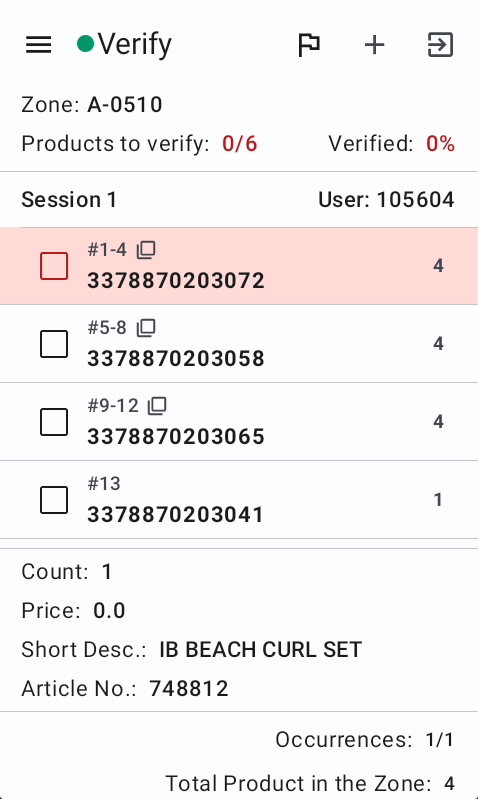
The Position Count Verify screen is used to verify scans that were performed in scan mode. Verifiers review scan groups, confirm or edit counts, and mark items as verified. The system tracks verification progress against an audit quota and ensures mandatory items are verified before allowing checkout. This screen displays scans grouped by item (same barcode and match fields), showing only properties configured to be visible during verification.
Overview
The available fields shown in the details card, depends on the scan-flow config
The Products to verify Shows the amount of required verification positions and how much of these are already verified. The Verified ppercentage shows what percentage of all positions have been verified. If the audit quota is reached the font color changes to green
Positions with required verification are highlighted with a red background color.
The verify flow is similar for different user roles, but has different impact in the system. The differences will be shown in the following bullets
- Position Count used as Team-Manager, Area-Manger, Employee: This is considered as "normal" verification. All changes are applied after session submit. A second verify session will show all changes from the previous sessions. -> Session color "Green" on the Planning page
- Position Count used as Quality assurance Manager: The verification is considered as an independent verification and will be stored in a change request which will be auto merged after submitting the session. When logging in to verify a zone, the latest status of count, as well as the added scans from the previous verify session will be shown. The Check marks will be removed and not be shown to the QA. The reason is to not influence the QA which positions to check. Further the QA is not forced to fulfill the audit quota neither the required verification positions-> Session color "yellow" and the "change request" flag on the Planning page.
- Position Count used as External Auditor: The verification is considered as an independent verification and will be stored in a change request and will not change the actual scan data. -> Session color "yellow" and the "change request" flag on the Planning page. The data from the External Auditor can be accessed by the export config. A review and manual merge functionality will be released soon.
Features
Zones to verify
The Zones screen allows users to check in to a zone for verification. The system validates the zone code format using regex patterns, checks if the zone is available on the server, and verifies there are no existing open sessions for that zone. If validation passes, a zone check-in record is created and the user proceeds to verify items in that zone.
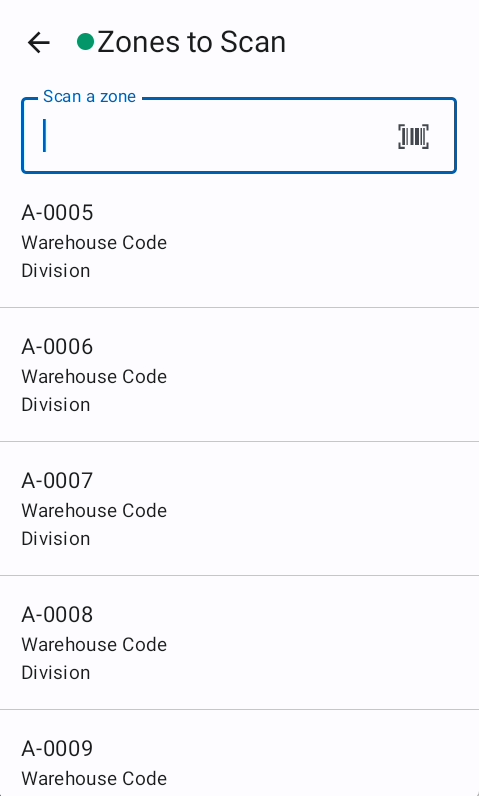
The "zones to verify" screen provides zone suggestions based on the last work of the user. It shows the five next not verified zones from the last scanned zone. This is the suggested zone list and helps the user finding the next zone to verify. The user is not forced to select one of these.
When a user gets a zone assigned from the Team-Manager or Area-Manager he gets informed about that during login.
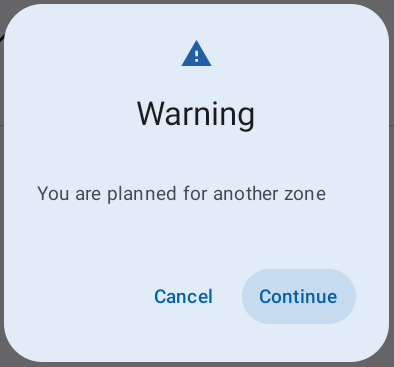
The login method is controlled by the zone code config and the login with function button. If the "login with function button" setting is enabled the user can login to a zone by selecting a zone from the suggested zones list.
Verify screen
Top bar
- Side Menu

- Connection status -> The App contacts the server every 10 seconds
 -> Successful server response
 -> Unsuccessful server response
- Name of the current screen
- Request help

- Add new Scans

- Submit Session

Navigate through the verify list
There are several methods to navigate through the verify list.
Enter button
Pressing the enter button will submit possible count changes, mark the scan as verified and move to the next position. Pressing enter on an already verified position, will remove the checkmark again.
Positions with a changed count can not be marked as not verified
Arrow up and down
With the arrows up and down you can move the cursor through the verify list and select the next or previous position
Arrow left and right
Arrow left/right will jump to the next/previous occurrence of the same product within the list, if it exists. The total zone count and occurrences can be reviewed in the footer.

Scan
Scanning a barcode will search for the next occurrence of this barcode and if found, select the position.
Scanning will always search down the list.
Example: If the current selected position is 5 and the scanned product is on position 1 and 8, the position 8 will be selected
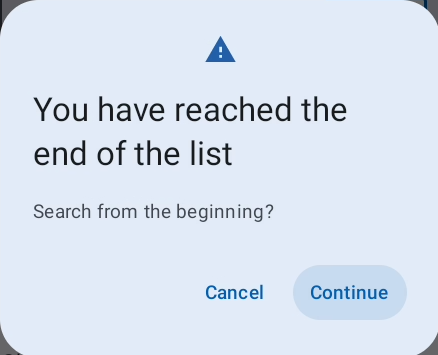
If the barcode is not found further down the list but only in an upper position based on the current one, the user gets informed.
F1
The FN1 button will jump to the next position with required verification (red background color)
Touch
The touch can be used to select positions and scroll through the list.
Reset to original count
If a count was changed by mistake and the original value is not remembered it can be reset to the original value by using the shortcut FN + CLR
The count reset only works for changes done during the same verify session.
Add new scans
The add new scans screen is similar to the the scan screen and provides the same behavior and functionalities. During verification, added scans will be shown on the bottom of the verify list and will be shown as verified by default.
Added scans con only be edited from the scan-list of the add new Scans screen
Shortcuts
| Hardware key | Action |
|---|---|
| FN1 | go to the next not verified position with required verification |
| FN2 | Toggle the add new scans |
| FN3 | Submit the session |
| FN4 | Add shelf marker |
| FN + CLR | Reset a changed count to the original value |
| Arrow left/right | Jump between positions with the same barcode |
| FN + 1 | Disable/Enable the touch |
| FN + 2 | Open Wifi settings |
| FN + 3 | Open Mobile settings |
| FN + 5 | Decrease brightness |
| FN + 6 | Increase brightness |
| FN + F6 | Open Calculator |
| FN + F8 | Open Side-menu |
Troubleshooting
Common Issues zones to verify screen
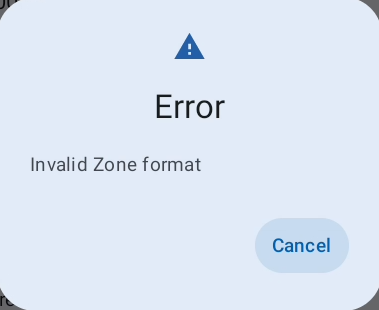
Invalid zone format
-
The zone code does not match the expected format pattern -> Check if you scanned the correct zone label
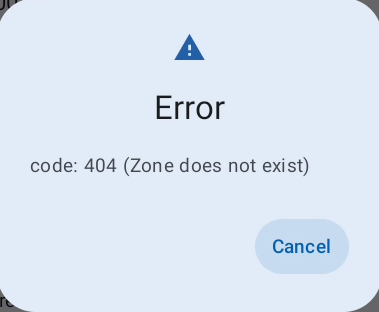
Zone does not exist
-
The zone is not part of the project -> Check if the label is from the current project and inform the team-manager.
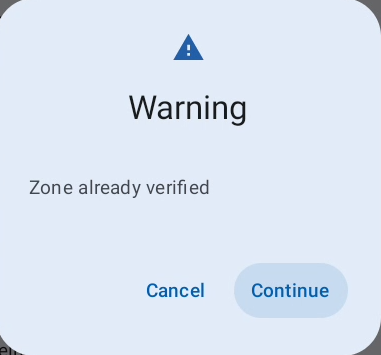
Zone already contains a verify session
-
The zone has existing sessions. -> Check if the zone has already been verified. If the user enters the zone anyway the already verified changes can be reviewed
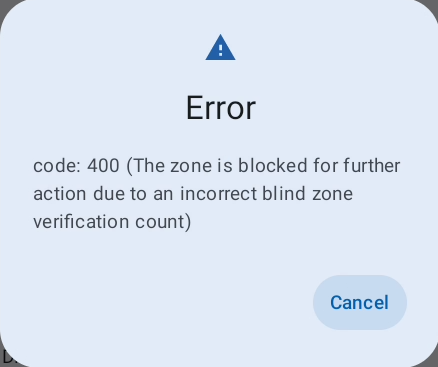
Zone blocked due to an incorrect zone count
- The zone has an incorrect zone count verification and needs to be verified
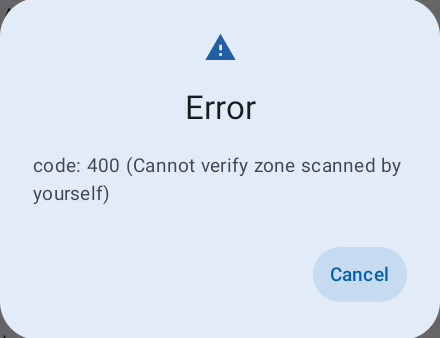
Can not verify where you already scanned
-
A person is not allowed to perform scanning and verification on the same zone
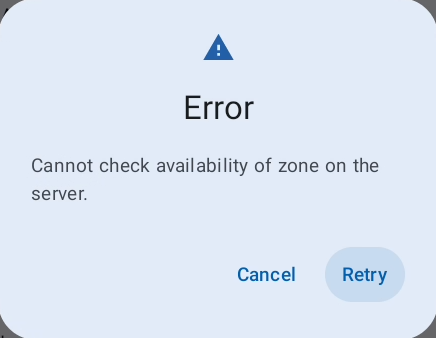
Could not verify zone availability with the server
-
The server can not be reached to validate the zone status. -> Check your connection and retry
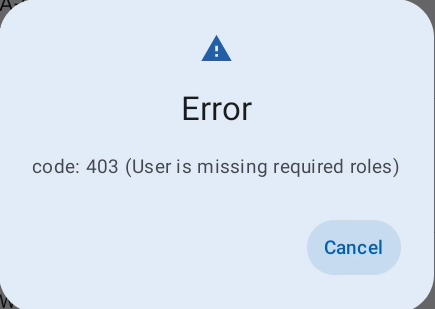
User is missing required roles
-
Confirm you have the correct role on the project to perform verification.
- Following roles are not allowed to perform verification:
- Observer
- Following roles are not allowed to perform verification:
Common Issues verify screen
Custom count validation message
-
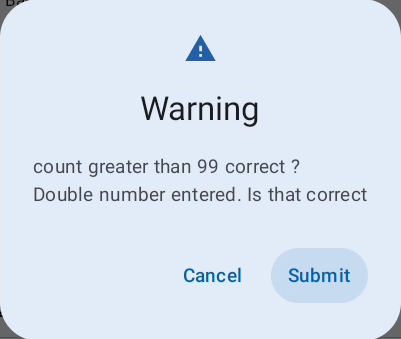
Field specific error/warning from regex validation rules. -> Change/confirm the value based on the given error/warning.