Berichte / Export
Berichte/Export
Die Seite „Berichte / Export" dient als zentrales Hub zum Generieren, Verwalten und Herunterladen verschiedener Projektberichte und Datenexporte. Diese Oberfläche bietet ein umfassendes Auftragsmanagementsystem, über das Benutzer Exportvorgänge starten, den Fortschritt in Echtzeit überwachen und auf generierte Dateien zugreifen können. Das System unterstützt konfigurierbare Exporttypen, Backup-Operationen und Projektveröffentlichungsworkflows.
Zugriffsanforderungen
Erforderliche Berechtigungen
- Anzeigen
- Starten
- Abbrechen
- Entfernen
- Exportsitzungen zurücksetzen
Berechtigungsumfang
- Projektbasiert: Zugang auf Exporte innerhalb der zugewiesenen Projekte des Benutzers beschränkt
- Rollenbasierte Operationen: Unterschiedliche Aktionen basierend auf Benutzerberechtigungen verfügbar
- Projektstatusabhängigkeit: Einige Exporte erfordern, dass das Projekt geschlossen oder veröffentlicht ist
Oberfläche
Haupt-Exportübersicht
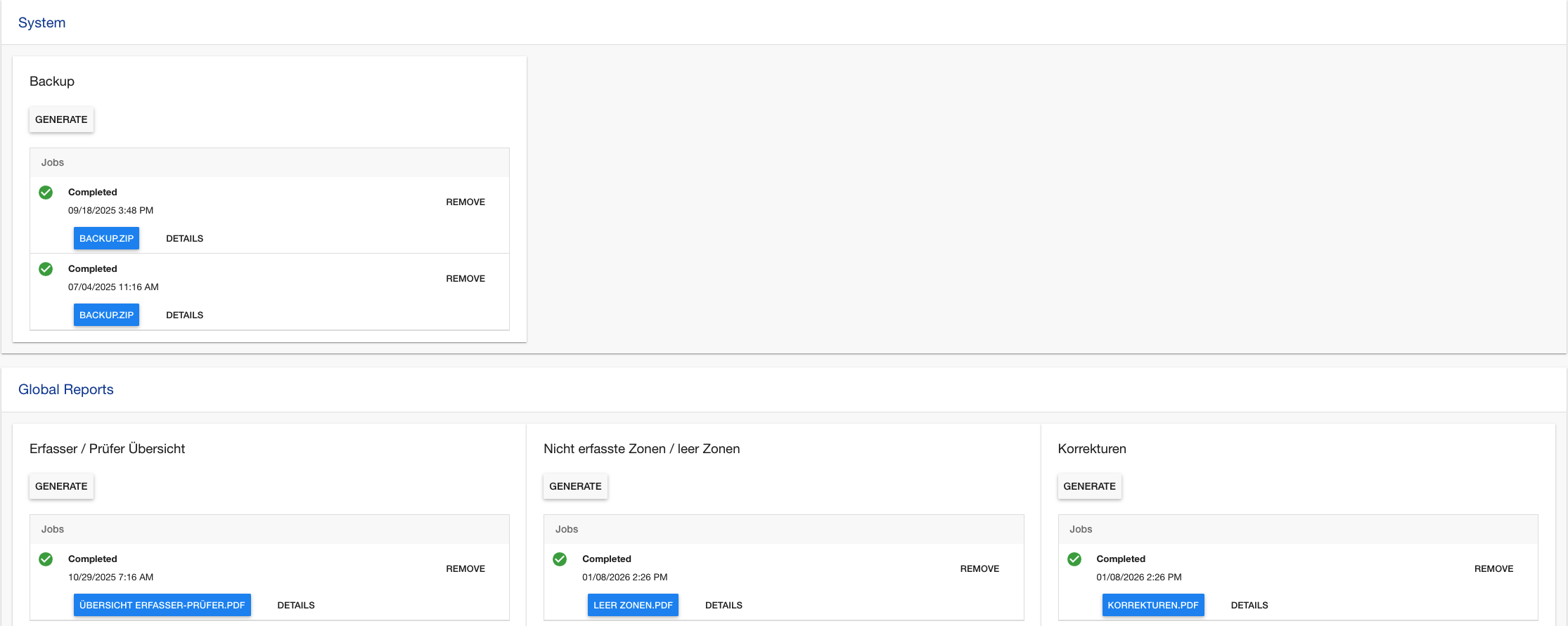
Hauptfunktionen
Exporttypen & Kategorien
-
Systemoperationen:
- Projekt-Backup: Vollständiges Projekt-Datensicherung
- Projektveröffentlichung: Projektdateien in die Produktion veröffentlichen
-
Datenexporte (konfigurierbar über Exportkonfiguration in den Einstellungen):
- Scandaten: Vollständige Scanaufzeichnungen mit Metadaten
- Benutzerdaten: Benutzerkonten und Aktivitätsberichte
- Zoneninformationen: Zonenkonfigurationen und Statistiken
- Sitzungsdaten: Zonensitzungsaufzeichnungen und Analysen
-
Finanzberichte:
- Kostenanalyse: Projektkostenaufschlüsselungen
- Statistische Berichte: Leistungs- und Effizienzmetriken
Auftragsmanagementsystem
- Echtzeit-Fortschritt: Live-Fortschrittsbalken und Statusaktualisierungen
- Auftragswarteschlange: Verhindert doppelte Aufträge für denselben Exporttyp
- Statusverfolgung: Umfassende Lebenszyklus-Überwachung von Aufträgen
- Fehlerbehandlung: Detaillierte Fehlerberichterstattung und Wiederherstellungsoptionen
Dateiverwaltung
- Automatische Downloads: Direkte Download-Links für generierte Dateien
- Dateiorganisation: Dateien nach Auftrag und Exporttyp gruppiert
- Mehrere Formate: Unterstützung für Excel, PDF, CSV und andere Formate
Benutzerhandbuch
Export starten
- Zur Seite „Berichte & Exporte" navigieren
- Exporttyp auswählen aus den verfügbaren Kategorien
- Variablen konfigurieren (falls erforderlich)
- Auf „Generieren" klicken, um den Exportauftrag zu starten
- Fortschritt in Echtzeit überwachen
Exportaufträge überwachen
-
Fortschrittsindikatoren:
 Laufend: Auftrag läuft – zeigt Fortschrittsprozentsatz
 Abgeschlossen: Auftrag wurde erfolgreich abgeschlossen und steht zum Download bereit
 Mit Warnungen abgeschlossen: Auftrag wurde mit Warnungen abgeschlossen – Details prüfen
 Fehlgeschlagen: Auftrag wurde mit Fehlern abgeschlossen – Fehlermeldungen überprüfen
 Abgebrochen: Auftrag wurde manuell gestoppt
-
Auftragsaktionen:
- Abbrechen: Laufende Aufträge stoppen
- Entfernen: Abgeschlossene/fehlgeschlagene Aufträge löschen
- Details: Protokolle und Fehlerinformationen anzeigen
- Sitzungen zurücksetzen: Exportbezogene Zonensitzungen zurücksetzen
Berichte herunterladen
- Auf Abschluss warten: Auftragsstatus zeigt Abgeschlossen
- Dateilinks anklicken: Generierte Dateien direkt herunterladen
- Mehrere Dateien: Einige Exporte generieren mehrere Formate
- Dateinamen: Dateien enthalten Zeitstempel und Exporttyp
Fehlerbehebung
Projekt muss geschlossen sein (Fehler)
- Projekt schließen: Projektstatus auf „Geschlossen" ändern
- Status prüfen: Projektstatus in den Projekteinstellungen verifizieren
- Admin kontaktieren: Projektabschluss bei Bedarf beantragen
Exportauftrag läuft bereits (Warnung)
- Auf Abschluss warten: Nur ein Auftrag pro Typ erlaubt
- Vorhandenen abbrechen: Laufenden Auftrag bei Bedarf abbrechen
- Warteschlange prüfen: Auftragswarteschlangenstatus überwachen
Zugriff verweigert (Fehler)
- Rollen prüfen: Erforderliche Exportberechtigungen verifizieren
- Projektzugang: Registrierung im Zielprojekt bestätigen
- Admin kontaktieren: Entsprechende Rollenzuweisung beantragen
Export fehlgeschlagen (Status)
- Details prüfen: Fehlerprotokolle über die Schaltfläche „Details" überprüfen
- Datenvalidierung: Projektdatenintegrität sicherstellen
- Ressourcenprüfung: Verfügbarkeit der Serverressourcen prüfen
- Export wiederholen: Export nach Problemlösung erneut versuchen
Dateien werden nicht heruntergeladen
- Browser-Einstellungen: Download-Berechtigungen prüfen
- Dateiexistenz: Prüfen, ob Datei tatsächlich generiert wurde
- Netzwerkprobleme: Internetverbindung prüfen
- Serverzugang: Zugänglichkeit des Dateiservers bestätigen