QM-Modul
Das QM-Modul (Qualitätsmanagement) dient als zentrales Qualitätskontroll-Hub zur Überwachung und Verwaltung der Genauigkeit von Scanpositionen und zonenspezifischen Qualitätskennzahlen. Dieses umfassende System bietet Echtzeit-Qualitätsschwellenüberwachung, automatisierte Regelauswertung und strukturierte Genehmigungsworkflows. Das Modul integriert sich nahtlos in das Scansystem, um Datenqualität und betriebliche Exzellenz durch kontinuierliche Überwachung und Managementkontrolle sicherzustellen.
Das QM-Modul arbeitet mit zwei integrierten Komponenten, die über eine einheitliche Oberfläche zugänglich sind:
 QM-Scans: Qualitätskontrolle und Verifizierungsverwaltung auf Ebene einzelner Scanpositionen
 QM-Zonen: Qualitätsübersicht und Compliance-Überwachung auf Zonenebene
Zugriffsanforderungen
Erforderliche Rollen
- Super-Admin
- Team-Admin
- Benutzer-Admin
- Team-Manager
- Bereichsleiter
Berechtigungsumfang
- Projektbasiert: Zugang auf zugewiesene Projekte beschränkt
- Rollenhierarchisch: Höhere Rollen haben breiteren Zugang
- Aktives Projekt erforderlich: Operationen erfordern, dass das Projekt den Status „Laufend" hat
Auftragsstatusindikatoren
 Aktualisieren: Aktualisieren, um die Regeln erneut auszuführen und die Tabelle zu aktualisieren
- Mehrstufige Hinweise: Info
 / Benachrichtigung
  / Warnung
  Stufen basierend auf den im QM-Modul unter Einstellungen konfigurierten Regeln
  Synchronisierung erforderlich: Qualitätsregeln geändert, Synchronisierung erforderlich
QM-Scans-Komponente
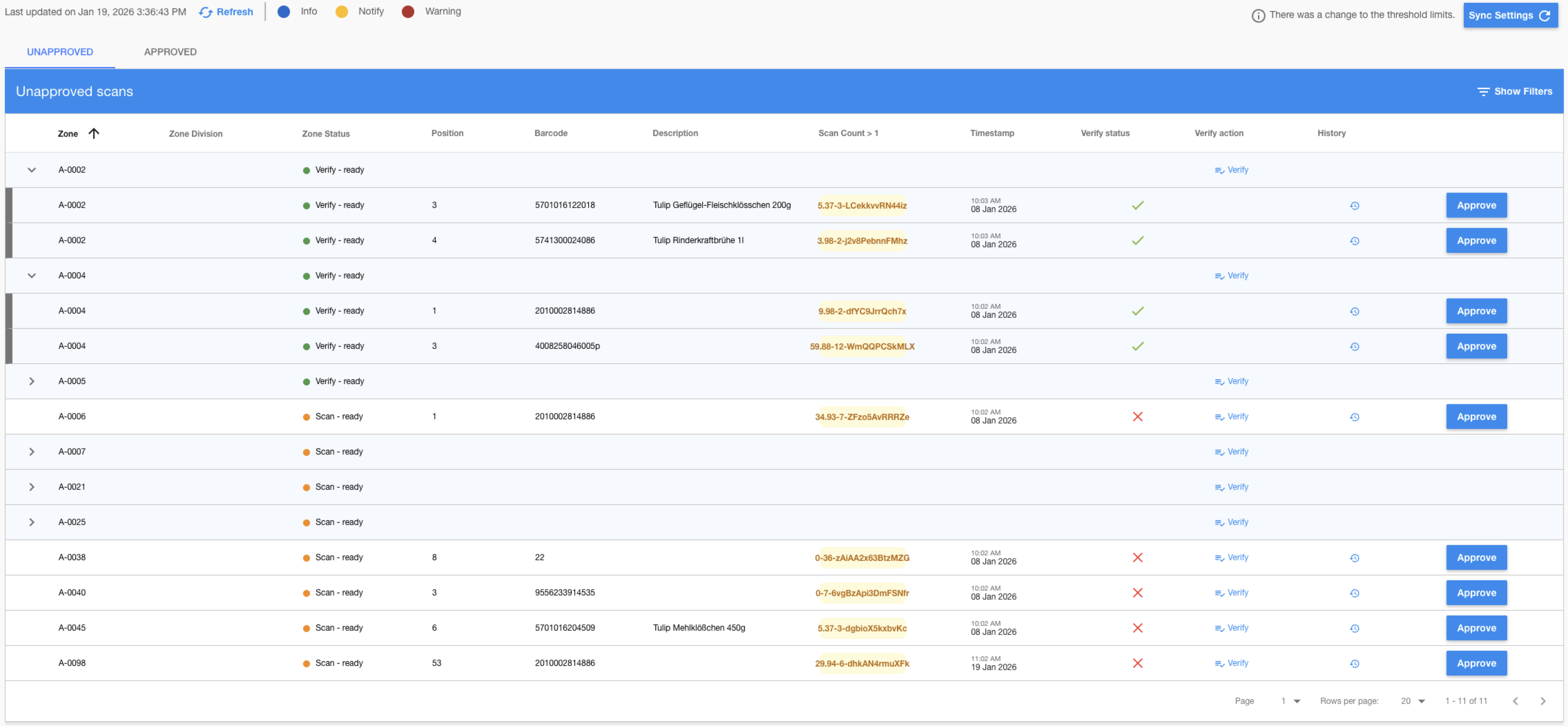
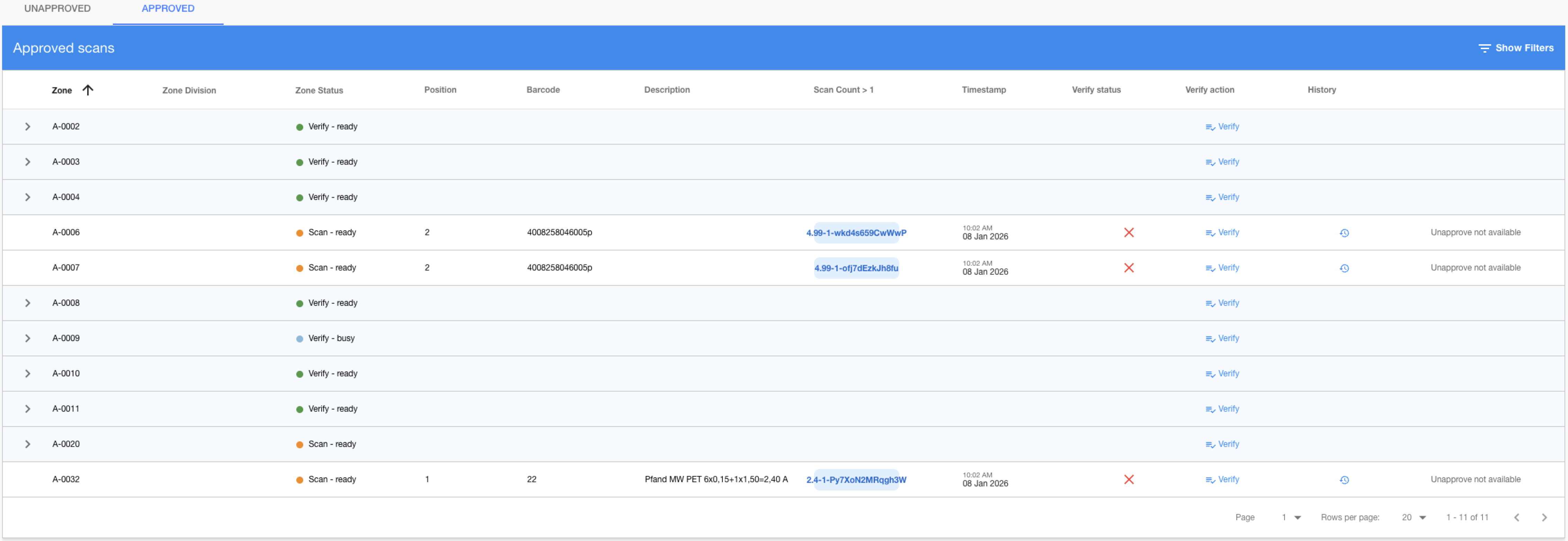
Der QM-Scans-Bereich bietet detaillierte Qualitätskontrolle für einzelne Scanpositionen und ermöglicht es Managern, die Scangenauigkeit auf der detailliertesten Ebene zu überprüfen, zu verifizieren und zu genehmigen.
Nicht genehmigt – Standardzustand, wenn eine Regel ausgelöst wird
Genehmigt – Wenn eine ausgelöste Zeile genehmigt wird
QM-Scans-Funktionen
- Qualitätskontrolle auf Positionsebene: Einzelne Scanpositionen mit detaillierten Metriken überwachen
- Gruppierte Scan-Verwaltung: Mehrere Scans pro Position mit erweiterbaren Gruppenansichten verwalten
- Verifizierungsverfolgung: Manuellen Verifizierungsstatus für jede Scanposition verfolgen
- Genehmigungsworkflow: Genehmigungsprozess auf Manager-Ebene mit Revisionsverlauf
- Schwellenüberwachung: Echtzeit-Qualitätsregelauswertung mit farbcodierten Indikatoren
QM-Zonen-Komponente
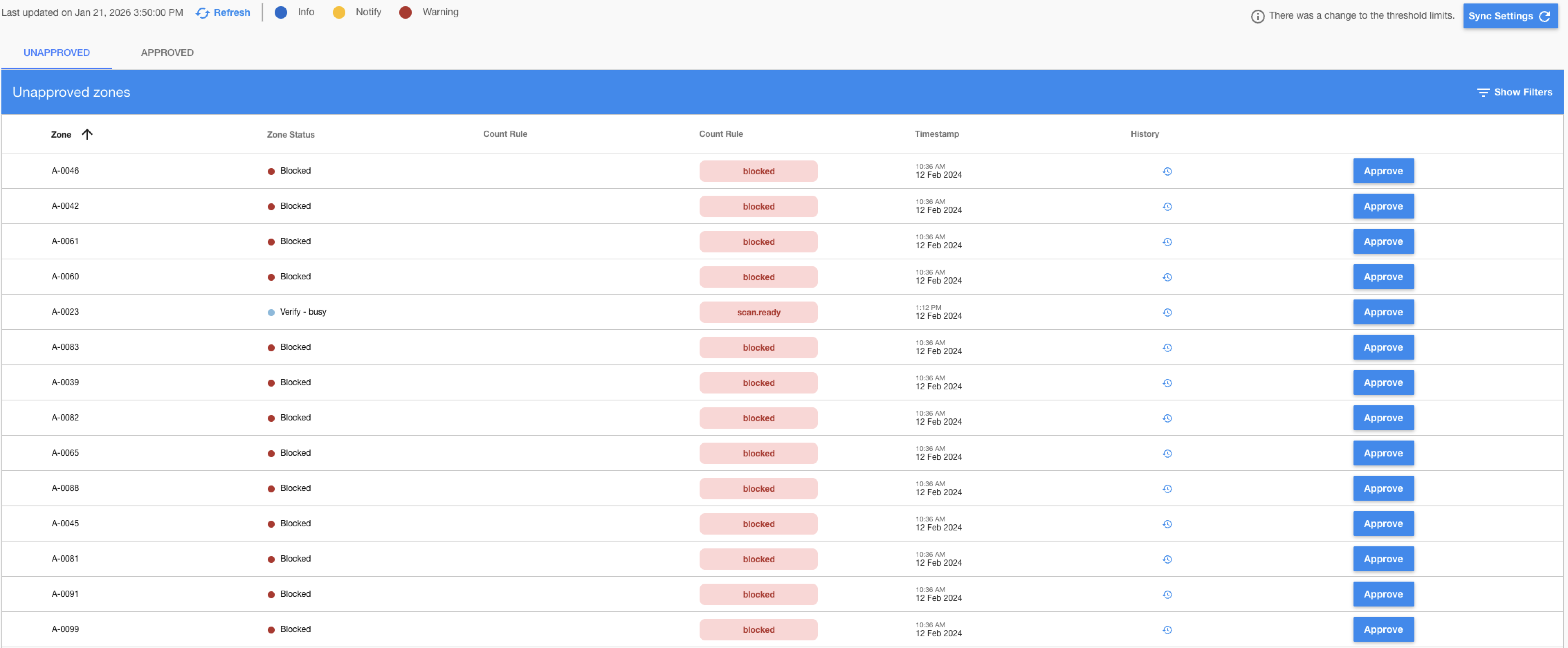
Der QM-Zonen-Bereich bietet Qualitätsübersicht auf Zonenebene mit aggregierten Qualitätskennzahlen und Managementkontrollen für ganze Betriebszonen.
Nicht genehmigt – Standardzustand, wenn eine Regel ausgelöst wird
Genehmigt – Wenn eine ausgelöste Zeile genehmigt wird

QM-Zonen-Funktionen
- Qualitätsübersicht auf Zonenebene: Aggregierte Qualitätskennzahlen pro Zone mit umfassender Berichterstattung
- Statusüberwachung: Zonenoperationsstatus mit Echtzeit-Updates verfolgen
- Schwellen-Compliance: Zonenweite Qualitätsregel-Compliance-Überwachung
- Genehmigungsverwaltung: Genehmigungs-/Ablehnungsworkflows auf Zonenebene mit Manager-Kontrolle
Kernfunktionen des QM-Moduls
Qualitätsregelwerk
- Konfigurierbare Schwellenwerte: Anpassbare Qualitätsregeln mit flexiblen Parametern
- Echtzeit-Auswertung: Kontinuierliche Qualitätsüberwachung mit automatisierten Bewertungen
- Regeländerungsverfolgung: Vollständiges Prüfprotokoll für Regeländerungen und -aktualisierungen
Synchronisierungssystem
- Hintergrundaufträge: Automatisierte Qualitätsdatenverarbeitung mit Auftragswarteschlangenverwaltung
- Fortschrittsverfolgung: Echtzeit-Auftragsfortschrittsüberwachung mit Prozentabschluss
- Fehlerbehandlung: Umfassende Fehlerberichterstattung mit detaillierten Fehlerprotokollen
- Manuelle Synchronisierung: Bedarfsgesteuerte Datensynchronisierung mit Aktualisierungsfunktionen
Integriertes Workflow-Management
- Einheitliche Oberfläche: Einzelner Einstiegspunkt für Scan- und Zonenqualitätsmanagement
- Komponentenübergreifende Navigation: Nahtloser Wechsel zwischen Scan- und Zonenansichten
- Einheitlicher Genehmigungsprozess: Standardisierte Genehmigungsworkflows über alle Komponenten
- Zentralisierte Statusüberwachung: Einziges Dashboard für alle Qualitätsoperationen
Benutzerhandbuch QM-Modul
Erste Schritte
- Navigieren zum QM-Modul über das Hauptnavigationsmenü
- Synchronisierungsstatus prüfen im Steuerungspanel-Header
- Komponente auswählen: Zwischen QM-Scans und QM-Zonen wählen
- Ansichtsmodus wählen: Zwischen den Tabs „Nicht genehmigt" und „Genehmigt" wechseln
- Filter anwenden: Filtersteuerungen verwenden, um Ergebnisse einzugrenzen
- Indikatoren überwachen: Qualitätsschwellenwerte und Hinweisstufen überprüfen
QM-Synchronisierung verwalten
-
Synchronisierungsstatus überwachen:
- Pausiert: Qualitätsregeln wurden geändert, Synchronisierung erforderlich
- Bereit: Auftrag steht in der Warteschlange und wartet auf Verarbeitung
- Laufend: Aktive Synchronisierung mit Fortschrittsanzeige
- Fehlgeschlagen: Fehler aufgetreten, Details im Tooltip prüfen
-
Qualitätsdaten synchronisieren:
- Auf Einstellungen synchronisieren klicken, wenn Status „Pausiert" anzeigt
- Fortschrittsprozentsatz während der Synchronisierung überwachen
- Auf Abschluss warten, bevor Qualitätsoperationen durchgeführt werden
- Schaltfläche Aktualisieren verwenden, um angezeigte Daten manuell zu aktualisieren
Mit QM-Scans arbeiten
-
Scanqualität überprüfen:
- Zur Komponente QM-Scans navigieren
- Filter nach Zone, Status, Verifizierungszustand anwenden
- Qualitätsregelverstöße und Schwellenstufen überprüfen
- Scans identifizieren, die Aufmerksamkeit erfordern (Warnungs-/Benachrichtigungsstufen)
-
Scanpositionen genehmigen/ablehnen:
- Einzelgenehmigung: Auf Genehmigen für einzelne Scanpositionen klicken
- Zonen-Ablehnung: Auf Ablehnen klicken, um Qualitätsprobleme zu markieren
- Genehmigungsbestätigungsdialoge vor dem Fortfahren überprüfen
-
Scan-Sitzungen verifizieren:
- Einzelverifizierung: Auf Verifizieren
 für einzelne Zonen klicken
 - Verifizierungssitzung öffnen: Verifizierungsworkflow für Zone starten
- Verifizierung bestätigen: Verifizierungsanforderungen überprüfen und bestätigen
- Verifizierungsstatus in der Statuspalte verfolgen
- Einzelverifizierung: Auf Verifizieren
-
Scanverlauf anzeigen:
- Auf die Schaltfläche Verlauf
 für detaillierten Scan-Revisionsverlauf klicken
 - Genehmigungs-/Ablehnungsaktionen und verantwortliche Benutzer überprüfen
- Zeitstempel für Qualitätsänderungen und Genehmigungen prüfen
- Qualitätstrend über Zeit verfolgen
- Auf die Schaltfläche Verlauf
Mit QM-Zonen arbeiten
-
Zonenqualität überwachen:
- Zur QM-Zonen-Komponente navigieren
- Qualitätskennzahlen und Regelcompliance auf Zonenebene überprüfen
- Qualitätstrends und Schwellenverstöße überwachen
- Betriebsstatusindikatoren der Zonen prüfen
-
Zonen genehmigen/ablehnen:
- Zonengenehmigung: Auf Genehmigen für Zonen klicken, die Qualitätsstandards erfüllen
- Zonen-Ablehnung: Auf Ablehnen klicken, um Qualitätsprobleme zu markieren
- Aktionen über Genehmigungsbestätigungsdialoge bestätigen
-
Zonenverlauf überprüfen:
- Auf die Schaltfläche Verlauf für den Zonenqualitätsverlauf klicken
- Manager-Genehmigungen und Qualitätsentscheidungen überprüfen
- Zonenqualitätsleistung über Zeit verfolgen
- Qualitätsverbesserungs- oder -verschlechterungsmuster analysieren
- Auf die Schaltfläche Verlauf
Fehlerbehebung QM-Modul
Fehler „Projekt nicht aktiv"
- Projektstatus prüfen: Sicherstellen, dass das Projekt den Status „Laufend" hat
- Projektstatus verifizieren: Bestätigen, dass das Projekt nicht pausiert oder geschlossen ist
- Admin kontaktieren: Projekt-Reaktivierung bei Bedarf beantragen
- Projektberechtigungen: Zugang zu Projekteinstellungen prüfen
Fehler „Zugriff verweigert"
- Rollenprüfung: Ausreichende Rollenzuweisung bestätigen (Team-/Bereichsleiter mindestens)
- Projektmitgliedschaft: Verifizieren, dass die Registrierung im Zielprojekt vorhanden ist
- Rollenhierarchie: Prüfen, ob die Rollenstufe die QM-Modul-Anforderungen erfüllt
- Admin kontaktieren: Rollenaufstufung beim Systemadministrator beantragen
Status „QM-Synchronisierungsauftrag fehlgeschlagen"
- Fehlerdetails prüfen: Fehlermeldung im Tooltip für spezifischen Fehlergrund überprüfen
- Datenvalidierung: Datenintegrität von Scans/Zonen in den Quellsystemen sicherstellen
- Synchronisierung wiederholen: Neustart der Synchronisierung versuchen
- Ressourcenprüfung: Serverressourcen und Datenbankverbindung prüfen
- Systemadmin: Bei anhaltenden Fehlern Administrator kontaktieren
Meldung „Ablehnung nicht verfügbar"
- Genehmigungsquelle: Nur manuell genehmigte Elemente können abgelehnt werden
- Systemgenehmigungen: Automatische Systemgenehmigungen können nicht manuell rückgängig gemacht werden
- Verlauf prüfen: Genehmigungsverlauf überprüfen, um die Genehmigungsquelle zu verstehen
- Alternative Aktionen: Bei Bedarf erneute Qualitätsbewertung in Betracht ziehen
Leere Zustände „Keine Daten verfügbar"
- Synchronisierungsstatus: Sicherstellen, dass QM-Synchronisierung erfolgreich abgeschlossen wurde
- Filtereinstellungen: Alle Filter löschen, um vollständigen Datensatz anzuzeigen
- Zeitraum: Prüfen, ob Qualitätsdaten für den aktuellen Zeitraum vorhanden sind
- Quelldaten: Verifizieren, dass Scans/Zonen im Projekt vorhanden und korrekt konfiguriert sind
- Daten aktualisieren: Schaltfläche „Aktualisieren" verwenden, um neueste Daten zu laden