QM Module
The QM (Quality Management) Module serves as the central quality control hub for monitoring and managing scan position accuracy and zone-level quality metrics. This comprehensive system provides real-time quality threshold monitoring, automated rule evaluation, and structured approval workflows. The module integrates seamlessly with the scanning system to ensure data quality and operational excellence through continuous monitoring and management oversight.
The QM Module operates with two integrated components accessible through a unified interface:
 QM Scans: Individual scan position quality control and verification management
 QM Zones: Zone-level quality oversight and compliance monitoring
Access Requirements
Required Roles
- Super Admin
- Team Admin
- User Admin
- Team Manager
- Area Manager
Permission Scope
- Project-Based: Access limited to assigned projects
- Role-Hierarchical: Higher roles have broader access
- Active Project Requirement: Operations require project to be in "Running" state
Job Status Indicators
 Refresh: Refresh to run the rules again and refresh the table below
- Multi-Level Alerts: Info
 / Notify
  / Warning
  levels based on the rules configured in QM Module under Settings
  Sync Required: Quality rules changed, synchronization required
QM Scans Component
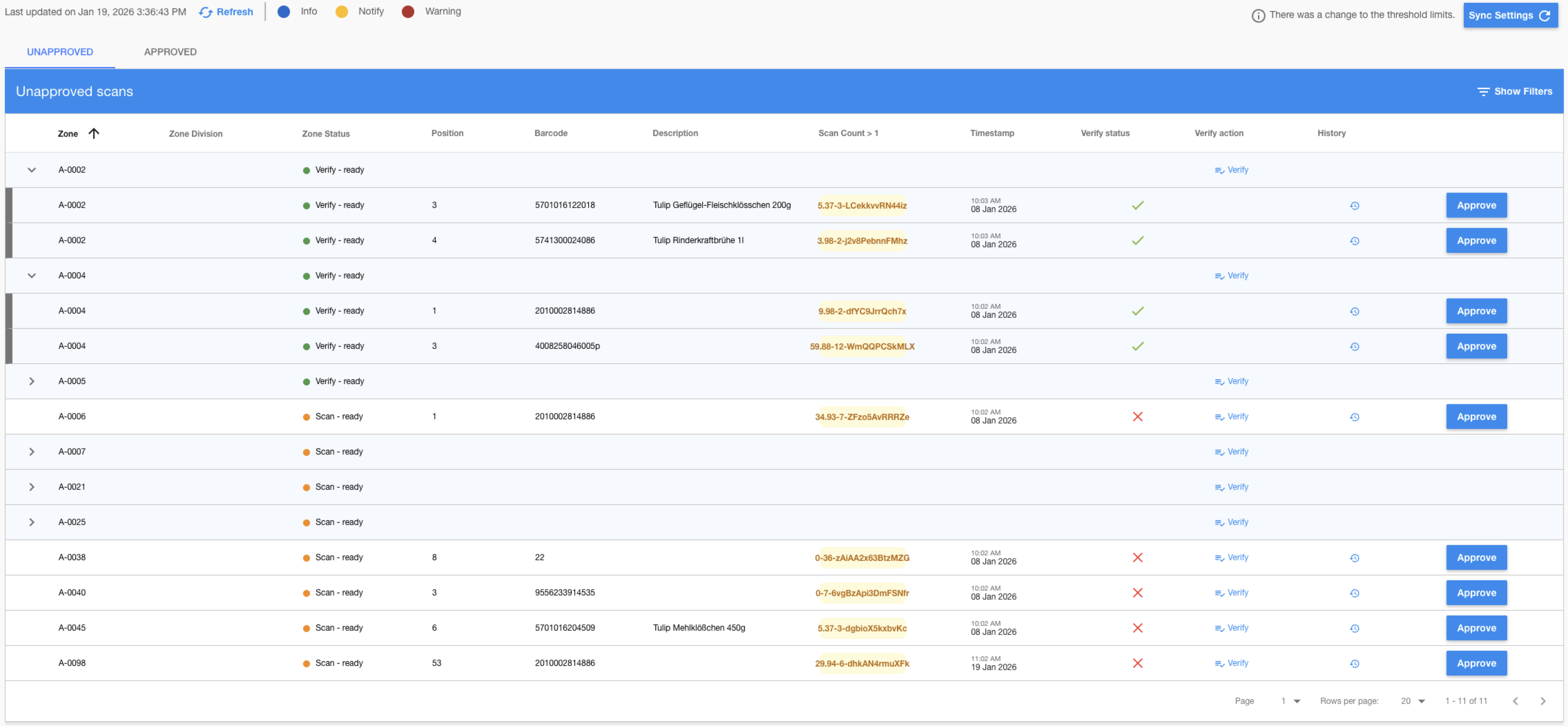
The QM Scans section provides detailed quality control for individual scan positions, allowing managers to review, verify, and approve scan accuracy at the most granular level.
Unapproved - Default state when a rule is triggered
Approved - When a tirggered line is approved
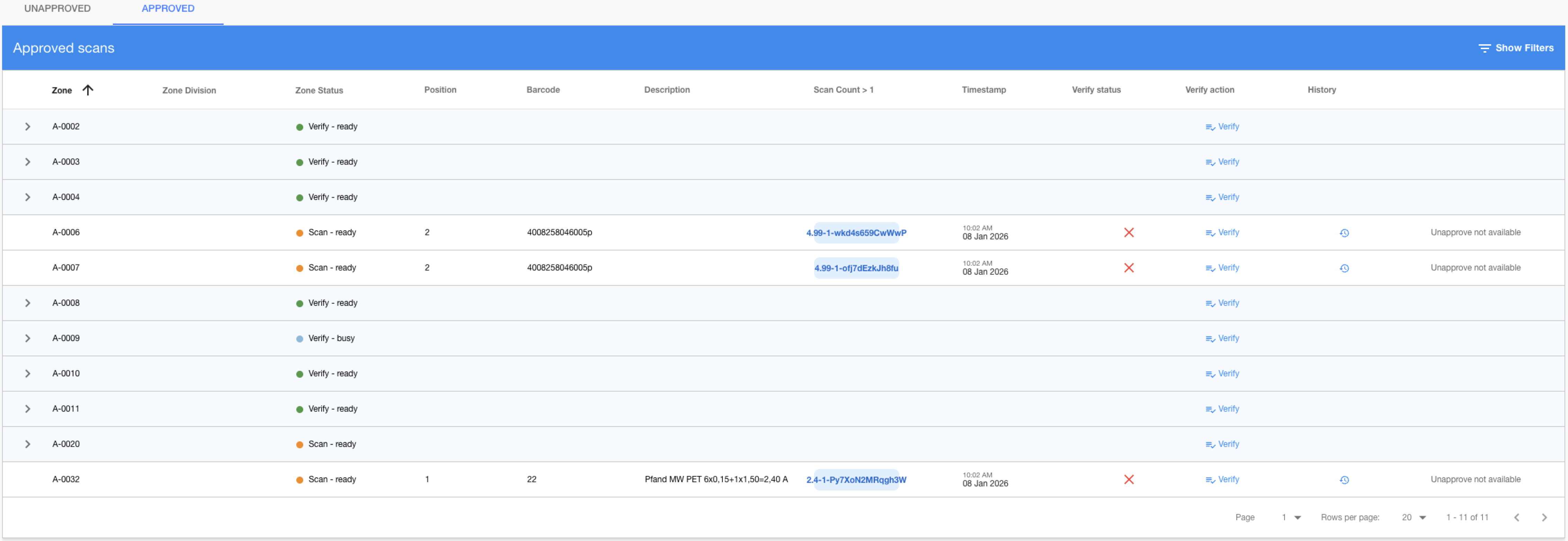
QM Scans Features
- Position-Level Quality Control: Monitor individual scan positions with detailed metrics
- Grouped Scan Handling: Manage multiple scans per position with expandable group views
- Verification Tracking: Track manual verification status for each scan position
- Approval Workflow: Manager-level approval process with revision history
- Threshold Monitoring: Real-time quality rule evaluation with color-coded indicators
QM Zones Component
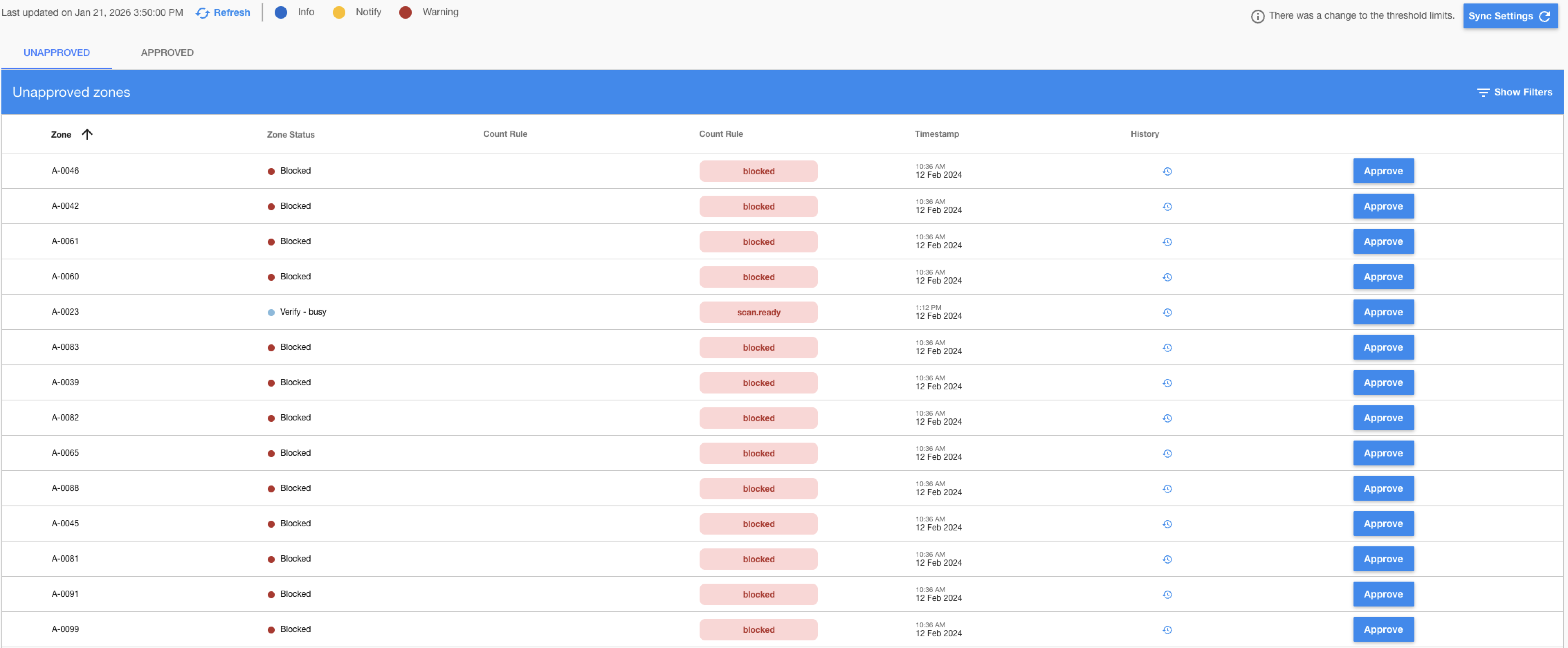
The QM Zones section provides zone-level quality oversight, offering aggregated quality metrics and management controls for entire operational zones.
Unapproved - Default state when a rule is triggered
Approved - When a tirggered line is approved

QM Zones Features
- Zone-Level Quality Overview: Aggregate quality metrics per zone with comprehensive reporting
- Status Monitoring: Track zone operational status with real-time updates
- Threshold Compliance: Zone-wide quality rule compliance monitoring
- Approval Management: Zone approval/unapproval workflows with manager oversight
Core QM Module Features
Quality Rules Engine
- Configurable Thresholds: Customizable quality rules with flexible parameters
- Real-time Evaluation: Continuous quality monitoring with automated assessments
- Rule Change Tracking: Complete audit trail for rule modifications and updates
Synchronization System
- Background Jobs: Automated quality data processing with job queue management
- Progress Tracking: Real-time job progress monitoring with percentage completion
- Error Handling: Comprehensive error reporting with detailed failure logs
- Manual Sync: On-demand data synchronization with refresh capabilities
Integrated Workflow Management
- Unified Interface: Single entry point for both scan and zone quality management
- Cross-Component Navigation: Seamless switching between scans and zones views
- Consistent Approval Process: Standardized approval workflows across components
- Centralized Status Monitoring: Single dashboard for all quality operations
QM Module Usage Guide
Getting Started
- Navigate to QM Module via main navigation menu
- Check Sync Status in the control panel header
- Select Component: Choose between QM Scans or QM Zones
- Choose View Mode: Switch between "Unapproved" and "Approved" tabs
- Apply Filters: Use filter controls to narrow down results
- Monitor Indicators: Review quality thresholds and alert levels
Managing QM Synchronization
-
Monitor Sync Status:
- Paused: Quality rules have changed, synchronization required
- Ready: Job is queued and waiting for processing
- Running: Active synchronization with progress percentage
- Failed: Error occurred, check error details in tooltip
-
Synchronize Quality Data:
- Click Sync Settings when status shows paused
- Monitor progress percentage during synchronization
- Wait for completion before performing quality operations
- Use Refresh button to manually update displayed data
Working with QM Scans
-
Review Scan Quality:
- Navigate to QM Scans component
- Apply filters by zone, status, verification state
- Review quality rule violations and threshold levels
- Identify scans requiring attention (warning/notify levels)
-
Approve/Unapprove Scan Positions:
- Individual Approval: Click Approve for single scan positions
- Zone Unapproval: Click Unapprove to flag quality concerns
- Review approval confirmation dialogs before proceeding
-
Verify Scan Sessions:
- Single Verification: Click Verify
 for individual zones
 - Open Verify Session: Launch verification workflow for zone
- Confirm Verification: Review and confirm verification requirements
- Track verification status in verify status column
- Single Verification: Click Verify
-
View Scan History:
- Click History
 button for detailed scan revision history
 - Review approval/unapproval actions and responsible users
- Check timestamps for quality changes and approvals
- Track quality trend over time
- Click History
Working with QM Zones
-
Monitor Zone Quality:
- Navigate to QM Zones component
- Review zone-level quality metrics and rule compliance
- Monitor quality trends and threshold violations
- Check zone operational status indicators
-
Approve/Unapprove Zones:
- Zone Approval: Click Approve for zones meeting quality standards
- Zone Unapproval: Click Unapprove to flag quality concerns
- Confirm actions through approval confirmation dialogs
-
Review Zone History:
- Click History button for zone quality history
- Review manager approvals and quality decisions
- Track zone quality performance over time
- Analyze quality improvement or degradation patterns
- Click History
QM Module Troubleshooting
Project not active Error
- Check Project State: Ensure project is in Running status
- Verify Project Status: Confirm project is not paused or closed
- Contact Admin: Request project reactivation if needed
- Project Permissions: Verify access to project settings
Permission denied Error
- Role Verification: Confirm adequate role assignment (Team/Area Manager minimum)
- Project Membership: Verify registration exists in target project
- Role Hierarchy: Check if role level meets QM module requirements
- Admin Contact: Request role upgrade through system administrator
QM Synchronization job failed Status
- Check Error Details: Review error tooltip for specific failure reason
- Data Validation: Ensure scan/zone data integrity in source systems
- Retry Synchronization: Attempt synchronization restart
- Resource Check: Verify server resources and database connectivity
- System Admin: Contact administrator for persistent failures
Unapprove not available Message
- Approval Source: Only manually approved items can be unapproved
- System Approvals: Automated system approvals cannot be manually reverted
- Check History: Review approval history to understand approval source
- Alternative Actions: Consider re-running quality evaluation if needed
No data available Empty States
- Synchronization Status: Ensure QM synchronization has completed successfully
- Filter Settings: Clear all filters to show complete dataset
- Time Range: Check if quality data exists for current time period
- Source Data: Verify scans/zones exist in project and are properly configured
- Refresh Data: Use refresh button to reload latest data