Branches
Branches help you organize and manage projects within client organizations.
What are Branches?β
Branches are organizational divisions within your clients that help you structure and manage your projects. Think of branches as departments, locations, or divisions within a company that you're working with.
π’ Examples: A client might have branches like "Head Office," "West Coast Division," or "Manufacturing Plant."
Client Organization Structure:
π’ ABC Corporation
βββ ποΈ Head Office Branch
βββ ποΈ West Coast Division Branch
βββ ποΈ Manufacturing Plant Branch
βββ ποΈ Regional Office Branch
π§ Accessing Branchesβ
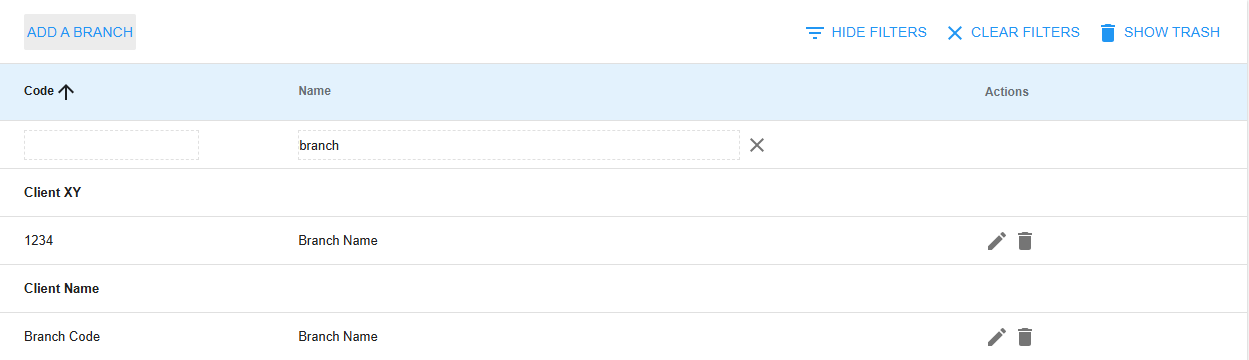
Access the Branches section through the main navigation menu to see all branches organized by their parent clients.
π Viewing Branchesβ
π Main Branches Listβ
The branches list displays essential information in a clean format:
| Column | Purpose | Details |
|---|---|---|
| π·οΈ Code | Short identifier | Optional branch reference |
| ποΈ Name | Full branch name | Primary identification |
| π’ Client | Parent organization | Branches grouped by client |
π Filtering and Searchβ
Powerful filtering system for quick branch location.
Filter Features:
- ποΈ Filter Toggle β Show/hide search fields
- π Dual Search β Search by branch code OR name
- β¨ Partial Matches β No need to type exact names
Search Examples:
"Head" β Finds "Head Office"
"West" β Finds "West Coast Division"
"HQ" β Finds branches with code "HQ"
ποΈ Viewing Deleted Branchesβ
Track and manage branches that are no longer active.
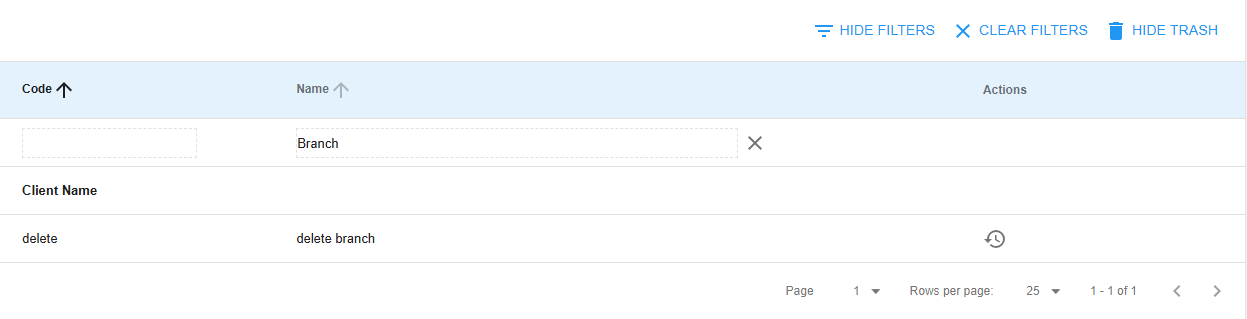
- ποΈ Click trash button β View deleted branches
- π Track inactive branches β Maintain historical records
- βΆ Restore capability β Recover branches if needed
π οΈ Managing Branchesβ
β Adding a New Branchβ
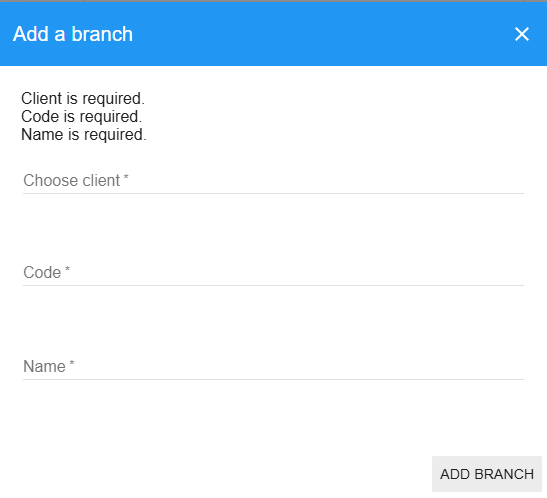
Simple workflow for creating new branches within client organizations.
| Step | Action | Details |
|---|---|---|
| 1οΈβ£ | Click Add Branch (β) | Located in toolbar |
| 2οΈβ£ | Select Client | Choose parent organization |
| 3οΈβ£ | Enter Code | Optional short identifier |
| 4οΈβ£ | Enter Name | Full branch name |
| 5οΈβ£ | Click Save | Create the branch |
βοΈ Editing a Branchβ
Quick Edit Process:
- π Find branch in the list
- βοΈ Click edit button next to branch
- π Update information (code or name)
- πΎ Click Save to apply changes
ποΈ Removing a Branchβ
You can only delete branches that don't have any active projects.
Deletion Workflow:
- π Find branch you want to remove
- ποΈ Click delete button next to branch
- β Confirm deletion when prompted
β οΈ Important: If a branch has projects, you'll need to delete or move those projects first.
βΆ Restoring a Deleted Branchβ
Easily restore accidentally deleted branches.
Restoration Steps:
- ποΈ Click trash button β View deleted branches
- π Find target branch to restore
- βΆ Click restore button next to branch
- β Branch moves back to active list
You can only restore branches if their parent client is still active.
π§ Navigating to Projectsβ
Navigate directly to project views from branch listings.
- π±οΈ Click active branch row β View projects within that branch
- π Quick work overview β See what's happening in each branch
- π« Deleted branches β Cannot be clicked (appear grayed out)
π Permissions and Accessβ
What you can do with branches depends on your assigned role and permissions.
| Permission Level | Available Actions | Access |
|---|---|---|
| π View Branches | See list and details | All users |
| β Add Branches | Create new branches | Authorized users |
| βοΈ Edit Branches | Modify existing information | Authorized users |
| ποΈ Delete Branches | Remove branches (restorable) | Admin users |
| βΆ Restore Branches | Recover deleted branches | Admin users |
π Missing Options? If you don't see certain buttons, you don't have permission for those actions. Contact your administrator for additional access.
π‘ Tips for Branch Managementβ
ποΈ Organization Best Practicesβ
Structure your branches for maximum efficiency and clarity.
Naming Guidelines:
- β Clear, descriptive names β Easy identification
- π·οΈ Smart codes β Quick reference (e.g., "HQ" for headquarters)
- π’ Logical grouping β Related branches under same client
π― Operational Best Practicesβ
Best Practice Checklist:
βββ β Don't delete branches with active projects
β βββ Finish/move projects first
βββ π Use search filters effectively
β βββ Quick navigation in large lists
βββ π Regular maintenance
βββ Review deleted branches periodically
Always check for active projects before deleting branches - clean up projects first!
π Workflow Integrationβ
π Standard Workflow Processβ
Follow this order for optimal branch management workflow.
| Step | Process | Details |
|---|---|---|
| 1οΈβ£ | π’ Client Setup | Make sure the client exists before creating branches |
| 2οΈβ£ | ποΈ Branch Creation | Create branches for different divisions/locations |
| 3οΈβ£ | π Project Management | Use branches to organize your projects |
| 4οΈβ£ | π§Ή Maintenance | Periodically clean up unused branches |
π Common Scenariosβ
π Setting up a New Clientβ
Step-by-step process for client onboarding.
Setup Process:
- π’ Create the client first (in the Clients section)
- ποΈ Add branches for each division or location
- π Start creating projects within the appropriate branches
π Reorganizing Existing Structureβ
Follow this sequence to avoid data issues during restructuring.
Reorganization Workflow:
- ποΈ Delete projects from old branches first
- ποΈ Create new branches with better organization
- π Recreate projects in the new branch structure
π οΈ Troubleshootingβ
Quick fixes for typical branch management problems.
π¨ Common Problemsβ
| Issue | Possible Cause | Solution |
|---|---|---|
| β Can't delete a branch? | Branch has active projects | Check and remove/move projects first |
| π» Missing branches? | Viewing deleted items or permission issues | Check trash view or contact administrator |
| βΆ Can't restore a branch? | Parent client is inactive | Make sure the parent client is still active |
This branch management system helps you keep your projects organized and makes it easier to find and manage work across different parts of your client organizations.
π Ready to Organize Your Branches?β
Next Steps: Set up branches for each client division, then start organizing your projects within these structured organizational units!