Benachrichtigungen
Benachrichtigungen
Das Benachrichtigungssystem verwaltet Hilfeanfragen und Warnmeldungen innerhalb von Projekten und ermöglicht Teammitgliedern, Unterstützung anzufordern, sowie Vorgesetzten, Probleme effizient zuzuweisen und zu lösen.
Übersicht
Das Benachrichtigungssystem bietet:
- Echtzeit-Hilfeanfragen von Mitarbeitern, die Inventuren durchführen
- Zuweisungs-Workflow für Super Admins, Admins, Team Admins, User Admins, Team Manager und Bereichsleiter
- Statusverfolgung von der Anfrage bis zur Lösung
- Visuelle Indikatoren für ungelesene Benachrichtigungen
- Zonenspezifischer Kontext für ein besseres Verständnis der eigentlichen Anfrage
Zugriffsanforderungen
- Muss Super Admin, Admin, Team Admin, User Admin, Team Manager oder Bereichsleiter sein
- Aktives Projekt erforderlich
- Badge-Indikator zeigt die Anzahl ungelesener Benachrichtigungen
- Automatische Aktualisierung bei neuen Benachrichtigungen
Struktur des Benachrichtigungsmenüs
| Registerkarte | Beschreibung | Aktionssymbol | Verfügbare Aktionen |
|---|---|---|---|
| Nicht zugewiesen | Standardzustand, sobald eine Hilfeanfrage von einem Scanner im Feld eingeht. |  | Aufgabe sich selbst zuweisen. |
| Zugewiesen | Wenn eine Aufgabe zugewiesen wird, wird sie automatisch in diese Registerkarte verschoben. |  | Nachdem die Aufgabe Ihnen zugewiesen wurde, können Sie sie als erledigt markieren. |
| Gelöst | Eine Aufgabe kann abschließend gelöst und in diese Registerkarte verschoben werden. | N/A | Sobald eine Aufgabe gelöst ist, wird sie zur Referenz in diese Registerkarte verschoben. |
Benachrichtigungsstatus & Workflow
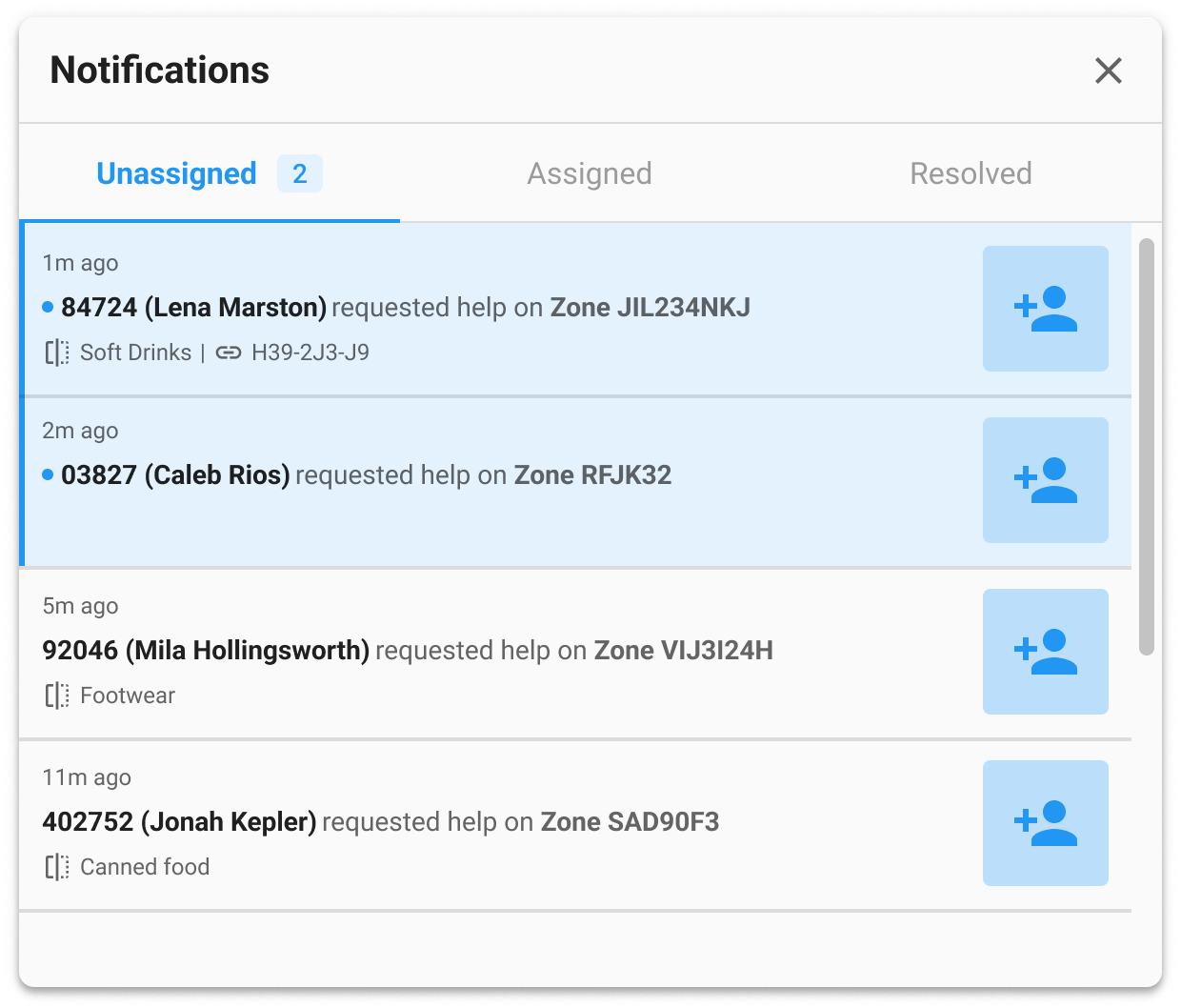
Nicht zugewiesene Benachrichtigungen
- Zeitstempel – Wann wurde Hilfe angefordert
- Benutzerdetails – Benutzername und vollständiger Name
- Zoneninformationen – Zonencode und Standort
- Abteilung –
 (falls vorhanden)
 - Kunden-Zonencode –
 (falls Verknüpfung vorhanden)
 - Ungelesener Indikator – Blauer Punkt für neue Benachrichtigungen
Zugewiesene Benachrichtigungen
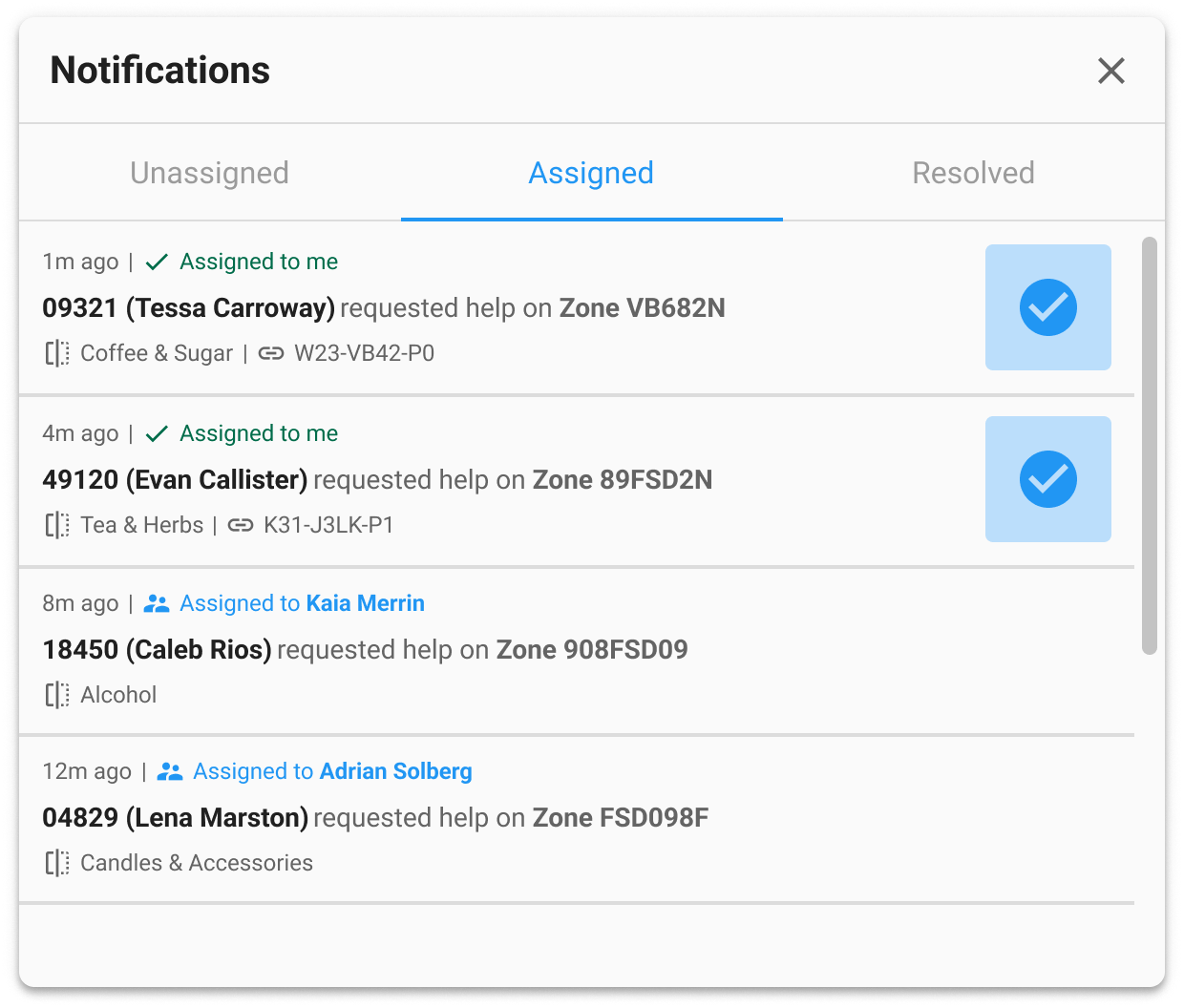
- Zuweisungsstatus:
- Mir zugewiesen – Sie haben die Aufgabe sich selbst zugewiesen
- Zugewiesen an [Name] – Die Aufgabe wurde einem anderen Benutzer zugewiesen
- Ursprüngliche Anfragedaten – Wie in der Registerkarte „Nicht zugewiesen"
- Zonenkontext – Abteilung und Kundencodes (wie in der Registerkarte „Nicht zugewiesen")
Gelöste Benachrichtigungen
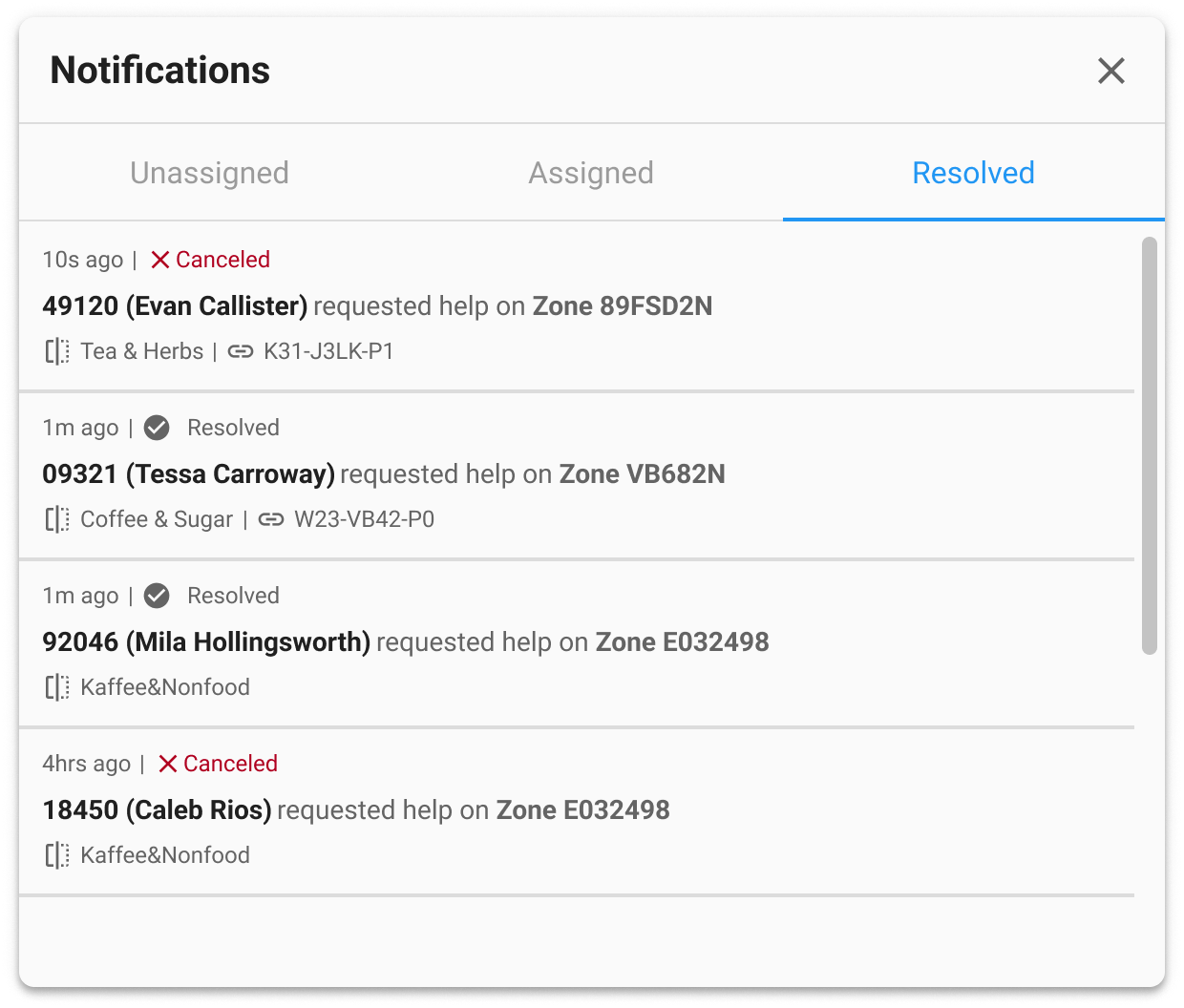
- Lösungsstatus:
- Gelöst – Erfolgreich abgeschlossen
- Abgebrochen – Anfrage wurde abgebrochen
- Ursprüngliche Anfragedaten
- Zeitleisten-Informationen
Verwendung
Benachrichtigungen anzeigen
- Das Glockensymbol
 in der Symbolleiste suchen
 - Roter Badge zeigt die Anzahl ungelesener Benachrichtigungen
- Auf die Glocke klicken, um das Benachrichtigungsmenü zu öffnen
Benachrichtigung zuweisen
- Zur Registerkarte Nicht zugewiesen wechseln
- Die gewünschte Benachrichtigung suchen
- Auf das Person-hinzufügen-Symbol klicken
- Benachrichtigung wird in die Registerkarte Zugewiesen verschoben
Benachrichtigung lösen
- Zur Registerkarte Zugewiesen wechseln
- Ihnen zugewiesene Benachrichtigungen suchen
- Auf das Häkchen-Kreis-Symbol klicken
- Benachrichtigung wird in die Registerkarte Gelöst verschoben
Fehlerbehebung
Kein Benachrichtigungssymbol sichtbar?
- Prüfen Sie Ihre Berechtigungen – wenden Sie sich an Ihren Systemadministrator
- Stellen Sie sicher, dass Sie sich in einem aktiven Projekt befinden
Menü öffnet sich nicht?
- Seite aktualisieren
- Browser-Konsole auf Fehler prüfen
- Sicherstellen, dass Benachrichtigungen für Ihr Projekt aktiviert sind
Benachrichtigungen können nicht zugewiesen werden?
- Stellen Sie sicher, dass Sie die erforderlichen Berechtigungen haben – wenden Sie sich an Ihren Systemadministrator
- Prüfen Sie, ob die Benachrichtigung bereits zugewiesen ist
- Vergewissern Sie sich, dass Sie korrekt angemeldet sind
Benachrichtigungen können nicht gelöst werden?
- Nur der Zugewiesene kann Benachrichtigungen lösen
- Prüfen Sie, ob die Benachrichtigung Ihnen zugewiesen ist
- Stellen Sie sicher, dass die Benachrichtigung den Status „zugewiesen" hat
Benachrichtigungen werden nicht aktualisiert?
- Internetverbindung prüfen
- Seite aktualisieren, wenn sie hängt
- Prüfen, ob die Echtzeitverbindung aktiv ist