Öffentliches Dashboard
Öffentliches Dashboard
Das öffentliche Dashboard bietet einen umfassenden Überblick über alle Projekte in der Organisation und ermöglicht Managern und Vorgesetzten, Fortschritt, Leistung und Ressourcenzuteilung auf einen Blick zu überwachen.
Übersicht
Das globale Dashboard dient zwei Hauptzielgruppen:
- Führungskräfte & Manager – Strategischer Überblick über alle Projekte
- Benutzer ohne Projektzugang – Allgemeine Systemübersicht
Zugriffsanforderungen
Anzeigebedingungen:
- Kein aktives Projekt ausgewählt – Benutzer ist keinem bestimmten Projekt zugewiesen
- Fehlende Projektberechtigungen – Benutzer hat keine Berechtigung, Zonen des aktuellen Projekts anzuzeigen
- Projektübergreifende Sichtbarkeit – Benutzer, die einen organisationsweiten Überblick benötigen
Automatische Navigation:
Das System zeigt automatisch das globale Dashboard an, wenn:
- Benutzer sich ohne Projektzuweisung anmeldet
- Benutzer aus dem aktuellen Projekt entfernt wird
- Projektberechtigungen entzogen werden
Kernfunktionen
Filterkarte
Zweck: Angezeigte Projekte verfeinern

Filteroptionen:
| Filter | Beschreibung | Optionen |
|---|---|---|
| Projektstatus | Abgeschlossene Projekte ein-/ausblenden | Alle anzeigen / Abgeschlossene ausblenden / Abgeschlossene anzeigen |
| Kunden | Nach Kundenorganisation filtern | Dropdown mit Kundenliste |
| Niederlassungen | Nach Niederlassung/Standort filtern | Dropdown mit Niederlassungsliste |
| Projekte | Bestimmte Projekte auswählen | Mehrfachauswahl-Projektliste |
| Teams | Nach zugewiesenen Teams filtern | Dropdown mit Teamliste |
Filterverhalten:
- Leerer Filter = Nichts anzeigen – Wenn ein Filter leer gesetzt ist, werden keine Projekte angezeigt
- Kein Filter = Alles anzeigen – Standardzustand zeigt alle Projekte
- Kombinierte Filter – Mehrere Filter wirken zusammen (UND-Logik)
- Alle löschen – Alle Filter auf Standardzustand zurücksetzen
Sortierkarte
Zweck: Projekte nach verschiedenen Kriterien sortieren

Sortieroptionen:
| Feld | Beschreibung | Datentyp |
|---|---|---|
| Projektcode | Alphanumerischer Projektidentifikator | Zeichenkette |
| Projektname | Lesbarer Projekttitel | Zeichenkette |
| Niederlassungsname | Standort-/Niederlassungsidentifikator | Zeichenkette |
| Kundenname | Kundenorganisationsname | Zeichenkette |
| Fortschritt | Fertigstellungsprozentsatz | Zahl (0–100 %) |
| ETC | Geschätzte Restzeit | Zeitdauer |
| Startdatum | Projektstartdatum | Datum |
| Enddatum | Projektenddatum | Datum |
Sortierrichtung:
Durch Klicken auf den Pfeil bei jedem Sortierfeld ändert das System die Sortierrichtung:
- Aufsteigend: A–Z, 0–100, früheste bis späteste
- Absteigend: Z–A, 100–0, späteste bis früheste
Projektfortschrittstabelle
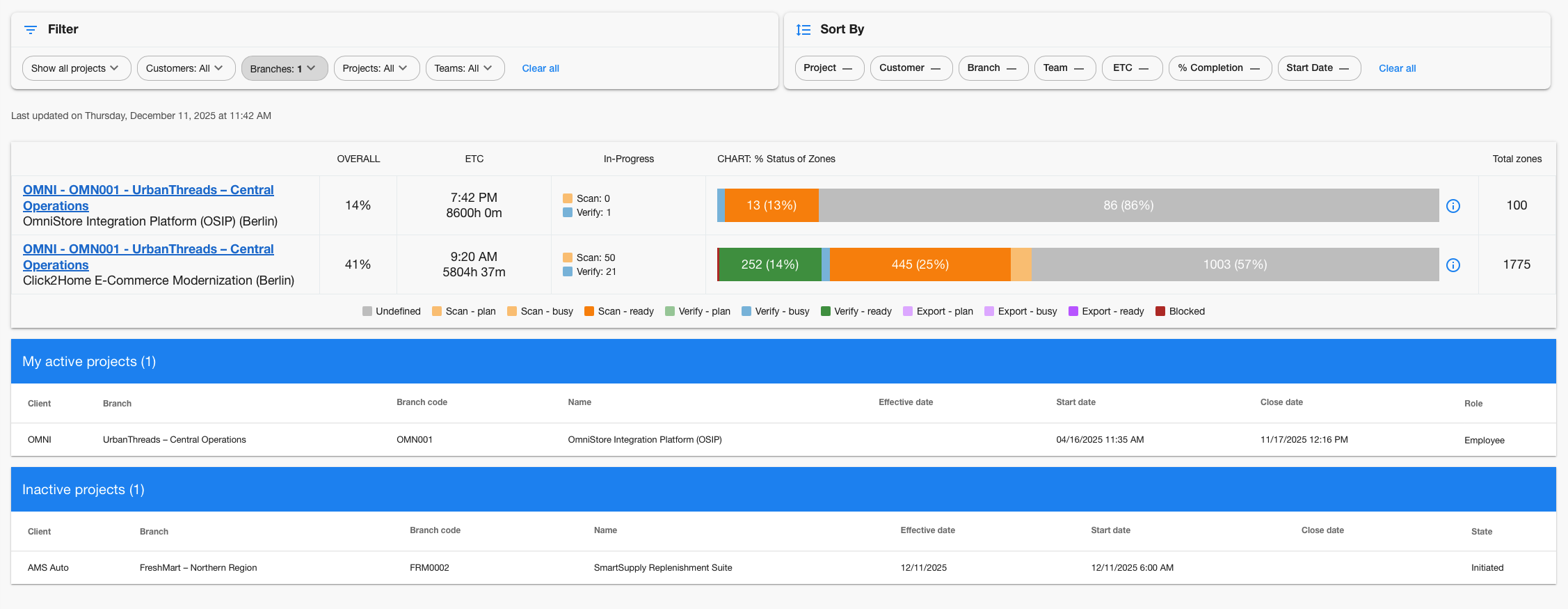
Spaltenstruktur
| Spalte | Beschreibung |
|---|---|
| Projektinfo | Code, Name, Standortdetails |
| Gesamt | Fertigstellungsprozentsatz 0–100 % |
| ETC | Geschätzte Restzeit (verbleibende Stunden/Tage) |
| In Bearbeitung | Aktuell aktive Zonen |
| Status-Zonen | Aufschlüsselung des Zonenstatus (farbkodierte Statusbalken) |
| Zonen gesamt | Gesamtanzahl der Zonen |
Zonenstatusfarben
| Status | Farbe | Bedeutung |
|---|---|---|
| Scan Plan | Blau | Bereit zum Scannen |
| Scan Busy | Gelb | Wird aktuell gescannt |
| Scan Ready | Grün | Scan abgeschlossen |
| Verify Plan | Orange | Bereit zur Verifizierung |
| Verify Busy | Lila | Wird aktuell verifiziert |
| Verify Ready | Hellgrün | Verifizierung abgeschlossen |
| Export | Dunkel | Bereit für Export |
| Blocked | Rot | Kann nicht fortgesetzt werden |
Zusammenfassungsabschnitte

Meine aktiven Projekte
Zweck: Projekte, in denen der aktuelle Benutzer registriert ist
Kriterien:
- Projektstatus = Aktiv
- Benutzer hat Registrierung im Projekt
- Zeigt die Rolle des Benutzers im Projekt
Inaktive Projekte
Zweck: Abgeschlossene, ausgesetzte oder abgebrochene Projekte
Kriterien:
- Projektstatus ist NICHT Aktiv
- Alle Projekte unabhängig von der Benutzerbeteiligung
- Historische Referenz
Datenaktualisierung
Aktualisierungsplan:
- Echtzeit: Benutzerinteraktionen und Statusänderungen
- Stündliche Berechnung: Fortschrittskennzahlen und Analysen
- Tägliche Aggregation: Zonenstatistiken und Zusammenfassungen
Indikator für letzte Aktualisierung:

Zeigt an, wann die Dashboard-Daten zuletzt berechnet wurden.
Fehlerbehebung
Dashboard wird nicht geladen?
- Prüfen Sie, ob Sie ein aktives Projekt ausgewählt haben
- Seite aktualisieren, wenn Daten nicht mehr aktuell erscheinen
- Bei anhaltenden Zugriffsproblemen Administrator kontaktieren
Keine Projekte werden angezeigt?
- Prüfen Sie, ob die Filter zu restriktiv sind
- Stellen Sie sicher, dass mindestens eine Filteroption ausgewählt ist
- Auf „Alle löschen" klicken, um Filter zurückzusetzen
- Prüfen Sie, ob Sie Zugriff auf Organisationsdaten haben
Fortschritt scheint falsch?
- Daten werden stündlich aktualisiert und spiegeln möglicherweise keine aktuellen Änderungen wider
- Zeitstempel „Zuletzt aktualisiert" prüfen
- Statusänderungen von Zonen benötigen Zeit zur Berechnung
- Projektmanager zur Überprüfung kontaktieren
ETC zeigt „N/A"?
- Projekt könnte zu neu sein (keine historischen Daten)
- Es wurde noch kein Fortschritt erzielt
- Berechnung erfordert mindestens eine abgeschlossene Zone
- Erscheint, sobald Arbeit begonnen hat
Fehlende Farben in Statusbalken?
- Einige Projekte haben möglicherweise keine Zonen in bestimmten Status
- Leere Status zeigen keine Farbsegmente an
- Legende am unteren Rand auf Statusbedeutungen prüfen
- Administrator kontaktieren, wenn Status zu fehlen scheinen