Public Dashboard
Public Dashboard
The Public Dashboard provides a comprehensive overview of all projects across the organization, allowing managers and supervisors to monitor progress, performance, and resource allocation at a glance.
Overview
The Global Dashboard serves two main audiences:
- Executives & Managers - Strategic overview of all projects
- Users without project access - General system overview
Access Requirements
Viewing Conditions:
- No active project selected - User is not assigned to a specific project
- Missing project permissions - User lacks permission to view zones for current project
- Cross-project visibility - Users who need organization-wide oversight
Automatic Navigation:
The system automatically shows Global Dashboard when:
- User logs in without project assignment
- User is removed from current project
- Project permissions are revoked
Core Features
Filter Card
Purpose: Refine which projects are displayed

Filter Options:
| Filter | Description | Options |
|---|---|---|
| Project Status | Show/hide completed projects | Show All / Hide Completed / Show Completed |
| Customers | Filter by client organization | Dropdown with client list |
| Branches | Filter by branch/location | Dropdown with branch list |
| Projects | Select specific projects | Multi-select project list |
| Teams | Filter by assigned teams | Dropdown with team list |
Filter Behavior:
- Empty filter = Show Nothing - If any filter is set to empty, no projects are displayed
- No filter = Show All - Default state shows all projects
- Combined filters - Multiple filters work together (AND logic)
- Clear All button - Reset all filters to default state
Sort Card
Purpose: Order projects by different criteria

Sort Options:
| Field | Description | Data Type |
|---|---|---|
| Project Code | Alphanumeric project identifier | String |
| Project Name | Human-readable project title | String |
| Branch Name | Location/branch identifier | String |
| Customer Name | Client organization name | String |
| Progress | Completion percentage | Number (0-100%) |
| ETC | Estimated time to completion | Time duration |
| Start Date | Project start date | Date |
| End Date | Project end date | Date |
Sort Direction:
Clicking on the arrow on each sort field, the system changes the sorting direction:
- Ascending: A-Z, 0-100, earliest to latest
- Descending: Z-A, 100-0, latest to earliest
Project Progress Table
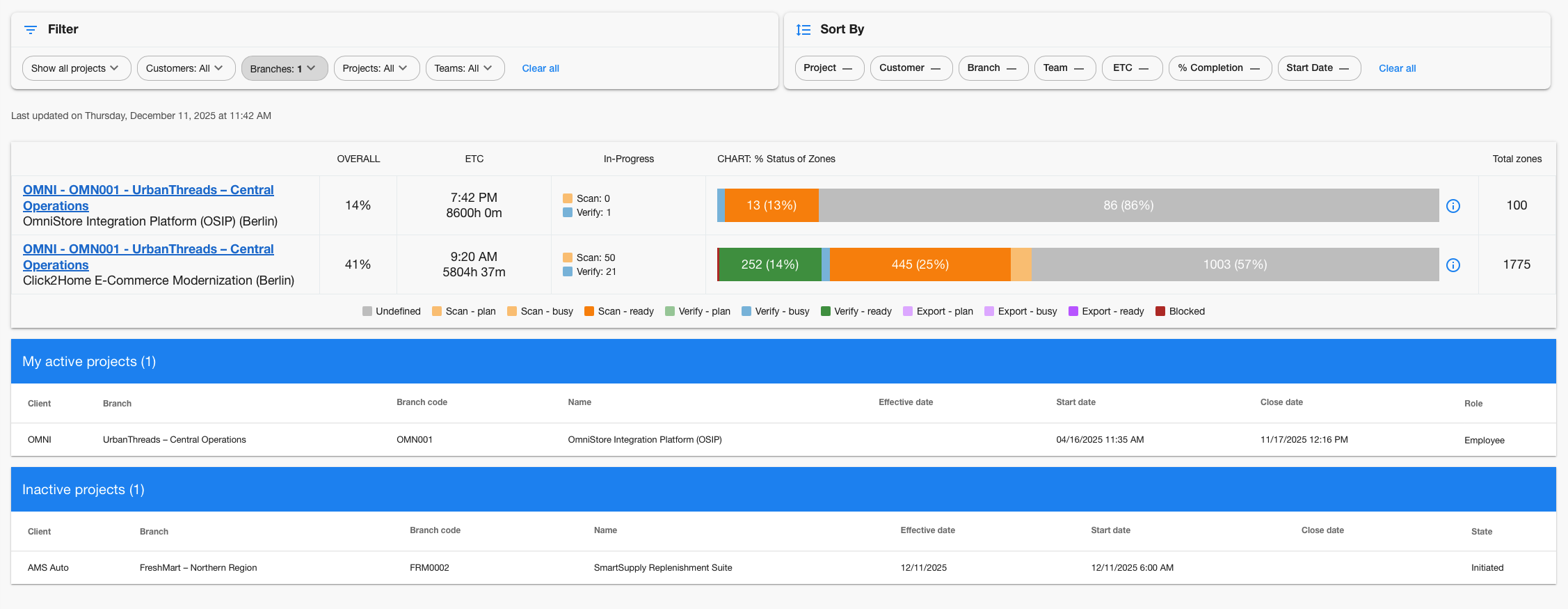
Column Structure
| Column | Description |
|---|---|
| Project Info | Code, name, location details |
| Overall | Completion percentage 0-100% |
| ETC | Estimated time to completion (hours/days remaining) |
| In Progress | Currently active zones |
| Status Zones | Zone status breakdown (Color-coded status bars) |
| Total Zones | Total zone count |
Zone Status Colors
| Status | Color | Meaning |
|---|---|---|
| Scan Plan | Blue | Ready to scan |
| Scan Busy | Yellow | Currently scanning |
| Scan Ready | Green | Scan completed |
| Verify Plan | Orange | Ready for verification |
| Verify Busy | Purple | Currently verifying |
| Verify Ready | Light Green | Verification complete |
| Export | Dark | Ready for export |
| Blocked | Red | Cannot proceed |
Summary Sections

My Active Projects
Purpose: Projects where current user is registered
Criteria:
- Project state = Running
- User has registration in project
- Shows user's role in project
Inactive Projects
Purpose: Completed, suspended, or cancelled projects
Criteria:
- Project state is NOT Running
- All projects regardless of user involvement
- Historical reference
Data Update
Update Schedule:
- Real-time: User interactions and status changes
- Hourly calculation: Progress metrics and analytics
- Daily aggregation: Zone statistics and summaries
Last Updated Indicator:

Shows when dashboard data was last calculated.
Troubleshooting
Dashboard not loading?
- Check if you have an active project selected
- Refresh page if data seems stuck
- Contact admin if access issues persist
No projects showing?
- Check if filters are too restrictive
- Ensure at least one filter option is selected
- Click "Clear All" to reset filters
- Verify you have access to organization data
Progress seems incorrect?
- Data updates hourly, may not reflect recent changes
- Check "Last Updated" timestamp
- Zone status changes may take time to calculate
- Contact project manager for verification
ETC showing "N/A"?
- Project may be too new (no historical data)
- No progress has been made yet
- Calculation requires at least one completed zone
- Will appear once work begins
Missing colors in status bars?
- Some projects may have no zones in certain statuses
- Empty statuses don't display color segments
- Check legend at bottom for status meanings
- Contact admin if statuses seem missing