Notifications
Notifications
The notifications system manages help requests and alerts within projects, allowing team members to request assistance and supervisors to assign and resolve issues efficiently.
Overview
The notification system provides:
- Real-time help requests coming from employees performing stock-takings
- Assignment workflow for Super Admins, Admins, Team Admins, User Admins, Team Managers and Area Managers
- Status tracking from request to resolution
- Visual indicators for unread notifications
- Zone-specific context for better understanding of the actual request
Access Requirements
- Must be Super Admin, Admin, Team Admin, User Admin, Team Manager or Area Manager
- Active project required
- Badge indicator shows unread notification count
- Auto-refresh when new notifications arrive
Notification Menu Structure
| Tab | Description | Action Icon | Available Actions |
|---|---|---|---|
| Unassigned | Default state as soon as a help request comes through from a scanner in the field. |  | Assign the task to you to handle. |
| Assigned | When a task is assigned to someone, it is automatically moved to this tab. |  | After the task has been assigned to you, you can resolve if action has been taken on it. |
| Resolved | A task can be finally resolved and moved to this tab. | N/A | As soon as a task is resolved, it is finally moved to this tab for reference. |
Notification States & Workflow
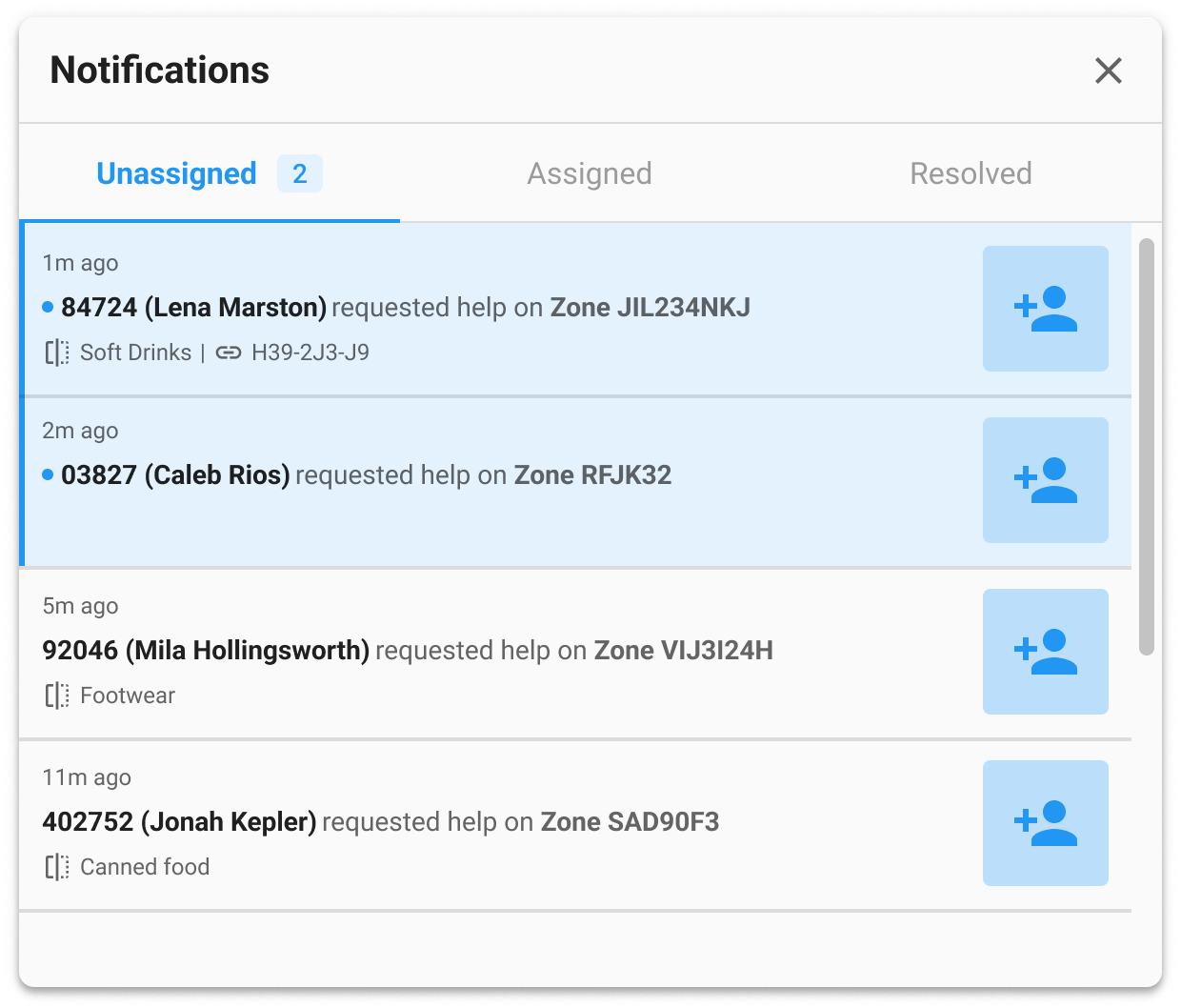
Unassigned Notifications
- Time stamp - When help was requested
- User details - Username and full name
- Zone information - Zone code and location
- Division -
 (if a division exists)
 - Client zone code -
 (if linkage exists)
 - Unread indicator - Blue dot for new notifications
Assigned Notifications
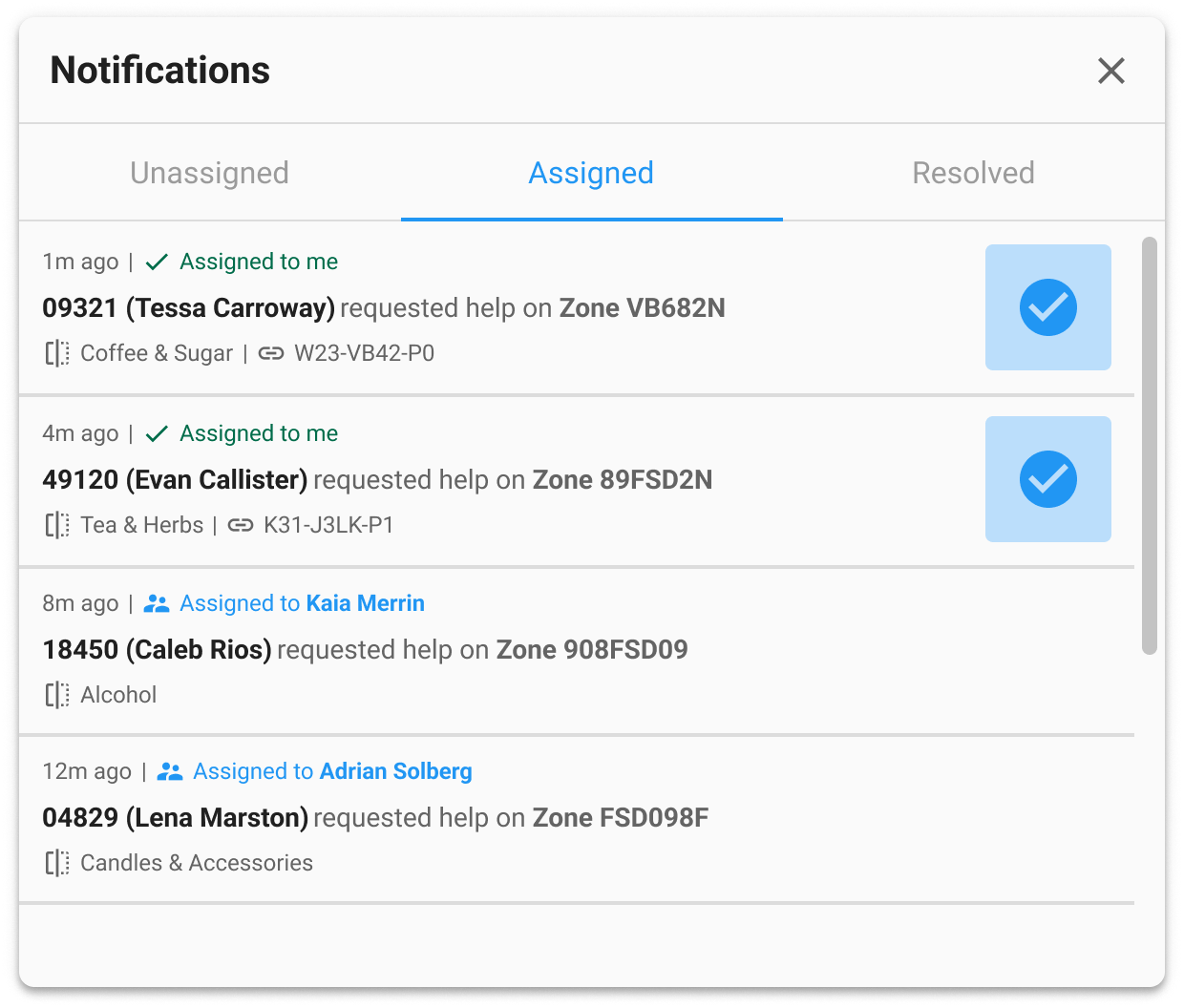
- Assignment status:
- Assigned to me - You have assigned the task to yourself
- Assigned to [Name] - The task has been assigned to another user
- Original request details - Same as in the Unassigned tab
- Zone context - Division and client codes (same as in the Unassigned tab)
Resolved Notifications
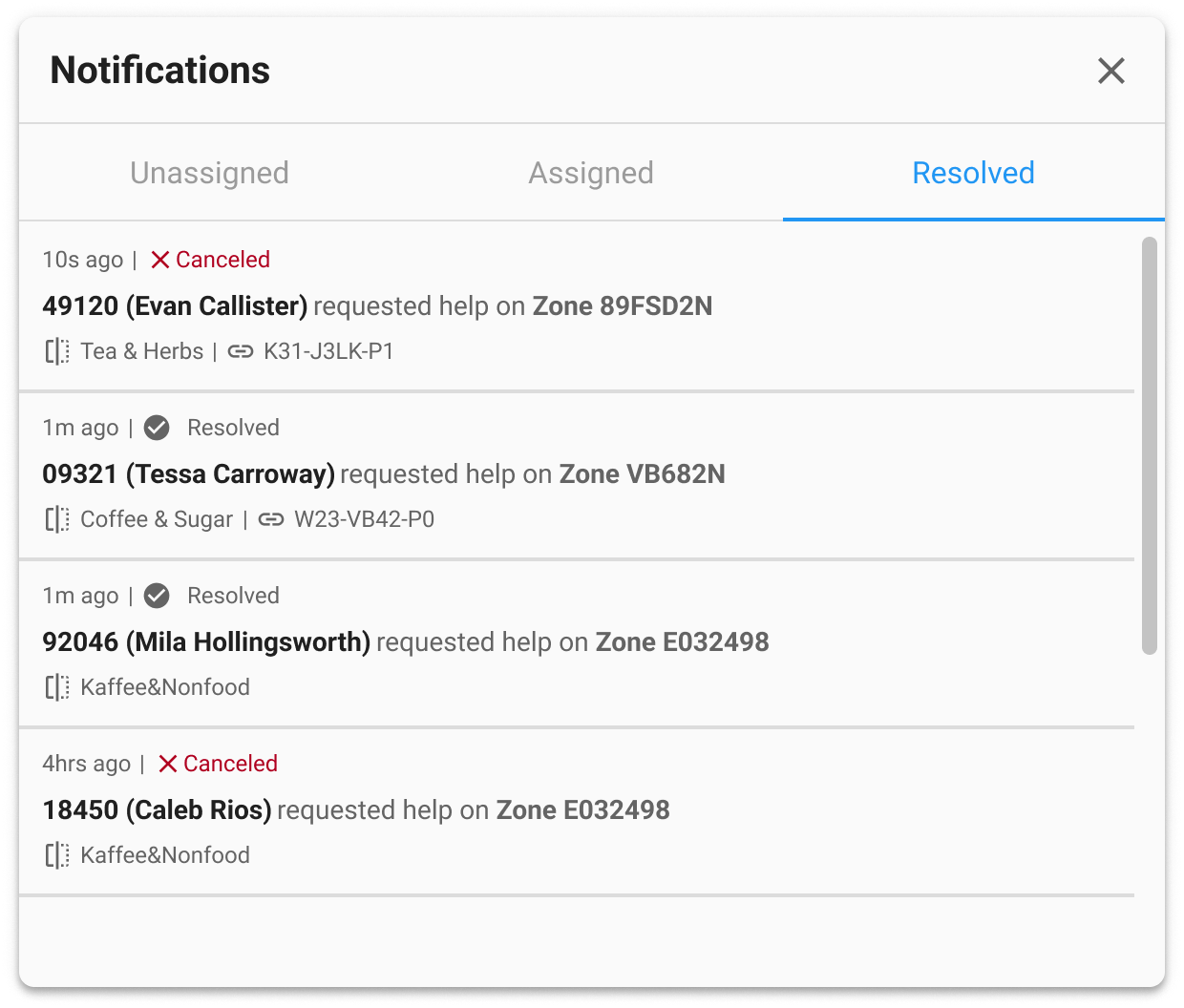
- Resolution status:
- Resolved - Successfully completed
- Cancelled - Request was cancelled
- Original request details
- Timeline information
How to Use
Viewing Notifications
- Look for the bell icon
 in the toolbar
 - Red badge shows unread count
- Click bell to open notification menu
Assigning a Notification
- Go to Unassigned tab
- Find the notification you want to handle
- Click the person-add icon
- Notification moves to Assigned tab
Resolving a Notification
- Go to Assigned tab
- Find notifications assigned to you
- Click the check-circle icon
- Notification moves to Resolved tab
Troubleshooting
No notification icon visible?
- Verify you have proper permissions - check with your system administrator
- Ensure you're in an active project
Menu won't open?
- Try refreshing the page
- Check browser console for errors
- Verify notifications are enabled for your project
Can't assign notifications?
- Ensure you have proper permissions - check with your system administrator
- Check if notification is already assigned
- Verify you're logged in properly
Can't resolve notifications?
- Only assignee can resolve notifications
- Check if notification is assigned to you
- Verify notification is in "assigned" status
Notifications not updating?
- Check internet connection
- Refresh the page if stuck
- Verify real-time connection is active