Info / Help
🎯 Overview
The Info/Help Page (also known as the Introduction Page) serves as the comprehensive documentation and help system for the application. This sophisticated content management interface provides hierarchical information organization across multiple organizational levels, allowing administrators to create, edit, and maintain structured documentation with rich text content, file attachments, and downloadable resources. The system enables context-sensitive help delivery based on user location within the organizational hierarchy.
The Info/Help Module operates with multi-level content management:
- 📝 Rich Content Editor: Advanced WYSIWYG editor with formatting, media, and layout capabilities
- 🏢 Hierarchical Content: Four-level content structure (Global → Customer → Branch → Project)
- 📁 File Management: Integrated file upload and download system for documentation resources
- 🔒 Permission-Based Editing: Role-based content creation and modification capabilities
🔐 Access Requirements
👥 Required Roles & Permissions
- View Info/Help:
introduction.viewpermission (all authenticated users) - Edit Global Content:
introduction.updateGlobalpermission (super admin level) - Edit Customer Content:
introduction.updateClientpermission (client-level administrators) - Edit Branch Content:
introduction.updateBranchpermission (branch-level managers) - Edit Project Content:
introduction.updateProjectpermission (project managers and above)
🌐 Permission Hierarchy
- Global Level: System-wide content visible across all organizations
- Customer Level: Client-specific content for all branches and projects
- Branch Level: Branch-specific content for associated projects
- Project Level: Project-specific content for current project team
🎯 Access Scope
- Reading Access: All authenticated users can view content based on their organizational context
- Writing Access: Hierarchical permissions determine content editing capabilities
- File Management: Upload and delete permissions follow the same hierarchical structure
- Content Visibility: Users see aggregated content from all applicable levels
💻 Info/Help Page Interface Layout
📚 Main Content Management Interface
The main interface displays the content management area with the following components:
Header:
- Page title: "Introduction"
- Content level tabs: [GENERAL] [CUSTOMER] [BRANCH] [PROJECT] for switching between organizational levels
Toolbar:
- Section management tools
- Upload button for file management
- Add Section button to create new content sections
Content Sections:
- Expandable/collapsible sections with titles
- Edit and delete buttons for each section
- Nested subsections with their own edit/delete controls
- Add Subsection button for creating nested content
- Content preview showing section descriptions
Downloads Section:
- Expandable downloads area
- List of uploaded files (PDFs, spreadsheets, etc.)
- Delete buttons for removing files
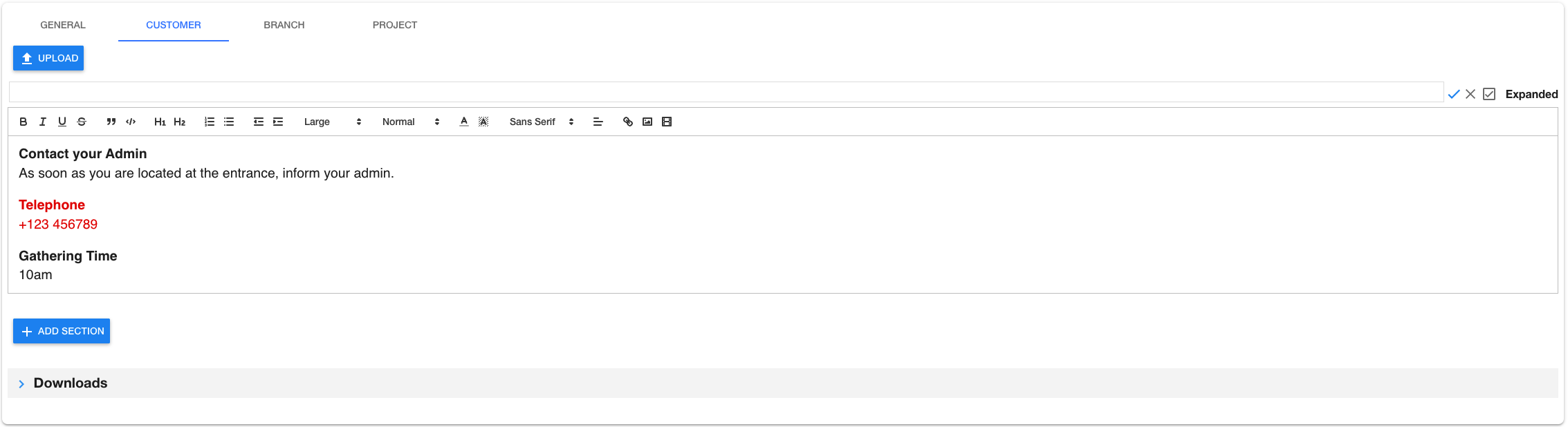
✏️ Rich Text Editor Interface
The rich text editor provides a comprehensive content editing interface:
Section Header:
- Section title input field
- Save button (checkmark) and cancel button (X)
- "Expanded by Default" checkbox option
Formatting Toolbar:
- Text formatting: Bold, Italic, Underline, Strikethrough
- Code formatting: Blockquote, Code block
- Headings: H1, H2 (and additional heading levels)
- Lists: Bullet points, Numbered lists
- Indentation: Indent left, Indent right
- Media: Image upload, Link insertion
Content Editing Area:
- Rich text editing workspace
- Support for formatted text (bold, italic)
- Bullet points and numbered lists
- Links and embedded images
- Real-time formatting preview
📁 File Upload Interface
The file upload interface provides document management capabilities:
Upload Area:
- Drag-and-drop zone for file uploads
- Click to browse button for file selection
- Supported file formats: PDF, DOC, XLS, IMG, ZIP
Upload Progress:
- Progress bar showing upload completion percentage
- File name and size display
- Status indicator showing upload completion
- Success confirmation when upload is complete
📝 Rich Content Editor Component
The Rich Content Editor provides advanced text formatting and content creation capabilities with professional publishing features.
⭐ Editor Features
- Rich Text Formatting: Bold, italic, underline, strikethrough with keyboard shortcuts
- Heading Structures: Multiple heading levels (H1-H6) for content organization
- List Management: Ordered and unordered lists with indent/outdent controls
- Code Support: Inline code and code block formatting for technical documentation
- Link Integration: Hyperlink creation and management for cross-references
- Media Embedding: Image upload and video embedding with resize controls
- Text Styling: Font sizes, colors, backgrounds, and alignment options
- Block Elements: Blockquotes, code blocks, and custom formatting options
🎨 Formatting Toolbar Options
- 📝 Text Formatting: Bold, italic, underline, strikethrough
- 📋 Structure: Headers (H1-H6), blockquotes, code blocks
- 📜 Lists: Bullet points, numbered lists, indent/outdent
- 🎯 Alignment: Left, center, right, justify text alignment
- 🎨 Styling: Font sizes, text colors, background colors
- 🔗 Media: Links, images, videos with resize capabilities
- 📐 Layout: Custom spacing, margins, and content organization
✏️ Content Creation Workflow
- Section Creation: Add new content sections with descriptive titles
- Rich Text Editing: Use toolbar formatting options for professional presentation
- Media Integration: Upload and embed images, documents, and media files
- Subsection Organization: Create hierarchical content with nested subsections
- Preview and Save: Review formatted content before publishing to users
🏢 Hierarchical Content Management Component
The Hierarchical Content Management system provides sophisticated multi-level content organization aligned with organizational structure.
⭐ Content Level Structure
- 🌐 Global Level: System-wide content visible to all users across organizations
- 🏢 Customer Level: Client-specific content for all branches and projects
- 🏭 Branch Level: Branch-specific content for associated projects only
- 📋 Project Level: Project-specific content for current project team members
🔄 Content Inheritance Flow
- Global Content: Foundation content available system-wide
- Customer Overlay: Client-specific additions and customizations
- Branch Specialization: Branch-specific procedures and information
- Project Details: Project-specific instructions and documentation
- Aggregated View: Users see combined content from all applicable levels
🎯 Content Visibility Matrix
// Content Visibility Rules
const contentVisibility = {
globalContent: "visible to all users",
customerContent: "visible to customer users",
branchContent: "visible to branch users",
projectContent: "visible to project team members"
};
// User sees content from:
const userContentAccess = [
"global content (always)",
"customer content (if assigned to customer)",
"branch content (if assigned to branch)",
"project content (if member of project)"
];
🔒 Permission-Based Editing
- Content Creation: Add sections and subsections at authorized levels
- Content Modification: Edit existing content based on permission scope
- Content Deletion: Remove sections with confirmation dialogs
- File Management: Upload and delete files at appropriate organizational levels
📁 File Management Component
The File Management component provides integrated document storage and distribution capabilities for each organizational level.
⭐ File Upload Features
- Drag-and-Drop Interface: Intuitive file upload with drag-and-drop support
- Multiple Format Support: PDF, DOC, DOCX, XLS, XLSX, images, ZIP archives
- Progress Tracking: Real-time upload progress with status indicators
- File Organization: Automatic organization by organizational level
- Access Control: File access follows same permission hierarchy as content
📊 File Management Operations
- Upload Files: Add documents and resources to content sections
- Download Access: Direct download links for end users
- File Deletion: Remove outdated or incorrect files with confirmation
- File Organization: Automatic categorization by organizational level
- Storage Optimization: Efficient file storage and retrieval systems
🔗 Download Section
- Expandable Section: Collapsible downloads area for each content level
- Direct Links: One-click download access for all uploaded files
- File Information: Display file names and types for easy identification
- Permission-Based Access: Download availability based on user permissions
⭐ Core Info/Help System Features
🎯 Section Management
- Expandable Sections: Collapsible content sections for organized presentation
- Drag-and-Drop Reordering: Intuitive section and subsection reorganization
- Nested Subsections: Hierarchical content structure with unlimited nesting
- Auto-Save Functionality: Automatic content preservation during editing
- Version Control: Draft system for safe content editing and review
📊 Content Organization
- Ordered Sections: Automatic section numbering and organization
- Subsection Hierarchy: Multi-level content nesting for complex topics
- Cross-References: Link sections and subsections for easy navigation
- Search Integration: Full-text search capabilities across all content levels
- Content Templates: Reusable content structures for consistent documentation
🔄 Real-Time Collaboration
- Multi-User Editing: Concurrent editing with conflict resolution
- Live Updates: Real-time content synchronization across user sessions
- Edit Conflicts: Intelligent handling of simultaneous content modifications
- Permission Validation: Real-time permission checking during editing sessions
📘 Info/Help Page Usage Guide
🚀 Getting Started with Content Management
- Navigate to Info/Help page via main navigation menu
- Select Content Level: Choose Global, Customer, Branch, or Project tab
- Review Permissions: Verify your editing permissions for selected level
- Explore Existing Content: Expand sections to review current documentation
- Plan Content Structure: Organize information hierarchy before editing
📝 Creating New Content Sections
-
Add New Section:
➕ Click "Add Section" button at bottom of content area
📝 Section enters edit mode automatically
🏷️ Enter descriptive section title
✏️ Add content using rich text editor -
Configure Section Settings:
☑ Check "Expanded" to show section by default
🎨 Use formatting toolbar for text styling
📷 Add images and media content
🔗 Insert links to external resources -
Save Section Content:
✅ Click check mark to save changes
📊 Section automatically orders in sequence
👁️ Content immediately visible to users
🔄 Changes sync across all user sessions
📚 Managing Subsections
-
Create Subsections:
▼ Expand parent section
➕ Click "Add Subsection" button
📝 Enter subsection title and content
💾 Save to create nested structure -
Organize Subsection Hierarchy:
🖱️ Drag subsection headers to reorder
📋 Use consistent numbering system
🔗 Cross-reference related subsections
📊 Monitor logical content flow
📁 Managing Files and Downloads
-
Upload Documentation Files:
📁 Click "Upload" button in section toolbar
🖱️ Drag files to upload area or browse
📊 Monitor upload progress
✅ Verify files appear in Downloads section -
Organize Download Section:
📄 Files automatically grouped by type
📝 File names should be descriptive
🗑️ Remove outdated files using delete icon
🔗 Share direct download links with users
🎯 Content Level Management
-
Global Content (System-Wide):
🌐 Create foundational content for all users
📚 Include general system documentation
🎯 Focus on universal procedures and policies
🔄 Update regularly for system-wide changes -
Customer Content (Client-Specific):
🏢 Add client-specific procedures and information
📋 Include customer branding and guidelines
🎨 Customize content for client requirements
📊 Monitor client-specific usage patterns -
Branch Content (Location-Specific):
🏭 Document branch-specific procedures
📍 Include location-specific information
👥 Address local team requirements
🔧 Customize for branch operational needs -
Project Content (Team-Specific):
📋 Create project-specific documentation
🎯 Include project goals and procedures
👥 Address team-specific requirements
📊 Monitor project documentation usage
✏️ Advanced Content Editing
-
Rich Text Formatting:
🎨 Use formatting toolbar for professional presentation
📝 Apply consistent heading styles
📋 Create structured lists and bullet points
🔗 Add hyperlinks for cross-references -
Media Integration:
📷 Upload and embed relevant images
📹 Embed video content for demonstrations
📊 Include charts and diagrams
🖼️ Resize media for optimal presentation -
Content Organization:
📚 Structure content logically from general to specific
🔢 Use consistent numbering and organization
🎯 Focus on user needs and common questions
📖 Create table of contents for long sections
🔄 Content Maintenance
-
Regular Content Review:
📅 Schedule periodic content audits
🔍 Review accuracy and relevance
📊 Monitor user feedback and usage patterns
🔄 Update content based on system changes -
Version Management:
📝 Use draft editing system for major changes
💾 Save frequently during editing sessions
🔄 Preview changes before publishing
📋 Document significant content updates
⚠️ Info/Help Page Troubleshooting
🚫 Common Content Management Issues
❌ "Invalid permission" Error
- ✅ Permission Level: Verify you have editing permissions for selected content level
- ✅ Organizational Assignment: Ensure you're assigned to customer/branch/project for that level
- ✅ Role Verification: Check your user role includes required introduction permissions
- ✅ Admin Contact: Request appropriate permissions from system administrator
❌ "Content not saving" Issue
- ✅ Internet Connection: Verify stable network connection
- ✅ Session Timeout: Refresh page if session has expired
- ✅ Browser Compatibility: Use Chrome, Firefox, or Edge for best results
- ✅ Content Size: Large content may require multiple save attempts
❌ "File upload failing" Error
- ✅ File Size: Check file is under maximum size limit
- ✅ File Format: Verify file type is supported
- ✅ Storage Space: Ensure system has available storage capacity
- ✅ Upload Permissions: Confirm you have file upload permissions for level
❌ "Rich editor not loading" Issue
- ✅ Browser Compatibility: Update browser to latest version
- ✅ JavaScript Enabled: Ensure JavaScript is enabled in browser
- ✅ Ad Blockers: Disable ad blockers that may interfere with editor
- ✅ Page Refresh: Reload page to reinitialize editor components
❌ "Content not visible to users" Problem
- ✅ Permission Scope: Verify content is at appropriate organizational level
- ✅ User Assignments: Ensure target users are assigned to correct level
- ✅ Content Publication: Confirm content is saved and published
- ✅ Cache Issues: Clear browser cache for content updates
📱 Mobile Content Management
- Touch-Friendly Editor: Rich text editor optimized for mobile editing
- Responsive Interface: Content management interface adapts to mobile screens
- File Upload: Mobile file upload support for photos and documents
- Preview Mode: Mobile preview to verify content presentation
🔄 Content Performance Optimization
- Large Documents: Break large content into smaller sections
- Image Optimization: Compress images for faster loading
- File Management: Regularly clean up unused files
- Browser Cache: Leverage browser caching for repeat visits
🛠️ Info/Help System Technical Details
🏗️ Content Management Architecture
// Info/Help System Structure
{
contentManagement: {
editor: "quill_rich_text_editor",
hierarchy: "four_level_organizational",
permissions: "rbac_integration",
storage: "mongodb_collections"
},
userInterface: {
tabSystem: "level_based_navigation",
editMode: "inline_wysiwyg",
fileUpload: "drag_drop_interface",
responsiveDesign: "mobile_optimized"
},
dataFlow: {
realTimeSync: true,
draftSystem: true,
autoSave: true,
conflictResolution: true
}
}
📚 Content Record Structure
// Info/Help Content Database Record
{
_id: "settings123",
global: true, // or false for specific levels
clientId: "client456", // for customer level
branchId: "branch789", // for branch level
projectId: "project101", // for project level
options: {
InfoPageContent: [
{
id: "section123",
title: "Getting Started",
html: "<p>Welcome content...</p>",
order: 1,
isExpanded: true,
subsections: [
{
id: "subsection456",
title: "First Steps",
html: "<p>Step by step guide...</p>",
order: 1,
isExpanded: false
}
]
}
]
},
createdAt: new Date(),
modifiedAt: new Date()
}
✏️ Rich Text Editor Configuration
// Quill Editor Configuration
const editorModules = {
toolbar: {
container: [
['bold', 'italic', 'underline', 'strike'],
['blockquote', 'code-block'],
[{ header: 1 }, { header: 2 }],
[{ list: 'ordered' }, { list: 'bullet' }],
[{ indent: '-1' }, { indent: '+1' }],
[{ size: ['small', false, 'large', 'huge'] }],
[{ header: [1, 2, 3, 4, 5, 6, false] }],
[{ color: [] }, { background: [] }],
[{ font: [] }],
[{ align: [] }],
['link', 'image', 'video']
]
},
ImageResize: {
modules: ['Resize', 'DisplaySize'],
handleStyles: {
backgroundColor: 'black',
border: 'none',
color: 'white'
}
}
};
🔒 Permission Validation Logic
// Permission Checking for Content Levels
const checkIntroductionPermissions = (userId, global, clientId, branchId, projectId) => {
const selectors = {};
if (global) {
if (userIsInRole(userId, [permissions.introduction.updateGlobal])) {
selectors.global = true;
}
} else if (clientId) {
if (userIsInRole(userId, [permissions.introduction.updateClient])) {
selectors.clientId = clientId;
}
} else if (branchId) {
if (userIsInRole(userId, [permissions.introduction.updateBranch])) {
selectors.branchId = branchId;
}
} else if (projectId) {
if (userIsInProjectRole(userId, [permissions.introduction.updateProject], projectId)) {
selectors.projectId = projectId;
}
}
return selectors;
};
📁 File Management System
// File Upload and Management
const fileManagement = {
upload: {
maxSize: "50MB",
supportedTypes: [
"application/pdf",
"application/msword",
"application/vnd.openxmlformats-officedocument.wordprocessingml.document",
"application/vnd.ms-excel",
"application/vnd.openxmlformats-officedocument.spreadsheetml.sheet",
"image/*",
"application/zip"
],
storage: "gridfs_or_external",
organization: "by_content_level"
},
access: {
downloadLinks: "direct_file_access",
permissions: "hierarchical_inheritance",
cleanup: "automated_orphan_removal"
}
};
🔄 Content Synchronization
// Real-time Content Updates
const contentSync = {
subscriptions: [
'settings.info.global',
'settings.info.client',
'settings.info.branch',
'settings.info.project'
],
updateFlow: {
edit: "draft_mode_editing",
save: "immediate_persistence",
broadcast: "reactive_subscriptions",
conflict: "last_writer_wins"
},
caching: {
client: "reactive_collections",
server: "mongodb_indexes",
browser: "local_storage_drafts"
}
};
🎯 Section Management Logic
// Section Creation and Organization
const sectionManagement = {
creation: (category, parentId = null) => {
const newSection = {
id: makeId(17),
title: "New Section",
html: " ",
order: getNextOrder(category, parentId),
isExpanded: false,
editMode: true
};
if (parentId) {
const parentSection = findSection(category, parentId);
if (!parentSection.subsections) {
parentSection.subsections = [];
}
parentSection.subsections.push(newSection);
} else {
sections[category].push(newSection);
}
return newSection;
},
reorder: (sourceIndex, targetIndex, category, parentId = null) => {
const sections = parentId ?
findSection(category, parentId).subsections :
contentSections[category];
const [movedSection] = sections.splice(sourceIndex, 1);
sections.splice(targetIndex, 0, movedSection);
// Recalculate order values
sections.forEach((section, index) => {
section.order = index + 1;
});
}
};
🔐 Security Features
- Permission-Based Access: Hierarchical permission system for content management
- Input Sanitization: Rich text content sanitization to prevent XSS attacks
- File Upload Security: File type validation and malware scanning
- Session Management: Secure session handling for editing operations
- Audit Trail: Complete logging of content modifications and file operations
📈 Performance Optimizations
- Lazy Loading: Progressive loading of content sections and files
- Reactive Updates: Efficient real-time synchronization using Meteor reactivity
- Content Caching: Browser-side caching for frequently accessed content
- Database Indexing: Optimized queries for content retrieval
- File CDN: Content delivery network for file distribution
🔄 Integration Points
- User Management: Integration with RBAC system for permission validation
- Project System: Automatic content level detection based on user context
- File Storage: GridFS or external storage for file management
- Notification System: Alerts for content updates and changes
- Search System: Full-text search integration across all content levels
📊 Content Analytics
// Content Usage Tracking
{
type: "contentAnalytics",
metrics: {
sectionViews: "per_section_access_count",
downloadStats: "file_download_frequency",
editActivity: "content_modification_tracking",
userEngagement: "time_spent_per_section"
},
reporting: {
adminDashboard: "content_effectiveness_metrics",
usagePatterns: "most_accessed_sections",
maintenanceAlerts: "outdated_content_identification"
}
}
This documentation covers the comprehensive Info/Help system with multi-level content management, rich text editing, file management, and hierarchical permissions. The system provides sophisticated content creation and organization capabilities with real-time collaboration and secure access control. For advanced content configuration, custom permission setup, or troubleshooting complex content management issues, consult with your system administrator.