Import
The Import Page serves as the central hub for uploading and processing various types of data files into the system. This comprehensive interface allows users to import project data, registrations, and other structured information through a streamlined file upload and job processing system. The page provides configurable import categories, real-time processing status monitoring, and detailed job management capabilities.
The Import Module operates with specialized components for different data types:
- Registration Imports: User registration and enrollment data with template downloads
- Configurable Import Categories: Flexible import types based on project configuration under Import Config
- Job Processing System: Background processing with progress tracking and error handling
Access Requirements
Required Roles
- View Imports
- Upload Files
- Cancel Jobs
- Remove Files/Jobs
- Registration Imports
Permission Scope
- Project-Based: Access limited to imports within user's assigned projects
- Role-Based Operations: Different actions available based on user permissions
- File-Level Security: Individual file access validation
Registration Imports Component: Full Time Users
The Registration Imports section provides specialized functionality for importing user registration data with template support and validation. This part is used to import full time users into the system with the available template upload functionality.
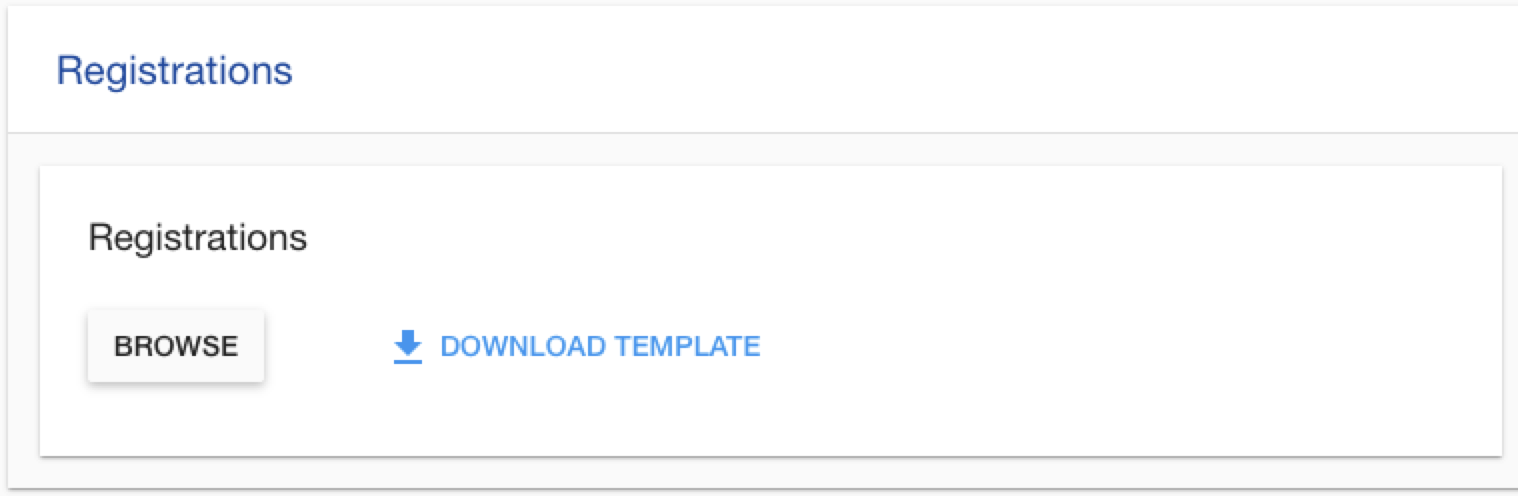
Registration Import Features
- Template Download: Pre-configured Excel templates for registration data
- Validation Support: Built-in data validation and error reporting
- Bulk Registration: Process multiple user registrations simultaneously
- Progress Tracking: Real-time upload and processing progress monitoring
Registration Import Workflow
- Download Template: Get the standardized registration template
- Fill Data: Complete registration information in the template
- Upload File: Browse and select the completed registration file
- Monitor Progress: Track processing status and validation results
- Review Results: Check for errors and successful registrations
Configurable Import Categories
The system supports flexible import categories based on project configuration, allowing for different types of data imports.
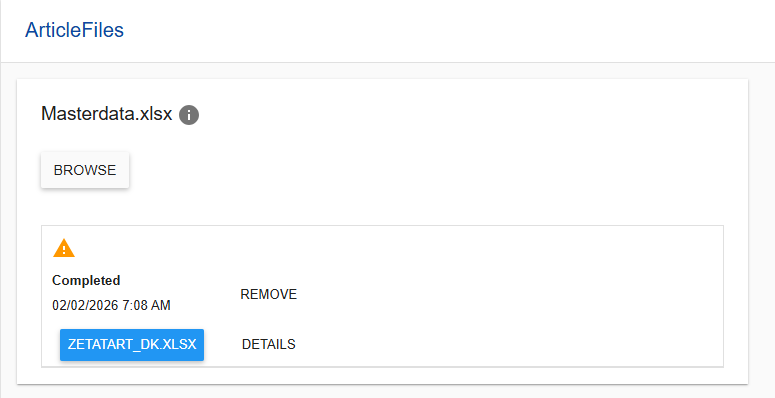
Import Category Features
- Dynamic Configuration: Categories defined by project Import Config
- File Type Validation: Automatic validation of file formats and naming conventions
- Grouped Organization: Logical grouping of related import types
- Custom Remarks: Contextual information and instructions for each category
Core Import System Features
Job Processing Engine
- Background Processing: Non-blocking file processing with job queue management
- Progress Monitoring: Real-time progress updates with percentage completion
- Error Handling: Comprehensive error reporting with detailed failure messages
- Job Management: Cancel, remove, and restart capabilities for import jobs
File Management System
- Multi-format Support: Excel, CSV, XML, and other structured file formats
- File Validation: Pre-processing validation of file structure and content
- Version Control: Track multiple versions of imported files
- Download Access: Download original files and processing logs
Status Monitoring
- Real-time Updates: Live status updates during file processing
- Detailed Logging: Comprehensive logs for troubleshooting and auditing
- Warning Management: Handle warnings and partial import scenarios
- History Tracking: Complete audit trail of all import operations
Import Page Usage Guide
Getting Started with Imports
- Navigate to Import page via main navigation menu
- Review Categories: Check available import categories for your project
- Select Import Type: Choose the appropriate category for your data
- Prepare Files: Ensure files meet format and naming requirements
- Upload Files: Use browse button functionality
Registration Import Process
The Registrations import can be used to manage both full-time and temporary users. According to the file imported, the process can either create new users or update existing users.
- Full-time users: They can be considered as the permanent employees in your company and can be reused in different projects over time. The configuration covering this type of users is the Registration Config in Settings.
- Temporary users: These can be used for the customer's employees or for independent temporary employees scoped on one project only. The configuration covering this type of users is the Registration Config in Settings.
The intention of the import process is to cover the bulk insert or update for both types of users through a file import.
Full-time users import
| Field Name | Required | Details |
|---|---|---|
| Username | Yes | The username is required for full-time users. |
| First Name | No | Even if defined, this will be fetched from the global level. |
| Last Name | No | Even if defined, this will be fetched from the global level. |
| Role | No | Selection from the available roles on the Registrations level (Team Manager, Area Manager, Employee, External Auditor, Quality Assurance Manager, Observer). If not provided, defaults to Employee. |
| Language | No | If not provided, defaults to ENG. |
| Is Client | No | Even if defined, this will be ignored. |
| Password | No | Even if defined, this will be ignored. |
Temporary users import
| Field Name | Required | Details |
|---|---|---|
| Username | No | The import will check if the provided value already exists and in that case, the user will be updated. If the provided username doesn’t exist, the system will check from the available usernames pool and a new user will be created. |
| First Name | Yes | The user's first name. |
| Last Name | Yes | The user's last name. |
| Role | No | Selection from the available roles on the Registrations level (Team Manager, Area Manager, Employee, External Auditor, Quality Assurance Manager, Observer). If not provided, defaults to Employee. |
| Language | No | If not provided, defaults to ENG. |
| Is Client | No | If not provided, defaults to False. |
| Password | No | A generic password is automatically assigned to each user that follows the password guidelines. |
| Custom Fields | No | Any other specific fields that have been defined for this customer/branch/project. |
-
Download Template:
- Click Download Template in Registrations section
- Save the CSV template to your computer
- Review template structure and required fields
-
Prepare Registration Data:
- Open downloaded template in Excel or compatible software
- Fill in registration information for each user
- Validate data format and required fields
- Save completed template with descriptive filename
-
Upload Registration File:
- Click Browse Files in Registrations section
- Select your completed registration file
- Monitor upload progress and processing status
- Review processing results and any error messages
-
Monitor Processing:
- Watch real-time progress percentage
- Review processing status (Running, Completed, Failed)
- Click Details to view processing logs
- Check for warnings or validation errors
Managing Import Jobs
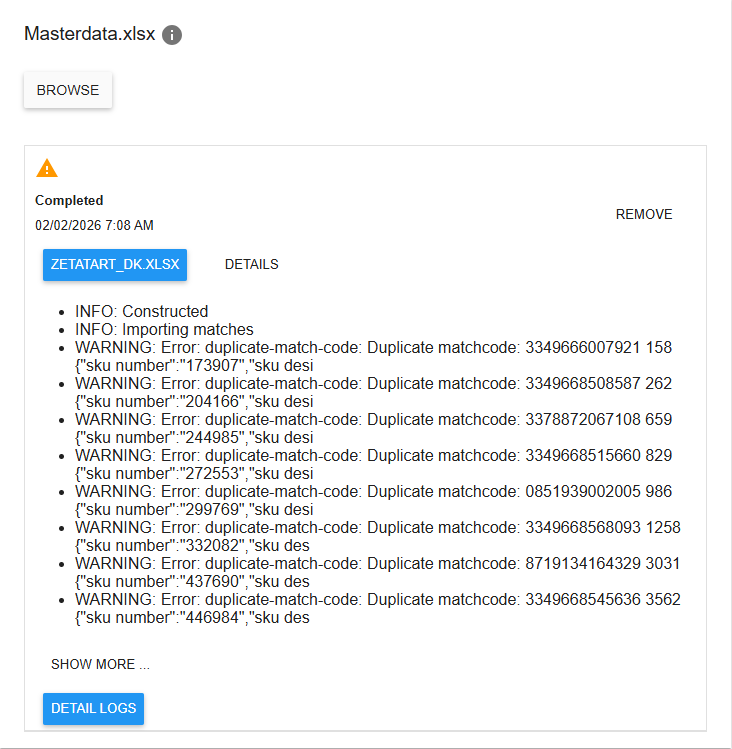
-
Job Status Monitoring:
 Running: Job is actively processing (shows progress %)
 Completed: Job finished successfully (may have warnings)
 Failed: Job encountered errors and stopped
 Cancelled: Job was manually cancelled by user
-
Job Actions:
- Cancel: Stop running jobs before completion
- Remove: Delete completed/failed jobs and files
- Details: View comprehensive processing logs
- Download: Access original uploaded files
-
Error Resolution:
- Review error messages in failed job details
- Correct data issues in original files
- Re-upload corrected files
- Verify successful processing
Understanding Import Status Indicators
 Uploaded: File successfully uploaded, waiting for processing
- Running: File is being validated and imported
- Completed: Import finished successfully
 Completed with Warnings: Import finished but with non-critical issues
- Failed: Import failed due to validation or processing errors
- Cancelled: Import was manually stopped by user
Troubleshooting
Filename does not match regular expression?
- Check Naming Convention: Follow required filename pattern for the specific category
- Remove Special Characters: Use only allowed characters in filename
- File Extension: Ensure correct file extension (.xlsx, .csv, etc.)
- Review Requirements: Check category remarks for specific naming rules
File type is not allowed?
- Format Validation: Use only supported file formats for the specific category
- File Extension: Verify file has correct extension
- Content Type: Ensure file content matches declared format
- Template Usage: Use provided templates when available
Import failed with data errors?
- Data Validation: Check for missing required fields
- Format Consistency: Ensure data follows expected format patterns
- Template Compliance: Verify data matches template structure
- Review Logs: Check detailed error logs for specific issues
Permission denied?
- Role Verification: Confirm adequate permissions for import operations
- Project Access: Verify registration in target project
- Category Access: Check if user has access to specific import category
- Admin Contact: Request appropriate permissions from administrator
File linked to job?
- Job Completion: Wait for linked job to complete before removing file
- Cancel Job: Cancel running job before attempting file removal
- Job Status: Check job status and resolve any processing issues