Registrations
The Registrations page serves as the central hub for managing user access and role assignments within projects. This comprehensive interface provides complete user registration lifecycle management, from initial enrollment through role modifications and access removal. The system enables efficient team management with role-based access control, bulk operations, and streamlined user onboarding workflows.
The Registrations Module operates with integrated components for complete user management:
- User Registration Management: Add, modify, and remove user project access with role assignments
- Role-Based Access Control: Hierarchical permission system with project-specific role assignments
- Quick Operations: Streamlined workflows for common registration tasks and bulk operations
Access Requirements
Required Roles
- View Registrations
- Register Users
- Update Registrations
- Team Management
- User View
Permission Scope
- Project-Based: Registration operations limited to user's assigned projects
- Hierarchical Control: Users cannot grant higher permissions than they possess
- Team-Based Access: Team managers can manage users within their team scope
Registrations Page Interface Layout
Main Registration Management Interface
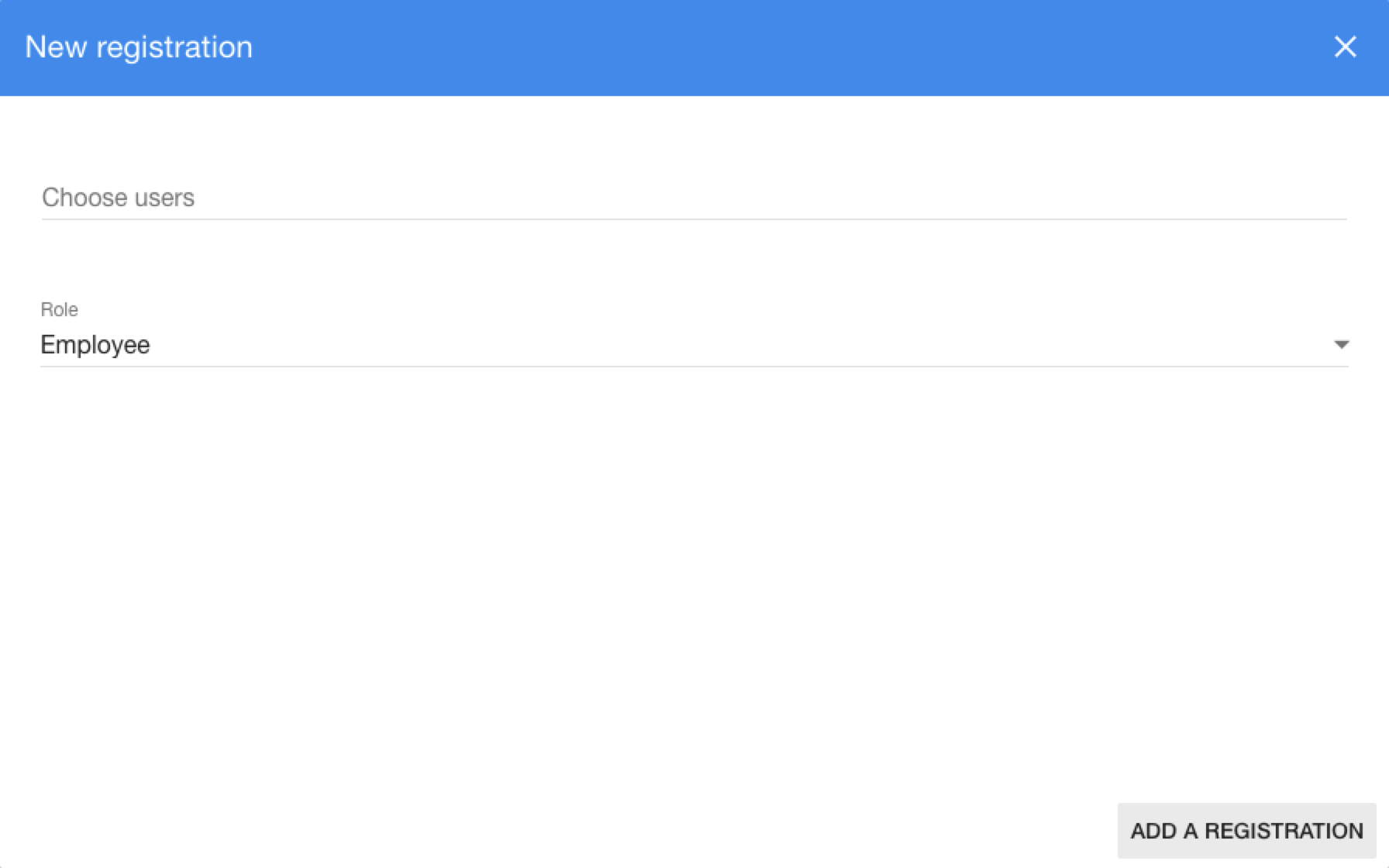
Add Registration Interface
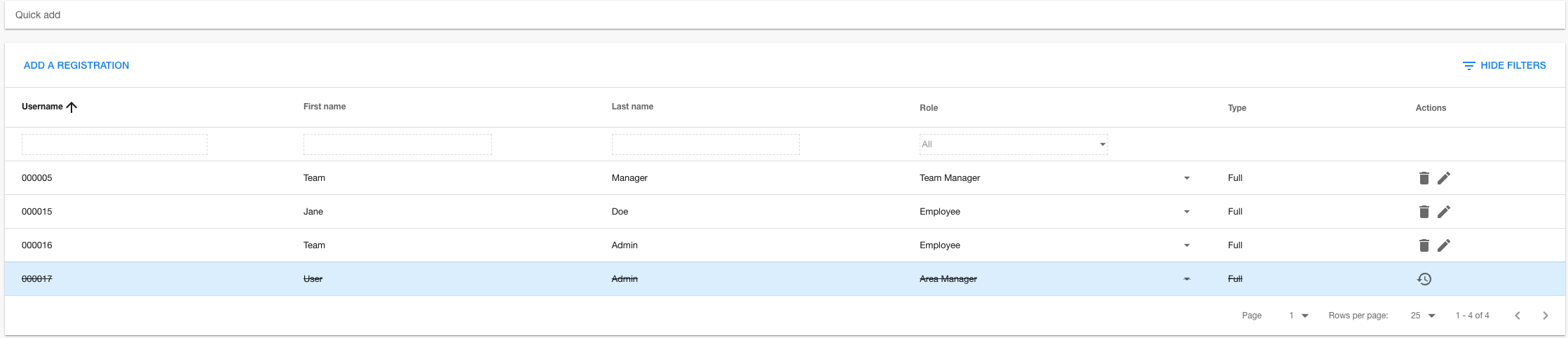
User Registration Management Component
The User Registration Management section provides comprehensive tools for managing project team membership and access control.
Registration Management Features
- Quick Add Functionality: Fast user addition via autocomplete search
- Bulk Registration: Add multiple users simultaneously with shared role assignment
- Role Management: Dynamic role assignment with permission validation
- User Search: Advanced autocomplete with name and username search
- Registration Status: Track temp vs full-time user registration types
Role-Based Access Control
| Role | Description |
|---|---|
| Team Manager | Full project management capabilities with team oversight |
| Area Manager | Area-specific management with department control |
| Employee | Standard operational access with scanning and data entry |
| Observer | Read-only access for monitoring and reporting |
| Quality Assurance Manager | Quality control and audit capabilities |
| External Auditor | Limited audit access for external reviews |
Registration Lifecycle Management
- User Discovery: Search and select users from organization directory
- Role Assignment: Assign appropriate project role based on responsibilities
- Registration Creation: Create project registration with role and metadata
- Status Monitoring: Track registration status and user type
- Modification Support: Update roles and remove access as needed
Quick Operations Component
The Quick Operations section provides streamlined workflows for common registration management tasks.
Quick Add Features
- Autocomplete Search: Real-time user search with name and username matching
- One-Click Addition: Instant user addition with default role assignment
- Recent Users: Quick access to recently added or modified users
- Batch Processing: Multiple user selection and processing
Bulk Operations
- Multi-User Selection: Tag-based user selection for bulk operations
- Shared Role Assignment: Apply same role to multiple users simultaneously
- Validation Checking: Pre-flight validation for permission and role conflicts
- Progress Tracking: Monitor bulk operation progress and completion
Registrations Page Usage Guide
Getting Started with Registration Management
- Navigate to the Registrations page via main navigation menu
- Review Current Team: Check existing project registrations and roles
- Apply Filters: Use filter controls to narrow down registration view
- Select Operation: Choose between quick add, bulk add, or individual management
- Monitor Permissions: Verify your access level for planned operations
Quick Add User Registration
- Type name or username in quick add search
- Select user from autocomplete dropdown
- User automatically added with default role - you can modify, if needed
Bulk User Registration
-
Open Add Registration Form:
- Click Add Registration button
- Add Registration modal opens
- Multiple user selection interface available
- Shared role assignment dropdown
- Search for users using autocomplete
- Click users to add them as tags
- Remove unwanted users with × button
- Verify all intended users are selected
-
Assign Role and Submit:
- Select appropriate role from dropdown
- Ensure role is within your permission level
- Click Add Registration to process
- Monitor for completion notifications
Bulk User Registration via Import
Temporary users can also be registered on a project in buld through the Import functionality on the project. More information and step by step guide can be found under Import.
Managing Existing Registrations
-
User & Role Modification:
- Click role dropdown or Edit button
 for target user
 - Select new role from available options or edit available fields
- System validates permission levels
- Changes saved automatically
- Click role dropdown or Edit button
-
Registration Removal:
- Click Remove button
 for target user
 - Confirm deletion in dialog
- Registration soft-deleted (can be restored)
- User access revoked immediately
- Click Remove button
-
Registration Restoration:
- Filter to show deleted registrations (strikethrough at the bottom of the list)
- Click Restore button
 for deleted user
 - Confirm restoration in dialog
- User access restored with previous role
Using Filters and Search
-
Apply Search Filters:
- Click Filter button
 to expand filter panel
 - Enter search terms in username, first name, last name fields
- Select specific role from role dropdown
- Results update automatically
- Click Filter button
-
Clear Filters:
- Click Clear Filter button
 next to individual filter fields
 - Use filter reset buttons to clear specific criteria
- All registrations displayed when filters cleared
- Click Clear Filter button
Understanding Registration Status Indicators
- Active Registration: User has current project access
- Deleted Registration: User access has been removed (soft-deleted)
- Restoration Available: Deleted registration can be restored
- Full User: Permanent organization employee
- Temp User: Temporary or contractor user
- Role Dropdown: Active role with modification capability
- Permission Warning: Role change blocked due to permission restrictions
Troubleshooting
Common Registration Issues
Not allowed to advance permissions Error
- Permission Check: Verify you have adequate permissions for target role
- Role Hierarchy: Ensure target role is equal or lower than your current role
- Team Management: Check if you're team manager for the created user's team
- Admin Contact: Request higher permissions from system administrator
Not allowed to demote user Error
- User Permissions: Target user has higher permissions than you
- Team Scope: User may be outside your team management scope
- Global Roles: User may have global roles you cannot modify
- Admin Escalation: Contact administrator for high-privilege user changes
Temp users cannot be added/restored Error
- User Type: Verify user type in user management system
- Registration Policy: Check organization policy for temp user registrations
- User Conversion: Convert temp user to full user before registration
- Alternative Approach: Use different registration workflow for temp users
User search not returning results Issue
- Search Terms: Verify correct spelling of names and usernames
- User Existence: Confirm user exists in organization directory
- Permission Scope: Ensure you have access to search target users
- System Status: Check if user directory service is available
Mobile/Responsive Registration Management
- Touch-Friendly Interface: All controls optimized for mobile interaction
- Responsive Tables: Horizontal scrolling for table content on small screens
- Modal Optimization: Registration forms adapt to mobile screen sizes
- Filter Collapse: Filter panel may collapse on smaller devices
Registration Performance Optimization
- Filter Usage: Use filters to limit large registration lists
- Pagination: Navigate through registrations in manageable chunks
- Search Optimization: Use specific search terms to reduce result sets
- Bulk Operations: Process multiple registrations efficiently in batches