Finger Scanner
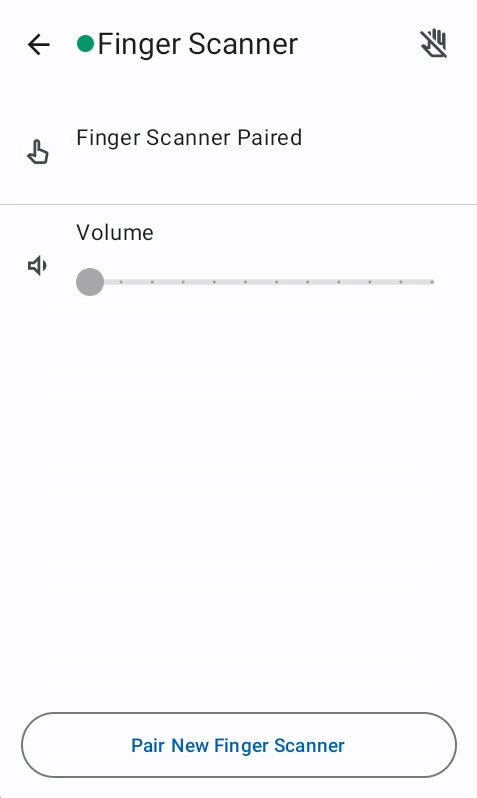
The Finger Scanner screen allows users to manage external finger scanner devices for barcode scanning. Users can view connection status, adjust volume settings, and pair new finger scanner devices through a multi-step setup process.
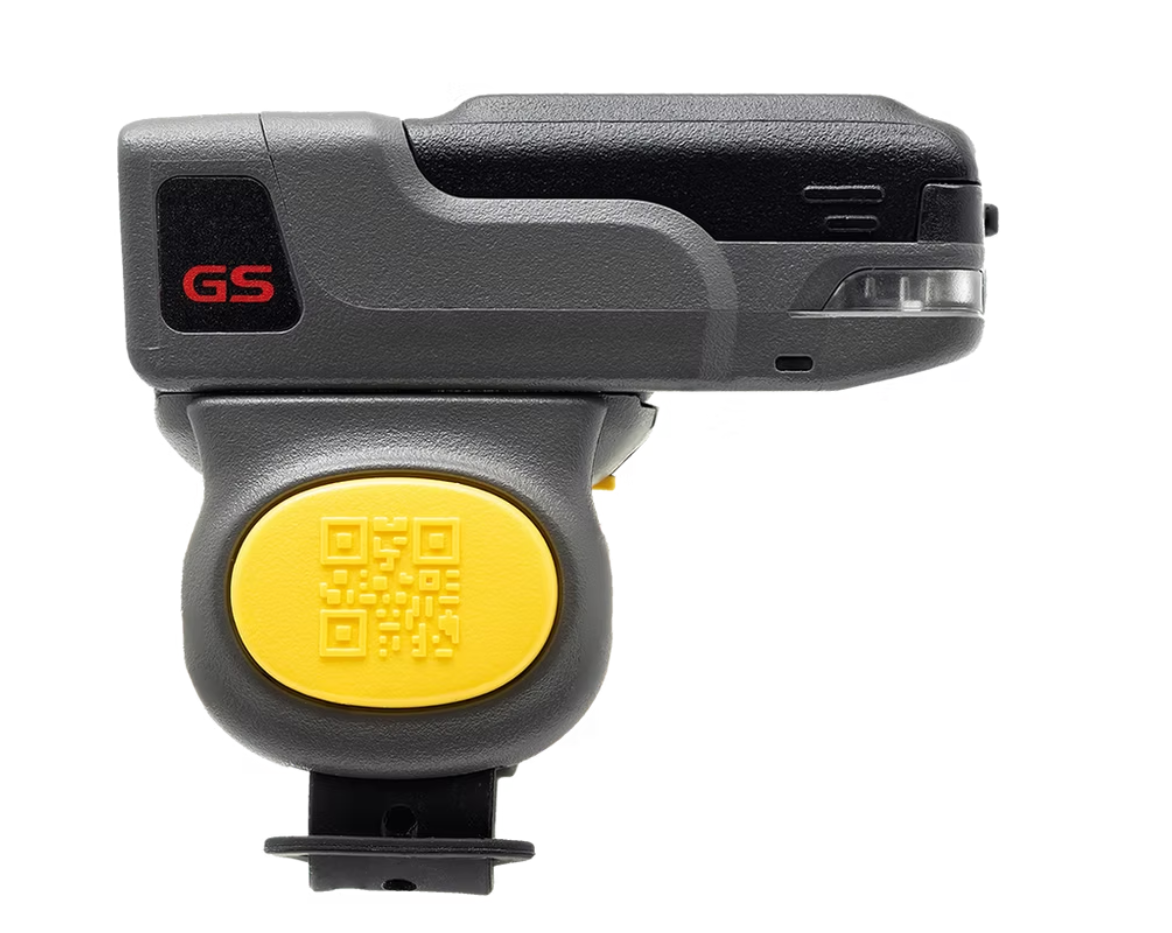
The connection flow only supports the General Scan GS R3523 device.
Connection Flow
-
Click on the button to pair a new Finger Scanner
-
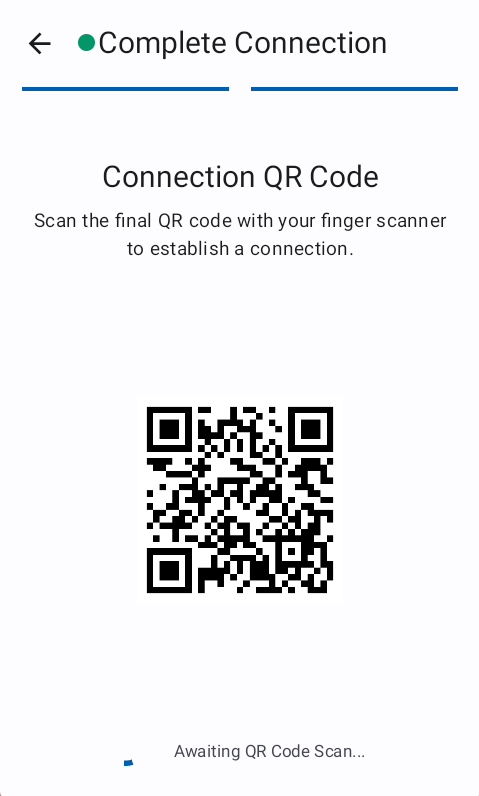
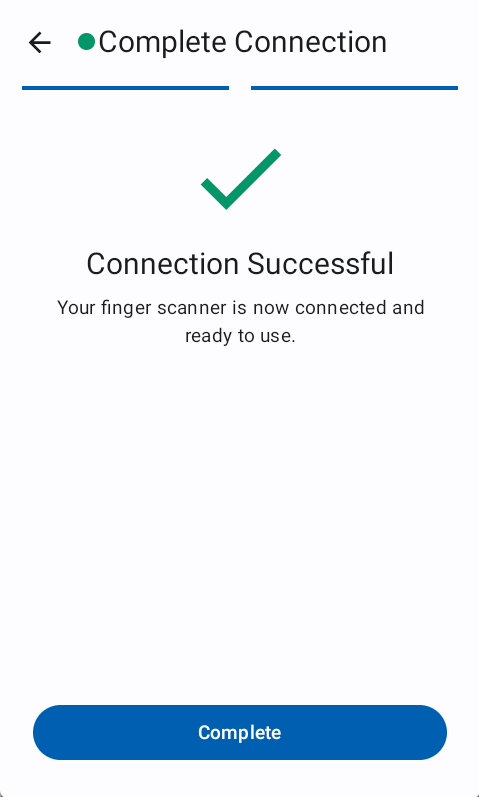
Scan the Connection QR code and wait until the scanner gets connected -> Complete
-
After the scanner is successfully paired the volume can be changed from the main Finger Scanner screen, and the Connection icon on the Top bar changes from
 to
to 
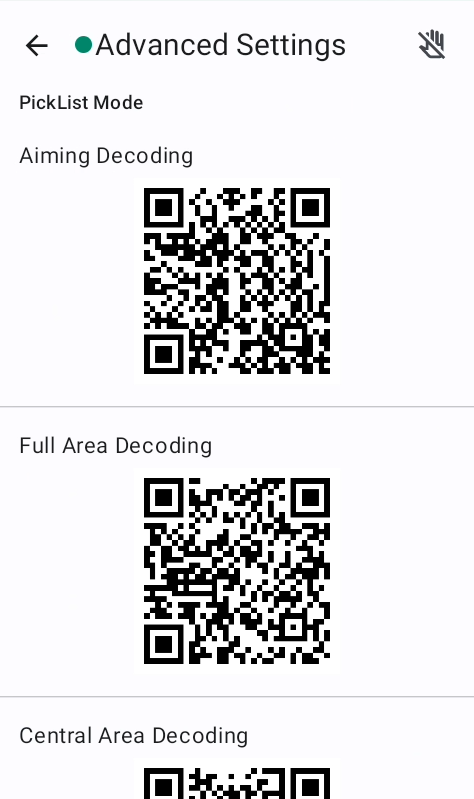
Advance Settings
The advance Settings allow the user to choose a different decoding area. By default the "Aiming Decoding" is applied. To chose another decoding area scan the belonging QR code. The setting will be reset during the connection flow.
Trouble shooting
Common Issues
Connection Failed
Occurs when the finger scanner connection could not be completed and requires a retry.