Anmeldung
Der Anmeldeprozess authentifiziert den Benutzer und lädt Projektkonfigurationen herunter.
Übersicht
Bei der Anmeldung ruft das System das aktuelle Projekt und die Benutzerdetails ab und prüft auf offene Zonen-Check-in-Sitzungen. Wenn auf dem Scanner eine offene Sitzung vorhanden ist, gibt die Antwort an, ob diese dem aktuellen Benutzer gehört oder ob der Benutzer die Berechtigung hat, andere Sitzungen zu synchronisieren.
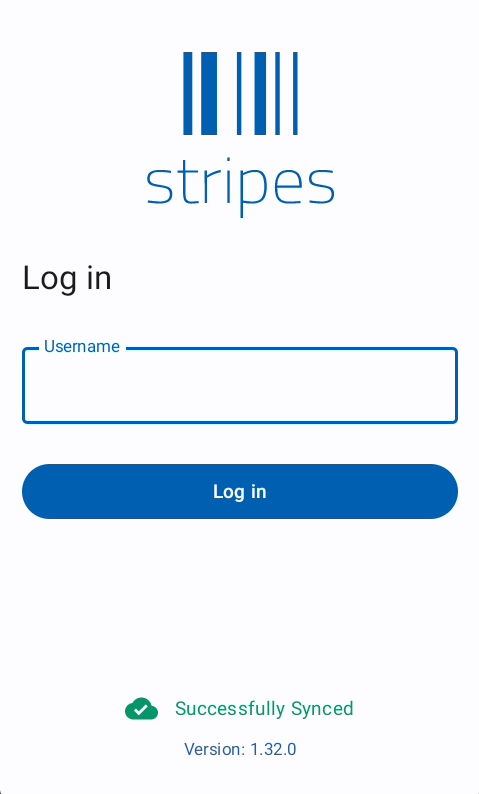
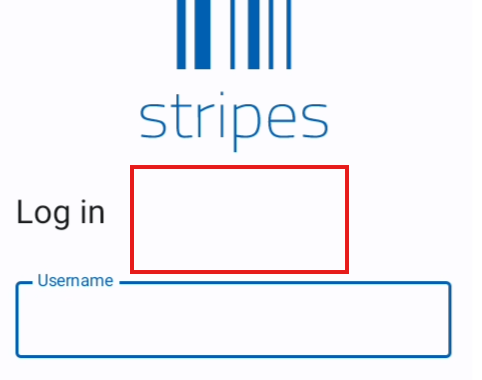
Die Hauptansicht zeigt ein Eingabefeld für die Anmeldung.
- Benutzername: Die Benutzerkennung zur Authentifizierung.
Am unteren Rand zeigt die App den Synchronisierungsstatus und die aktuelle App-Version an.
Funktionen
Anmeldung
Bei der Anmeldung ruft das System das aktuelle Projekt und die Benutzerdetails ab und prüft die Match-Datenbank sowie offene Zonen-Check-in-Sitzungen. Wenn auf dem Scanner eine offene Sitzung vorhanden ist, gibt die Antwort an, ob diese dem aktuellen Benutzer gehört oder ob der Benutzer die Berechtigung hat, andere Sitzungen zu synchronisieren.
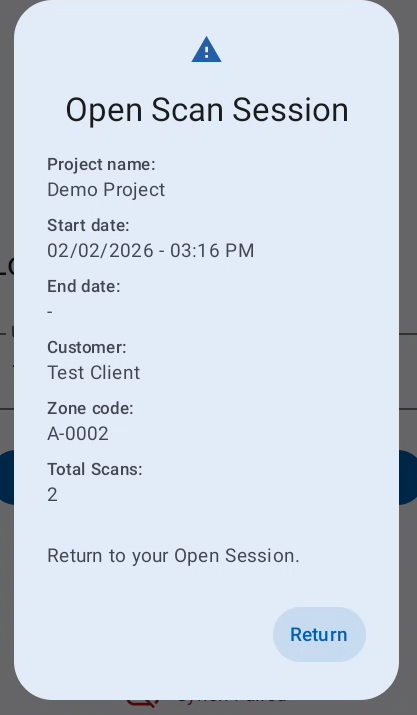
Rückkehr zur offenen Sitzung
Wenn der anmeldende Benutzer eine offene Sitzung auf dem Scanner hat, wird er automatisch mit einer Benachrichtigung zu dieser offenen Sitzung weitergeleitet.
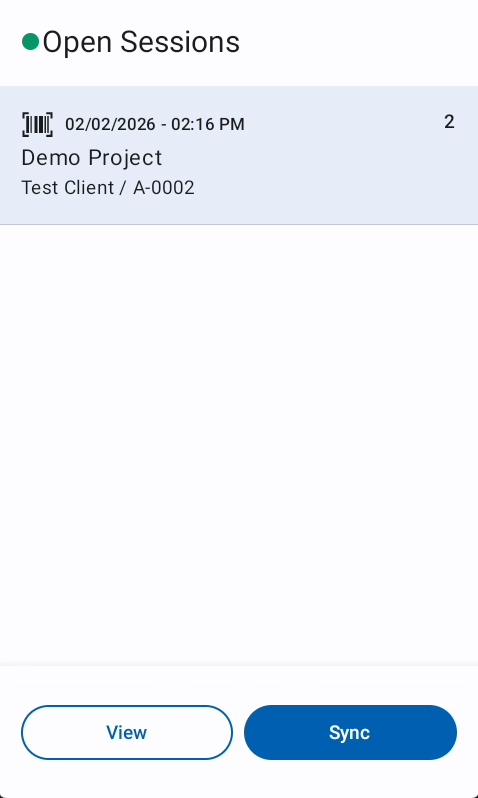
Offene Sitzung als Team Manager synchronisieren
Wenn der anmeldende Benutzer als Team Manager angemeldet ist und eine offene Sitzung eines anderen Benutzers vorhanden ist, kann der Team Manager diese Sitzungen synchronisieren oder löschen.
Systemeinstellungen
Um das versteckte Systemmenü aufzurufen, dreimal zwischen dem Stripes-Logo und dem Eingabefeld für den Benutzernamen tippen.
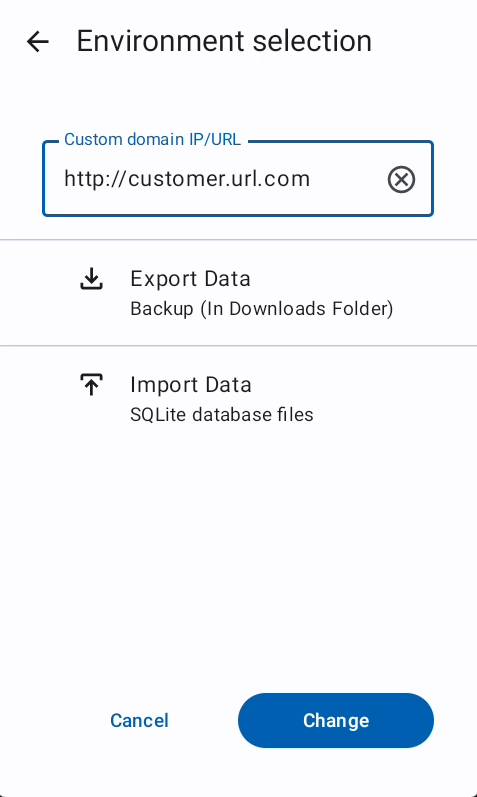
Umgebungsauswahl
Die Umgebungs-URL definiert die Basis-URL für die gesamte Kommunikation.
Die Umgebungs-URL ist ein über Android verwaltetes Konfigurationsfeld, das durch ein Mobile Device Management-System gesteuert werden kann.
Datenbank-Backup
Das Datenbank-Backup speichert eine Sicherungsdatei der aktuellen App-Datenbank im Download-Ordner. Dieses Backup kann zur Fehlerbehebung oder zum Import auf ein anderes Gerät verwendet werden.
Backup-Import
Mit dem Backup-Import können Sie ein Datenbank-Backup importieren und Scan-Daten usw. wiederherstellen.
Dieser Import überschreibt alle aktuellen Daten der App.
Import Match Datenbank
Mit dem Import der Match-Datenbank können Sie eine Stammdatendatei in den App-Ordner importieren.
Tastenkürzel
| Hardware-Taste | Aktion |
|---|---|
| FN + 1 | Touch deaktivieren/aktivieren |
| FN + 2 | WLAN-Einstellungen öffnen |
| FN + 3 | Mobile-Einstellungen öffnen |
| FN + 5 | Helligkeit verringern |
| FN + 6 | Helligkeit erhöhen |
| FN + F6 | Taschenrechner öffnen |
| FN + F8 | App schließen |
Fehlerbehebung
Häufige Probleme
Keinem Projekt zugewiesen
- Teamleiter kontaktieren, um Sie dem Projekt zuzuweisen
Keine Match-Datenbank gefunden
- Teamleiter kontaktieren, um die korrekte Match-Datenbank vorzuladen
- Prüfen, ob die Match-Datenbank entpackt ist
- Prüfen, ob die Match-Datenbank im richtigen Ordner gespeichert ist
Mehreren Projekten zugewiesen
- Teamleiter kontaktieren, um Sie von ungültigen Projekten abzumelden
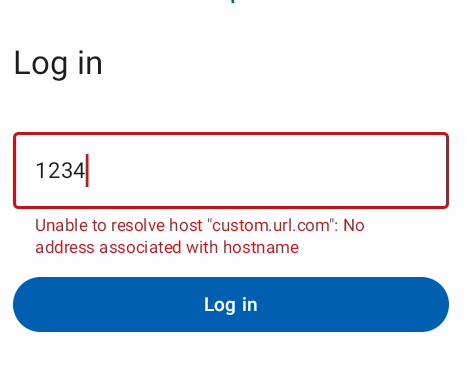
Keine Verbindung
- Prüfen, ob der Scanner eine Internetverbindung hat
- Umgebungs-URL prüfen
Benutzer existiert nicht
- Prüfen, ob der Benutzername korrekt eingegeben wurde (einschließlich führender Nullen)
- Richtige Umgebung prüfen
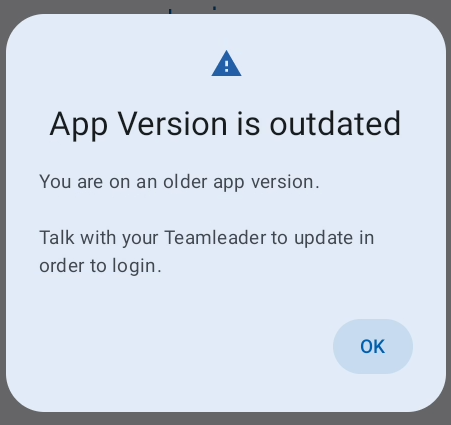
App-Version ist veraltet
- Die Anwendungsversion ist zu alt und muss aktualisiert werden.